

Fronius Modbus: read a Symo GEN24 over Modbus TCP
Fronius Modbus explained: enable Modbus TCP on the Symo GEN24 on port 502, choose between int+SF and float, read the right SunSpec registers and scale them correctly. Practical guide for solar installers.
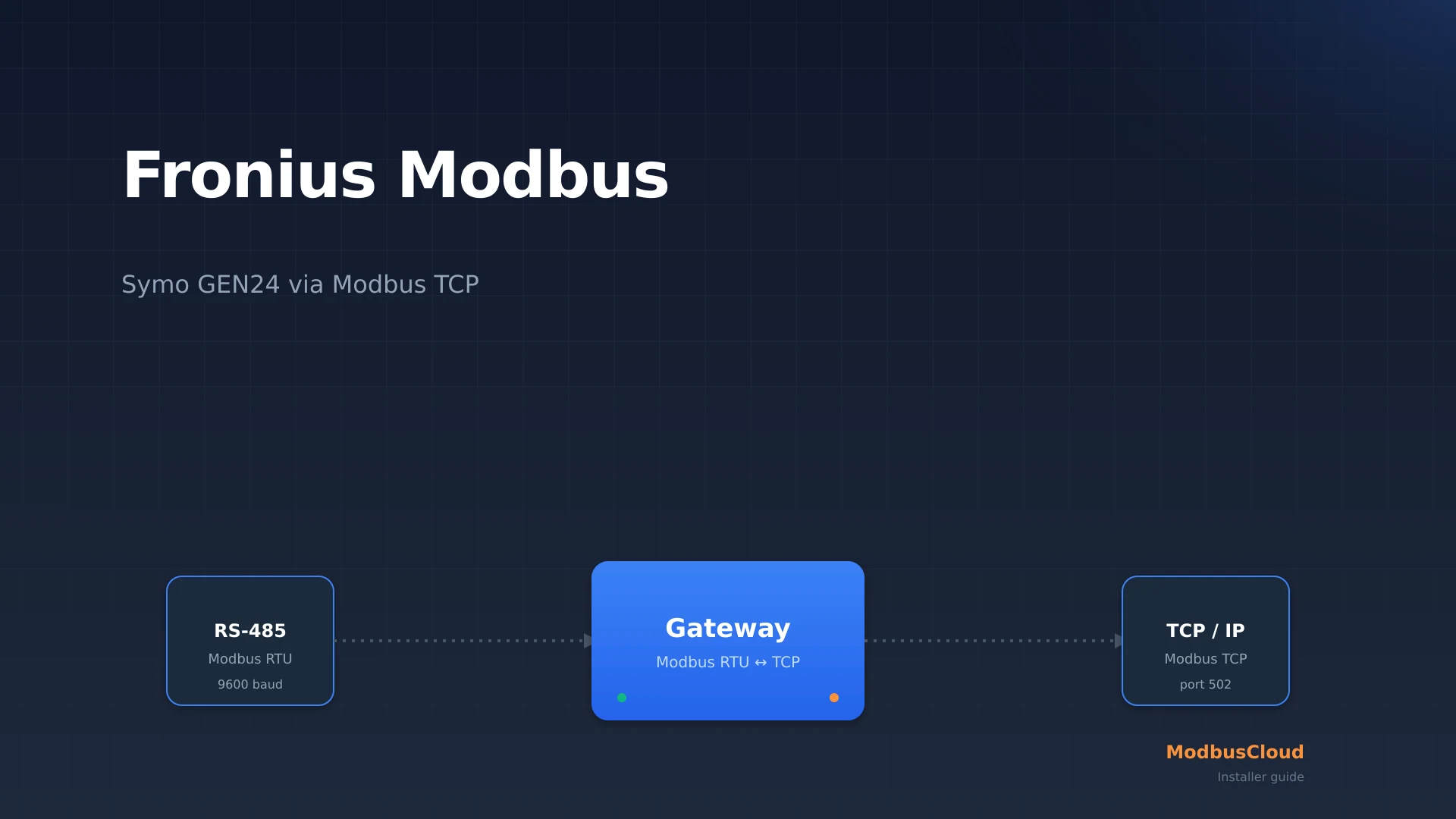
Fronius Modbus means reading a Fronius Symo GEN24 locally over Modbus TCP instead of through the manufacturer's Solar.web portal. You open a Modbus TCP connection to the inverter on port 502, pick one of the two SunSpec register maps Fronius offers (int+SF or float) and pull AC power, energy yield, grid frequency, DC power and the operating state directly. For an installer, that is the basis for your own monitoring, alerts and energy management, without depending on a manufacturer account. This guide explains how to enable Modbus TCP in the GEN24 web UI, what separates int+SF from float, which registers matter, and why the actual addresses carry an offset of one.
Updated: August 2026.
What you will find in this guide
- Which Fronius inverters speak Modbus and over which interface
- Enabling Modbus TCP through the Symo GEN24 web UI
- int+SF versus float: which SunSpec register map to choose
- The registers you use in practice, with data types and scaling
- Why you read register 40001 at address 40000 (the offset of one)
- The difference between the GEN24 and an older Symo with Datamanager 2.0
Free: RS485 and Modbus RTU installation checklist (PDF)
The pre-commissioning checklist for every RS485 bus. Print it and take it to site.
- Wiring order: A/B polarity, GND and shielding
- Termination and biasing, with the multimeter checks
- Communication settings crib sheet (baud rate, parity, stop bits)
- The 10 most common faults and how to spot them
What is Modbus TCP on a Fronius Symo GEN24?
Modbus TCP on a Fronius Symo GEN24 is a local Modbus server the inverter offers over Ethernet or WiFi on port 502, the IANA standard port for Modbus TCP. The server is disabled by default, and data communication is built into every GEN24, so you need no extra card or hardware to pull production data, only a Modbus client or gateway on the same subnet.
The appeal of this route is independence. Where Solar.web needs a cloud account, internet and the Fronius infrastructure, Modbus TCP talks directly on your own network. That enables local alerts, longer data retention and brand-neutral consolidation. Fronius follows the open SunSpec standard, so the register logic is the same as other SunSpec brands. For the protocol basics it helps to keep what is Modbus at hand; this guide assumes you know what a holding register is.
What you need
Before you can read Fronius Modbus, check four things. Without this baseline you will hit a timeout or an empty response on the first poll.
- A Fronius Symo GEN24 or Primo GEN24 with a network connection, over the built-in LAN port or WiFi, on the same subnet as your Modbus client.
- The inverter's IP address, plus access to the local web UI. For parameter changes you log in with the technician or owner account.
- A choice between int+SF and float before you poll registers; that choice decides which SunSpec models the inverter exposes.
- A Modbus client or gateway that can poll on port 502, plus the register map further down this guide.
Enabling Modbus TCP on the GEN24
Modbus is off by default. You enable it through the inverter's local web UI, reachable at the GEN24's IP address. The procedure is short.
- 1
Log in to the web UI
Open the inverter's local web UI in a browser on the same network. Log in with the technician or owner account, otherwise the communication parameters are greyed out.
- 2
Go to Communication and Modbus
Navigate to Communication and then Modbus. Here you find the data output (tcp or rtu), the port and the SunSpec Model Type.
- 3
Set data output to tcp
Choose tcp as the data output. The port defaults to 502; 1502 is selectable, but keep 502 unless you have a reason not to. The inverter now starts a Modbus server on the network interface.
- 4
Choose int+SF or float
Set the SunSpec Model Type. int+SF gives models 101/102/103 (and meter 201/202/203); float gives 111/112/113 (and meter 211/212/213). See the next section for the choice.
- 5
Test the connection
Poll from your client on the inverter's IP address, unit id 1, holding register 40000 (that is logical register 40001, the SunS marker). If you get the ASCII text SunS back, the server is correctly enabled.
Important: reading Modbus locally runs alongside Solar.web, not instead of it. The inverter keeps talking to the Fronius cloud over HTTPS for warranty, firmware updates and remote monitoring, while you read the same inverter locally on port 502. So you do not have to change anything about the portal connection.
int+SF or float: which register map do you choose?
This is the core of Fronius Modbus and the first choice you make. Unlike SMA, which puts a proprietary profile next to SunSpec, Fronius offers pure SunSpec, but in two flavours.
The int+SF profile (integer plus scale factor) uses SunSpec models 101 (single phase), 102 (split phase) and 103 (three phase). Each measured value is an integer with a separate scale factor register that says which power of ten to multiply by. This profile is compact and widely compatible, and is the default choice for most installers.
The float profile uses models 111, 112 and 113. Each measured value is an IEEE754 32-bit floating point number across two registers, with no scale factor. That is easier to process in software, but uses two registers per value and is supported by slightly fewer clients.
The Fronius registers that matter
The registers below follow the int+SF profile (SunSpec model 103, three phase) from the Fronius operating instructions GEN24 Modbus TCP and RTU (document number 42,0410,2649). Important: Fronius notes that the exact addresses are dynamic and depend on the composition of the SunSpec list. So always verify with a test poll or the Fronius Excel register map before you build dashboards. Read these registers with function code 03 (read holding registers).
| Adres | Naam | Type | Eenheid | R/RW | Beschrijving |
|---|---|---|---|---|---|
| 40071 | AC current | uint16 | A | R | Total AC current, scale factor A_SF at 40075 |
| 40083 | AC power | int16 | W | R | Active AC power total, scale factor W_SF at 40084 |
| 40085 | Grid frequency | uint16 | Hz | R | Grid frequency, scale factor at 40086 |
| 40093 | Total energy | acc32 | Wh | R | Lifetime energy since installation, scale factor at 40095 |
| 40100 | DC power | int16 | W | R | DC power total, scale factor at 40101 |
| 40102 | Cabinet temp | int16 | C | R | Internal temperature, scale factor at 40106 |
| 40107 | Operating state | enum16 | enum | R | St: 1 off, 2 sleeping, 4 MPPT (running), 7 fault |
Two things you have to understand here, otherwise you read nonsense.
Scale factors instead of fixed decimals
On the int+SF profile every measured value is an integer, and the scaling sits in a separate scale factor register right next to it. The real value is the raw register value times ten to the power of the scale factor. Register 40083 (AC power) reads 550, for example, and scale factor W_SF at 40084 reads 1: the real value is then 550 times ten to the power of 1, that is 5,500 W. On the float profile these scale factors do not apply and you read a 32-bit float directly.
The offset of one when addressing
This is the most common mistake when reading a Fronius yourself. SunSpec registers begin logically at 40001, but on the wire you use an address that is always one lower. To read register 40001 you use address 40000 (0x9C40). The addresses in the table above are the logical SunSpec numbers; subtract one for the protocol address, or let your client do it. Many Modbus libraries already work with a base address, so test with a known value like the SunS marker before drawing conclusions.
For a usable monitoring set, four registers suffice: 40083 for real-time AC power, 40093 for total yield, 40107 for the operating state and 40102 for temperature (useful for derating detection in summer). If you also want to measure export and consumption, add a Fronius Smart Meter, which offers its own SunSpec meter registers at meter address 200.
GEN24 versus an older Symo
Not every Fronius Symo works the same. The Symo GEN24 and Primo GEN24 have data communication built in, so Modbus TCP lives in the local web UI as described above. An older Fronius Symo from the SnapINverter generation instead needs the Fronius Datamanager 2.0 card; there you enable Modbus TCP in the Datamanager web UI under Settings and Modbus.
Troubleshooting common problems
Most Fronius Modbus problems come down to a handful of causes. Work through this list if you get no connection or nonsense values.
- Modbus is still off. The server is disabled by default. Check under Communication and Modbus that the data output is set to tcp.
- Offset of one forgotten. If you poll register 40001 instead of address 40000, you read the wrong data. Always subtract one or test with the SunS marker.
- Wrong profile expected. If you expect scale factors but the inverter is on float (or the other way around), your values will not match. Check the SunSpec Model Type in the web UI.
- Scale factor forgotten. An AC power of 550 with scale factor 1 is 5,500 W, not 550 W. Without the multiplication by ten to the power of the scale factor your values are wrong.
- Different subnet or firewall. The gateway sits on a different subnet than the inverter, or port 502 is blocked. Put the inverter on a fixed IP or DHCP reservation so the address does not change.
Reading locally with a gateway
For a single inverter, a Modbus client on a laptop or a Home Assistant instance is enough. Open-source integrations for Fronius and SunSpec are widely used by prosumers who want to read their GEN24 locally, and tools like evcc and node-red are common. If you want to walk that route, Home Assistant Modbus integration helps you start.
For a growing fleet with multiple customers, a fixed gateway per site becomes more practical. A ModbusCloud Gateway (see the Gateway page) hangs on the local network, opens a Modbus TCP session to the inverter on port 502, polls the registers from the table above through the chosen profile, applies the scale factors and sends the values encrypted to a dashboard. The hardware is not tied to a specific model; the Gateway reads any SunSpec-compliant inverter the same way, so a mixed fleet of Fronius, SMA and SolarEdge consolidates into one overview.
The business hook is the open standard. Because Fronius, SMA, SolarEdge and Kostal all speak SunSpec, one gateway with one register logic reads them all; only the port changes. Local, real-time production data is the basis for battery control, dynamic tariffs and export limiting under grid constraints. Solar.web remains for cloud and warranty monitoring, but for your own alerts and brand-neutral consolidation, local Modbus reading is essential.
Frequently asked questions
Does a Fronius Symo GEN24 have Modbus by default?
Yes, every Fronius GEN24 has data communication built in with a Modbus TCP server on port 502, but it is off by default. You enable it in the inverter's local web UI under Communication and Modbus. No extra card is needed, unlike an older Symo that requires the Fronius Datamanager 2.0.
What port does Fronius Modbus TCP use?
Fronius uses the IANA standard port 502 for Modbus TCP, with 1502 as a selectable alternative. That is different from SolarEdge, which listens on 1502. A gateway defaulting to 502 works with Fronius out of the box. Do check that the data output in the web UI is set to tcp.
What is the difference between int+SF and float on Fronius?
int+SF uses SunSpec models 101/102/103 with integers and separate scale factor registers; the real value is the raw number times ten to the power of the scale factor. float uses models 111/112/113 with 32-bit floating point across two registers, without a scale factor. int+SF is compact and widely compatible; float is easier to process.
What unit ID does a Fronius inverter have?
On Modbus TCP the Fronius inverter's unit id is always 1; identification is by IP address. On Modbus RTU the inverter address defaults to 1 (configurable 1 to 247). A connected Fronius Smart Meter sits at meter address 200 by default.
Why do I read wrong values at register 40001?
SunSpec registers begin logically at 40001, but on the wire you use an address that is one lower. To read register 40001 you use address 40000 (0x9C40). So always subtract one from the logical register number, or let your client do it through a base address, and test with the SunS marker.
Which registers should I read on a Fronius GEN24?
For usable monitoring, four int+SF registers suffice: 40083 for current AC power, 40093 for total yield, 40107 for the operating state and 40102 for the cabinet temperature. Mind the scale factor per register and the offset of one when addressing.
Can I read a Fronius inverter in Home Assistant?
Yes. Enable Modbus TCP on the inverter and use the standard Home Assistant Modbus integration or a ready-made Fronius or SunSpec integration. Point it at port 502 and unit id 1. Choose int+SF or float consistently and apply the scale factors on int+SF, otherwise your graphs will not match.
Reading Fronius Modbus is less of an extra and more of a core skill for the installer of 2026. You enable Modbus TCP in the GEN24 web UI, remember that the port is 502, choose between int+SF and float, and account for the scale factors and the offset of one. Combine those and you have a local, cloud-independent data layer that underpins your own alerts, energy management and handling of grid constraints. The ModbusCloud Gateway reads a Fronius Symo GEN24 without register programming and consolidates multiple sites and brands into one dashboard, alongside (not instead of) Solar.web.
Question about your setup?
Ask it here. We think along with your project, and building a free integration is part of that.