








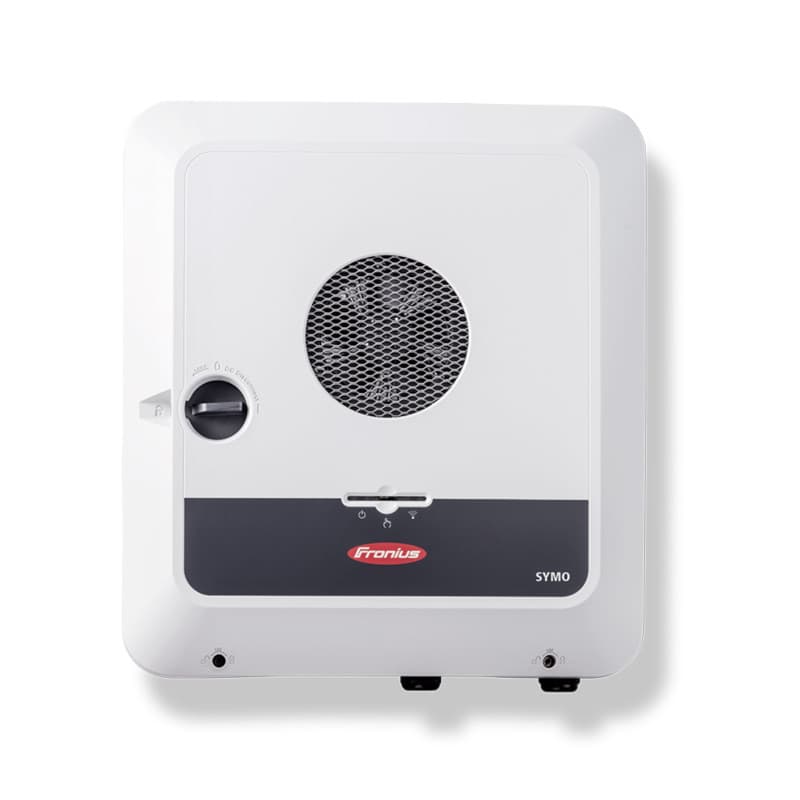
Fronius GEN24
Monitors and controls Fronius GEN24 inverters and PV batteries via SunSpec Modbus TCP
Template for the Fronius GEN24 series inverters. Reads PV system data via the Solar API and controls battery charging and discharging through SunSpec Modbus TCP. Compatible with all GEN24 power classes and Fronius Tauro (read only).
- Protocol
- Modbus TCP
- Connection
- Ethernet, Modbus TCP
- Registers
- 0, read only
- Brand
- Fronius
- Key readings
- PV system power · Battery state · Inverter status
- Available commands
- Battery charge capacity · Battery discharge capacity · Charge window · Discharge window
- Compatible models
- GEN24 Series (all Power Classes) · Tauro (read only)
- Last updated
Send your device list
If a device is not in the library yet, we build the template for free as soon as we have the register data.
Use cases
- Monitor real-time PV production and battery state of charge on a cloud dashboard for residential solar customers.
- Configure battery charge and discharge windows to maximize self-consumption during peak tariff hours.
- Create an alert when the inverter status indicates a fault or unexpected shutdown.
- Track daily and monthly PV yield across multiple Fronius GEN24 installations from a single account.
- Adjust battery discharge capacity remotely to respond to changing grid feed-in regulations.
- View Fronius Tauro inverter data in read-only mode alongside GEN24 systems in a mixed fleet.
Installation
Enable Modbus TCP on the Fronius GEN24 via its local web interface using the technician or service password.
Deactivate or remove any existing third-party integration on the inverter to prevent register conflicts.
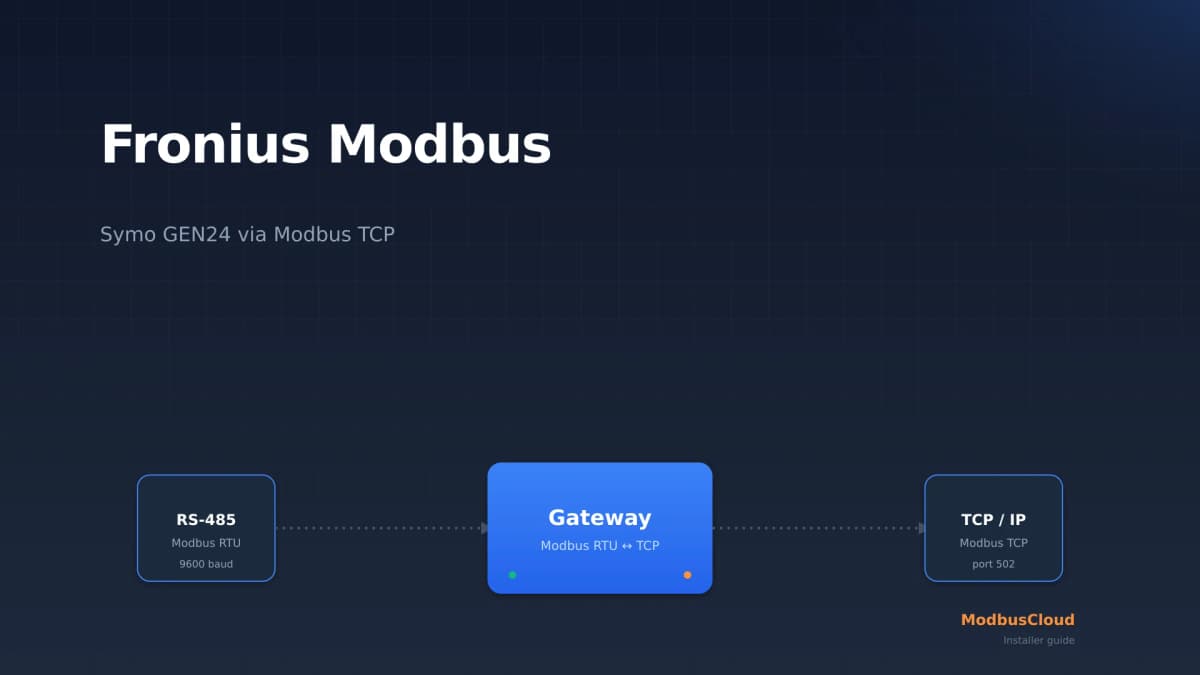
Connect the ModbusCloud Gateway to the same local network as the Fronius GEN24.
Import the Fronius GEN24 template in the ModbusCloud platform and assign the inverter IP address and Modbus TCP port (default 502).
Verify communication by checking that PV power, battery state, and inverter status values appear on the dashboard.
Optionally load the example battery control configuration to enable charge and discharge window management.
Things to watch for
Why am I not receiving any data from the Fronius GEN24?
Modbus TCP must be explicitly enabled on the GEN24 web interface. Log in with the technician or service password and activate the Modbus TCP option under communication settings. Also ensure no other integration is actively using the same registers.
What Modbus TCP port does the GEN24 use?
The default Modbus TCP port on the Fronius GEN24 is 502. This can be verified or changed in the inverter web interface under communication settings.
Can I use this template with the Fronius Tauro?
Yes, but only in read-only mode. Battery control registers are not available on the Tauro through this template.
What byte order and register format does the GEN24 use?
The GEN24 follows the SunSpec standard, which uses big-endian (MSB first) byte order. Registers use integer values with separate scale factor registers. Refer to the Fronius register map document for details on each register pair.



Want to see how it works?
