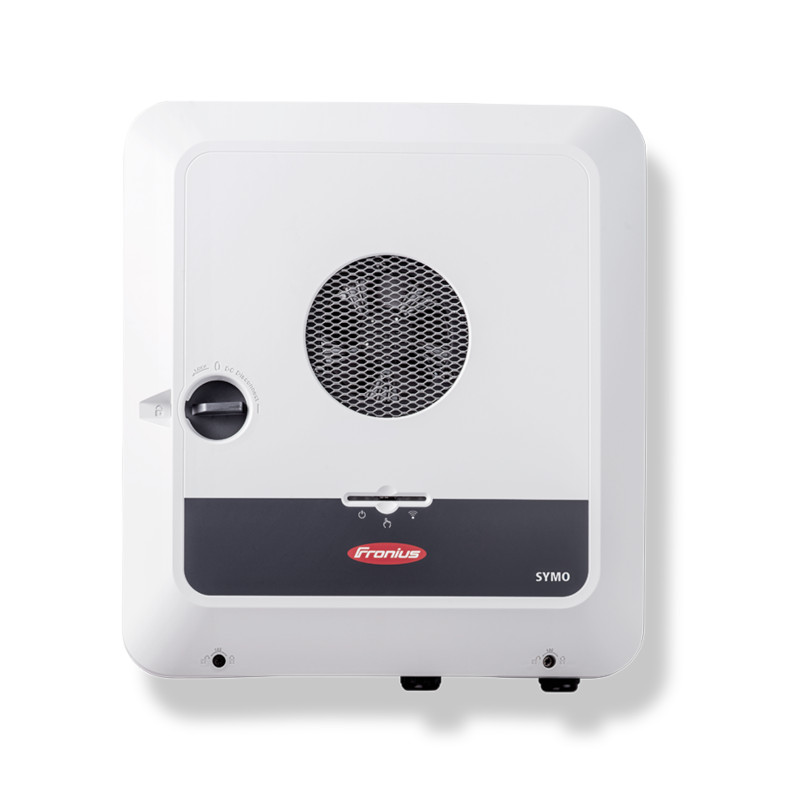

The Sermatec SMT-10K-TL-LV is a low-voltage hybrid inverter for residential and small commercial PV installations, combining solar generation, battery storage, and grid connection in one unit. This Modbus TCP template reads two PV string power registers, power_a and power_b, corresponding to the inverter's dual MPPT inputs. Connecting the SMT-10K-TL-LV to ModbusCloud Gateway gives you a live per-string view of solar generation that you can log, chart, and alert on from the portal.
Use cases
Monitor PV string A and string B power in real time to verify both MPPT channels are producing.
Compare power_a and power_b values to detect imbalance between the two PV strings over a season.
Alert on a sudden drop in either string's power to catch shading, soiling, or partial-string failures quickly.
Log per-string generation data across multiple Sermatec sites in one ModbusCloud multi-site overview.
Verify that both strings recover to expected output after cloudy periods or maintenance work on the array.
Installation
1Enable network access on the Sermatec SMT-10K-TL-LV: connect the inverter to your local LAN via its built-in Wi-Fi or Ethernet port and note the assigned IP address.
2Connect the ModbusCloud Gateway to the same network as the inverter, ensuring TCP port 8899 is reachable from the Gateway to the inverter's IP address.
3In the ModbusCloud portal, add a new device, import the Sermatec SMT-10K-TL-LV (pv) template, and enter the inverter's IP address and Modbus unit ID (default is 1) in the connection settings.
4Trigger a manual poll in the portal and check that power_a and power_b return plausible watt values during daylight; a reading of 0 at midday indicates a connection or unit-ID mismatch.
Things to watch for
01
Both registers return 0 even during strong sunlight. Why?
The inverter's network interface may not be ready or the TCP connection is blocked. Confirm the inverter IP is reachable by pinging it from the Gateway's network segment. Also verify that TCP port 8899 is not blocked by a firewall or VLAN rule between the Gateway and the inverter.
02
The portal shows connection OK but power_a and power_b read as negative. What is wrong?
The registers use a signed int16 type. Negative values can appear if the byte order does not match. Check that the ModbusCloud template is using big-endian byte order, which is the standard for Modbus TCP. If values are still unexpected, confirm the inverter firmware supports Modbus register access on this address range.
03
power_a reads a value but power_b is always 0. Is this normal?
A permanent zero on one string usually means that MPPT channel is unloaded: either no PV panels are wired to string B, the string is in a fault state, or shading is total on that string. Check the inverter's own display or app to confirm whether both MPPT inputs show active generation.
04
The gateway cannot connect to the Sermatec SMT-10K-TL-LV at all. Where do I start?
First confirm the inverter's local IP address using the Sermatec app under the Wi-Fi or network settings section. The default IP on the internal Wi-Fi access point is 10.10.100.254. If you are connecting over your LAN rather than the inverter's own access point, the IP will differ. Assign a static IP to the inverter to prevent address changes after a router reboot.
Registers (2)
2 read / 0 write
Name
Address
Function
Type
Unit
Access
power_a
PV string A instantaneous power output, signed, in watts.
16386
FC03
int16
W
R
power_b
PV string B instantaneous power output, signed, in watts.
16389
FC03
int16
W
R
Working with Modbus in your projects?
ModbusCloud is the hardware-plus-software platform that installers use to monitor, visualise and control Modbus devices from one portal. This template is one of hundreds you can use right away.