








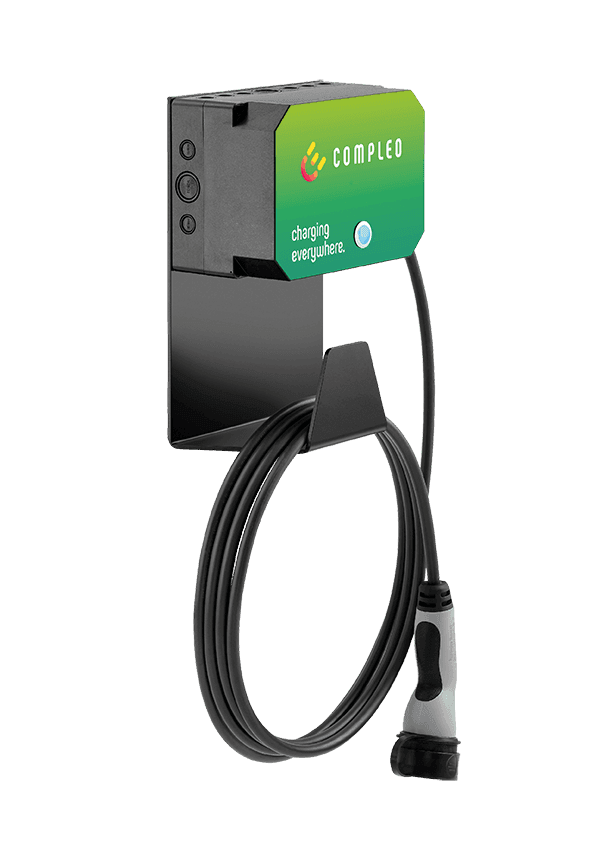
Compleo Wallbe Eco2.0s
Controls and monitors EV charging on a Compleo Wallbe Eco2.0s wallbox via Modbus TCP.
Modbus TCP template for the Compleo Wallbe Eco2.0s EV charging wallbox. Reads charging status, power, energy, charging time, and error codes. Allows control of charge release and charging current setpoint via the integrated Phoenix Contact controller.
- Protocol
- Modbus TCP
- Connection
- Ethernet, Modbus TCP
- Registers
- 8, read and write
- Brand
- Wallbe Compleo
- Key readings
- Status · Charging power (kW) · Total energy (kWh) · Charging time · Error code · Energy per charging process (kWh)
- Available commands
- Charge release · Charging current specification
- Compatible models
- Compleo Eco2.0s · Wallbe Eco2.0s
- Last updated
Registers (8)
6 read, 2 write
| Name | Unit | Access | Address (Hidden until you enter your email) | Function (hidden) | Type (hidden) |
|---|---|---|---|---|---|
| Status | Read | ||||
| charging power | KW | Read | |||
| Total Energy | kWh | Read | |||
| charging time | s | Read | |||
| Error Code | Read | ||||
| energy charging process | kWh | Read | |||
| charge release | Write | ||||
| charging current specification | A | Write |
Loading registers…
Send your device list
If a device is not in the library yet, we build the template for free as soon as we have the register data.
Use cases
- Monitor live charging power and session energy to verify correct wallbox operation remotely.
- Control charge release remotely to enable or disable EV charging sessions from the cloud dashboard.
- Adjust the charging current setpoint for load balancing across multiple wallboxes on a single site.
- Create alerts when error codes appear so you can respond to faults before the customer notices.
- Track total energy consumption per wallbox to support billing or energy reporting for commercial sites.
- Log energy per charging process to provide customers with detailed usage overviews.
Installation
Connect the Compleo Wallbe Eco2.0s to the local network via Ethernet and note the IP address assigned to the wallbox.
Ensure a power meter is wired to the integrated Phoenix Contact controller, as this is required for power and energy readings.
Connect the ModbusCloud Gateway to the same local network as the wallbox.
In the ModbusCloud platform, add a new device and import the Compleo Wallbe Eco2.0s Modbus TCP template.
Configure the device connection with the correct IP address and Modbus TCP port of the wallbox.
Verify that status, power, and energy values appear on the dashboard, and test charge release and current setpoint controls.
Things to watch for
Power and energy readings are always zero. What is wrong?
A power meter must be physically connected to the integrated Phoenix Contact controller. Without this meter, the wallbox cannot report power or energy values. Verify the meter is installed and wired correctly.
Which Modbus TCP port does the wallbox use?
The default Modbus TCP port is 502. Confirm the port setting in the Phoenix Contact controller configuration if it has been changed.
Charging time and energy per process show incorrect values. How do I fix this?
These registers use uint32 format across two consecutive registers. Make sure the template register configuration matches the correct data type and byte order. The ModbusCloud template handles this automatically when imported without modifications.
Is this template compatible with both Compleo and Wallbe branded versions?
Yes. The Compleo Eco2.0s and Wallbe Eco2.0s are the same hardware. This template works with both variants without any changes.





Want to see how it works?
