



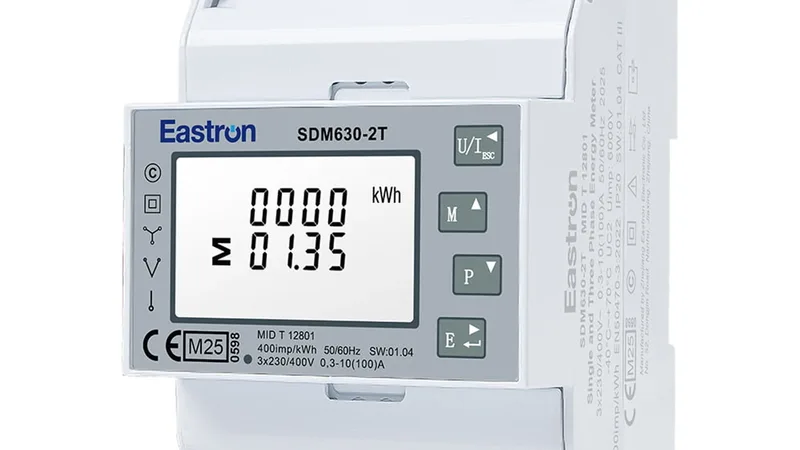
Huawei Sun2000 Inverter and Schneider Bi directional meter
Reads solar inverter and bidirectional meter data via Modbus TCP
This template reads data from a Huawei Sun2000 inverter and a Schneider bidirectional 3-phase meter over Modbus TCP. It covers AC/DC power, daily and total energy, frequency, device status, and energy import/export from the Schneider meter.
- Protocol
- Modbus TCP
- Connection
- Ethernet, Modbus TCP
- Registers
- 6, read only
- Brand
- Huawei and Schneider
- Key readings
- AC Active Power · DC Input Power · Energy Total · Energy Day · Frequency · Device Status
- Compatible models
- Huawei Sun2000 M1 · Schneider Bi-Directional 3 Phase Meter
- Last updated
Registers (6)
6 read, 0 write
| Name | Unit | Access | Address (Hidden until you enter your email) | Function (hidden) | Type (hidden) |
|---|---|---|---|---|---|
| DeviceStatus | Read | ||||
| Energy Total | kWh | Read | |||
| AC ActivePower | W | Read | |||
| Frequency | Hz | Read | |||
| DC InputPower | kW | Read | |||
| Energy Day | kWh | Read |
Loading registers…
Send your device list
If a device is not in the library yet, we build the template for free as soon as we have the register data.
Use cases
- Monitor real-time AC and DC power output of a Huawei Sun2000 inverter on a cloud dashboard.
- Track daily and total energy production to verify solar system performance over time.
- Compare grid import and export values from the Schneider meter to assess self-consumption ratios.
- Create an alert when device status changes to flag inverter faults or shutdowns immediately.
- Generate monthly energy reports combining PV yield and grid exchange data for your customer.
- Verify grid frequency readings to detect abnormal grid conditions at the installation site.
Installation
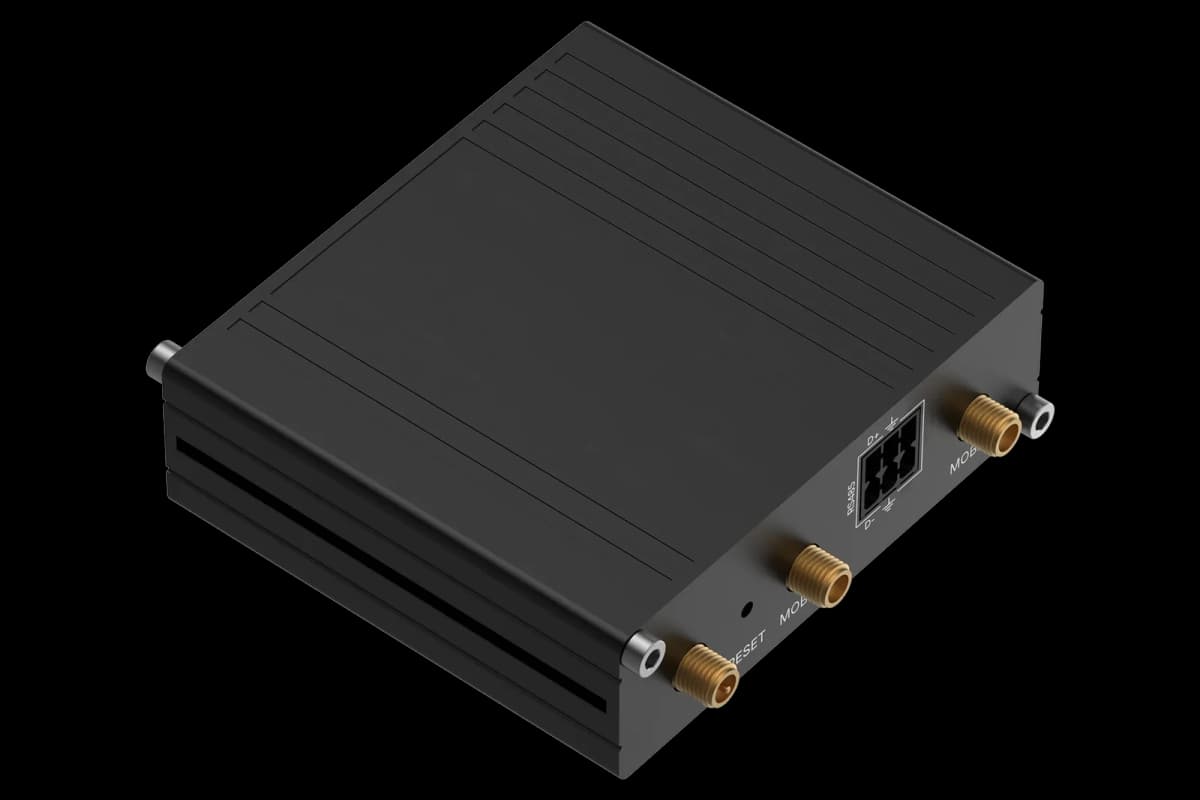
Connect the ModbusCloud Gateway to the same local network as the Huawei Sun2000 inverter and Schneider meter.
Enable Modbus TCP on the Huawei Sun2000 inverter via its configuration interface or the FusionSolar app, and note the IP address and port (default 502).
Ensure the Schneider bidirectional meter is reachable over Modbus TCP, either natively or through an RS485-to-TCP converter, and record its IP address and unit ID.
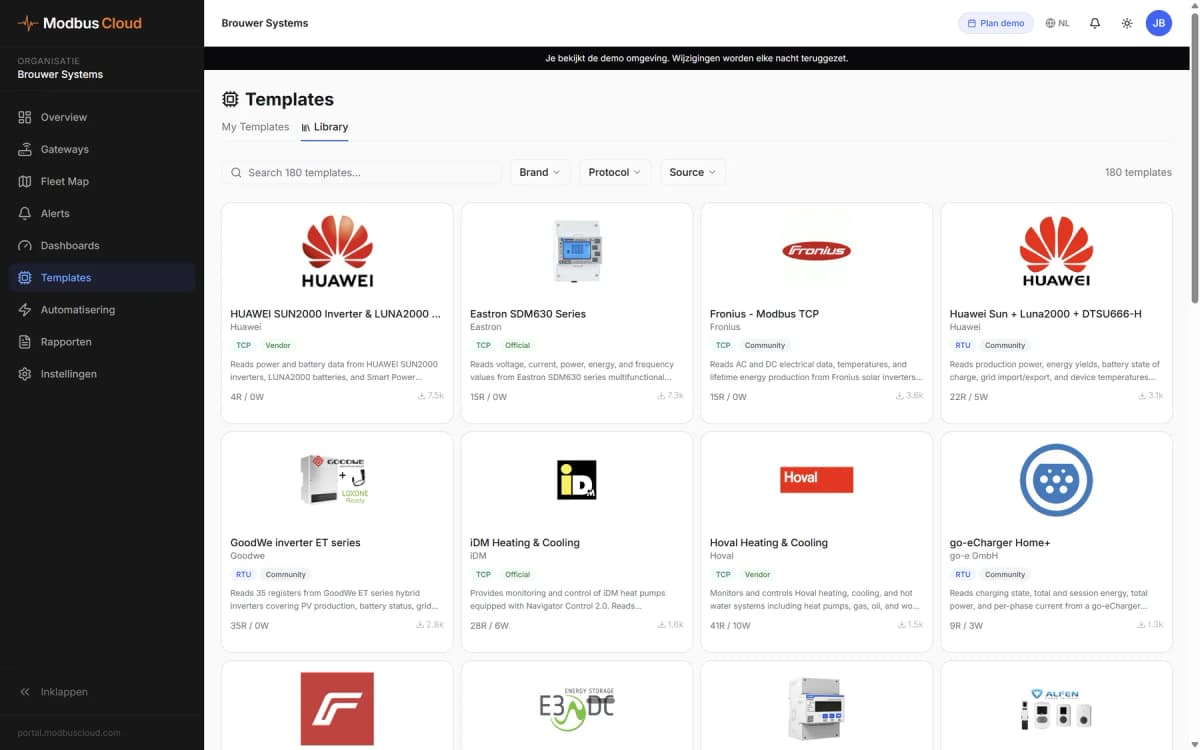
Import the Huawei Sun2000 and Schneider bidirectional meter template from the ModbusCloud template library into your gateway configuration.
Set the correct IP addresses, TCP ports, and Modbus unit IDs for both devices in the template settings.
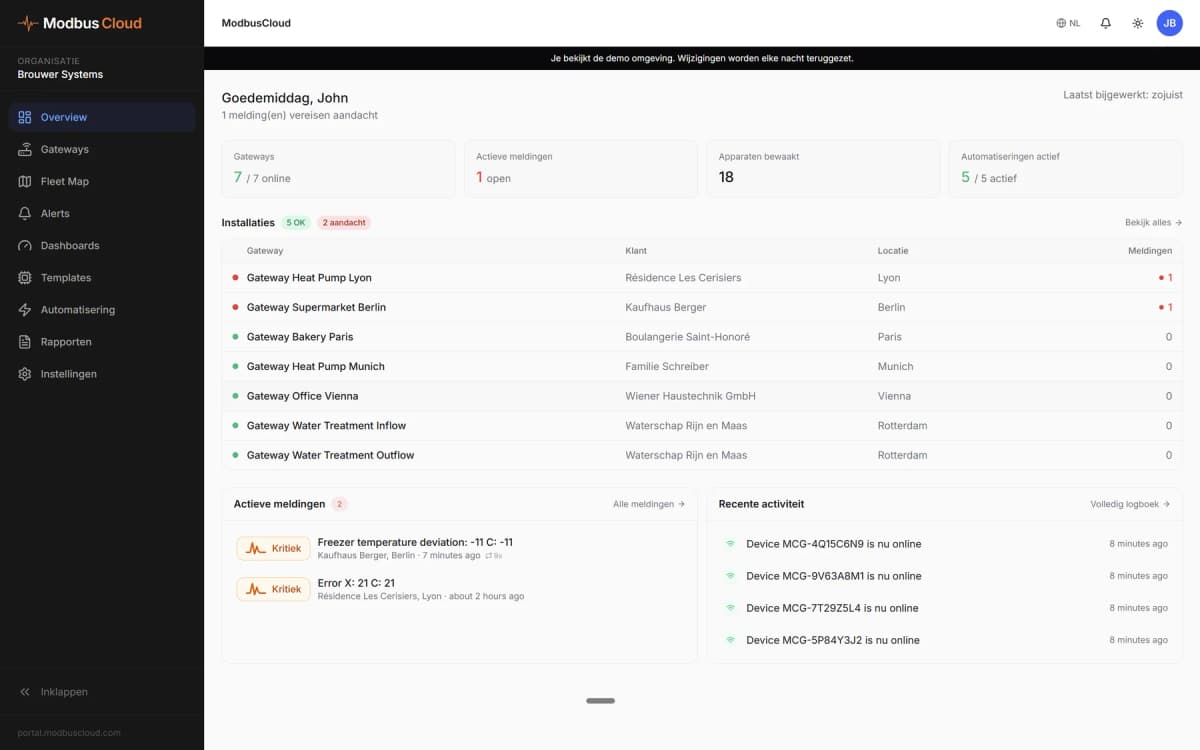
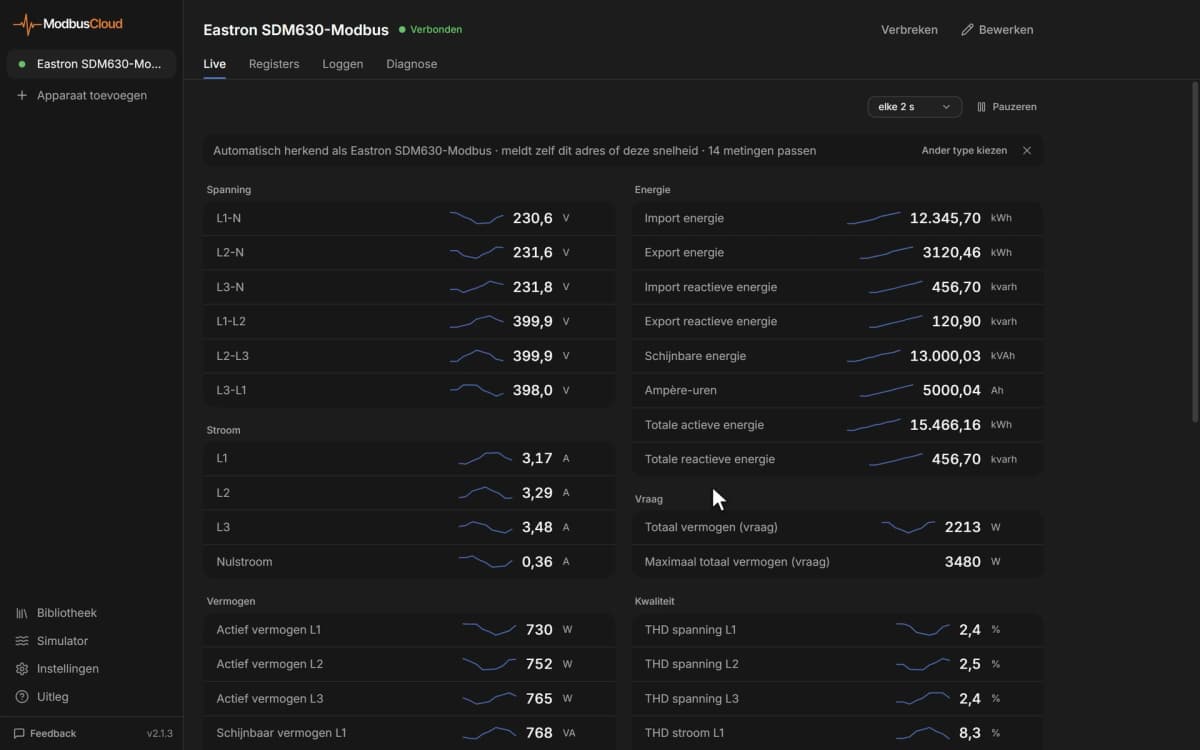
Verify data is flowing by checking live register values on the ModbusCloud dashboard for both the inverter and the meter.
Things to watch for
Why do power and energy values show incorrect or very large numbers?
The inverter uses int32 registers for power and energy, which span two consecutive Modbus registers. Make sure the register pair is read as a 32-bit signed integer with the correct byte and word order. Mismatched byte order will produce wrong values.
How do I enable Modbus TCP on the Huawei Sun2000 inverter?
Modbus TCP can be enabled through the inverter's local interface or the FusionSolar app. Navigate to the communication settings and activate the Modbus TCP server. The default port is 502.
Can I use this template if the Schneider meter is connected via RS485?
Yes, but you need an RS485-to-Modbus-TCP gateway between the meter and the network. Configure the converter with the correct baud rate, parity, and unit ID matching the Schneider meter settings.
What Modbus unit ID should I use for each device?
The Huawei Sun2000 typically defaults to unit ID 1, but this can be changed in the inverter settings. The Schneider meter unit ID depends on your configuration. Verify both unit IDs and enter them correctly in the template.





Want to see how it works?