








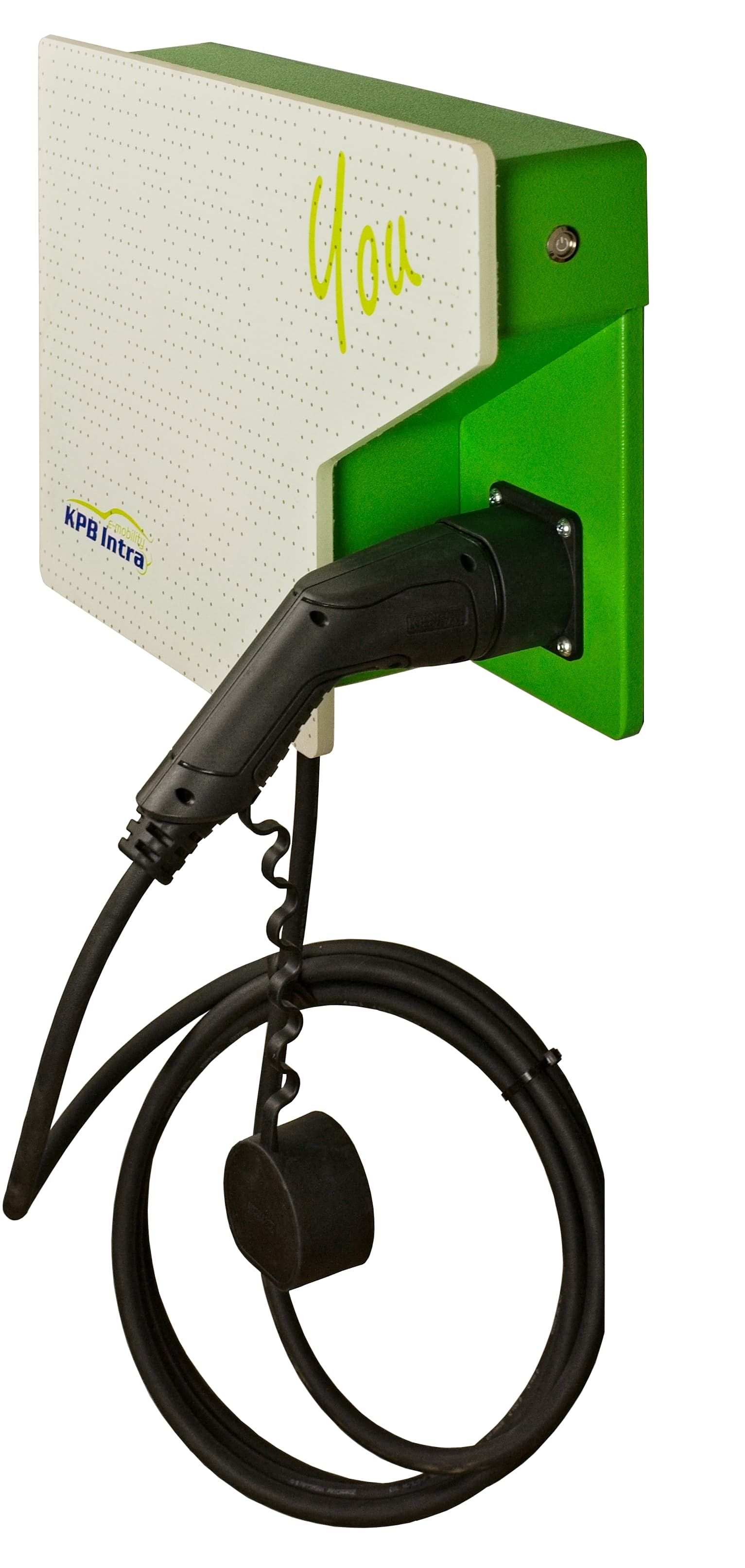
KPB Wallbox Advanced You
Controls and monitors KPB Wallbox Advanced You EV charger via Modbus TCP.
This template connects the KPB Wallbox Advanced You EV charger to ModbusCloud via Modbus TCP. It allows installers to enable or disable charging, set the maximum charge current, and monitor phase currents, voltage, power, energy consumption, charger state, and error codes.
- Protocol
- Modbus TCP
- Connection
- Ethernet, Modbus TCP
- Registers
- 11, read and write
- Brand
- KPB Intra
- Key readings
- Charger state (ABCE) · Current phase 1 to 3 · Voltage · Actual charging energy · Energy consumption and total energy · Error state
- Available commands
- Max charging current · Enable charging
- Compatible models
- KPB Wallbox Advanced You
- Last updated
Registers (11)
9 read, 2 write
| Name | Unit | Access | Address (Hidden until you enter your email) | Function (hidden) | Type (hidden) |
|---|---|---|---|---|---|
| ABCE | Read | ||||
| Current phase 1 | A | Read | |||
| Current phase 2 | A | Read | |||
| Current phase 3 | A | Read | |||
| Energy consumption | kWh | Read | |||
| Total energy | kWh | Read | |||
| Voltage | V | Read | |||
| Actual charging energy | kW | Read | |||
| Error state | Read | ||||
| Max. charging current | A | Write | |||
| Enable charging | Write |
Loading registers…
Send your device list
If a device is not in the library yet, we build the template for free as soon as we have the register data.
Use cases
- Monitor real-time phase currents, voltage, and active power during EV charging sessions on a live dashboard.
- Enable or disable charging remotely to manage load across multiple wallboxes on the same site.
- Set the maximum charging current dynamically based on available grid capacity or time-of-use tariffs.
- Create an alert when the charger reports an error state to reduce downtime for the end user.
- Log total energy consumption per charger for billing or energy reporting purposes.
- Track charger state transitions to verify that scheduled charging sessions start and stop correctly.
Installation
Connect the ModbusCloud Gateway to the same local network as the KPB Wallbox Advanced You.
Ensure Modbus TCP is enabled on the wallbox and note the IP address and Modbus TCP port (default is typically 502).
Configure the correct Modbus unit ID (slave address) on the wallbox if multiple devices share the same network.
In the ModbusCloud portal, add a new device and import the KPB Wallbox Advanced You template.
Enter the wallbox IP address, port, and unit ID in the gateway device configuration.
Verify communication by checking that charger state, voltage, and current values appear correctly on the dashboard.
Things to watch for
Why do current and energy values show incorrect or very large numbers?
The current registers (phase 1, 2, 3), energy registers, and max charging current register are uint32 values spanning two consecutive Modbus addresses. Make sure the gateway is configured to read both addresses as a single 32-bit value with the correct byte and word order.
What do the charger state values A, B, C, and E mean?
A means no vehicle is connected. B means a vehicle is connected but not charging. C means charging is active. E indicates an error condition. Check the error state register for more details when state E is reported.
The wallbox does not respond to Modbus TCP requests. What should I check?
Verify that Modbus TCP is enabled in the wallbox settings. Confirm the IP address, TCP port, and unit ID are correct. Ensure the gateway and the wallbox are on the same subnet and that no firewall rules block port 502.
Can I control the charging current while a session is active?
Yes, writing a new value to the max charging current register takes effect during an active session. The wallbox adjusts the current limit accordingly. The register uses uint32 format, so both consecutive addresses must be written.





Want to see how it works?
