








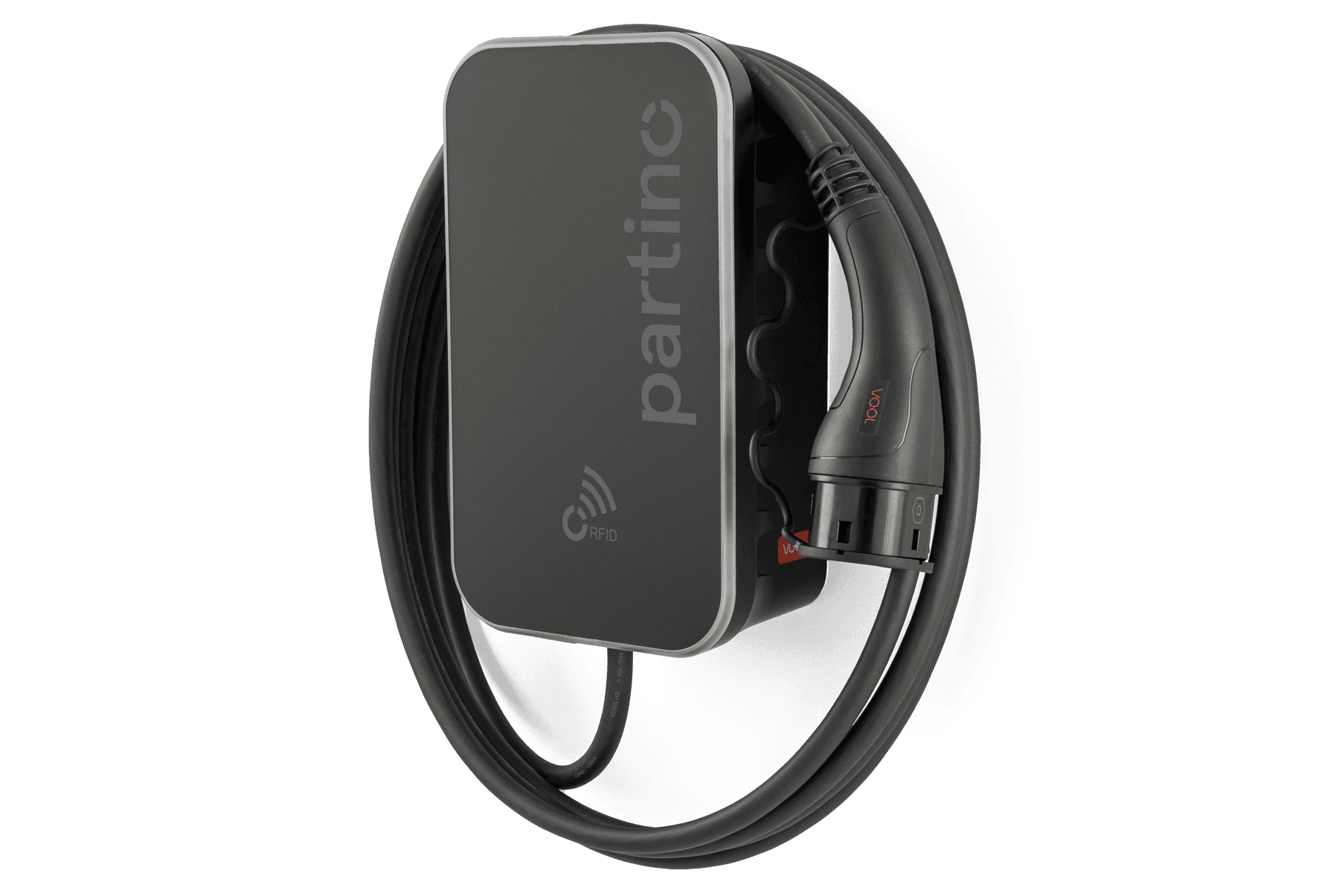
Partino x VOOL
Integrates VOOL Wallbox EV charger via Modbus TCP/UDP
This template integrates the VOOL Wallbox EV charger via Modbus TCP/UDP. It reads charging state, per-phase voltage, current, active power, and energy imported. It also allows control of charging commands, phase selection, and external current limits.
- Protocol
- Modbus TCP
- Connection
- Ethernet, Modbus TCP
- Registers
- 17, read and write
- Brand
- VOOL
- Key readings
- Charger State · Voltage L1 to L3 · AC Current L1 to L3 · Active Power (total and per-phase) · Energy Imported · Requested Phases
- Available commands
- Charging Command · External Current Limit · External Allowed Phase
- Compatible models
- VOOL Wallbox
- Last updated
Registers (17)
14 read, 3 write
| Name | Unit | Access | Address (Hidden until you enter your email) | Function (hidden) | Type (hidden) |
|---|---|---|---|---|---|
| AC Current L1 | A | Read | |||
| AC Current L2 | A | Read | |||
| AC Current L3 | A | Read | |||
| Active Power | kW | Read | |||
| Active Power L1 | kW | Read | |||
| Active Power L2 | kW | Read | |||
| Active Power L3 | kW | Read | |||
| Charger State | Read | ||||
| Energy Imported (LSB) | Wh | Read | |||
| Energy Imported (MSB) | Read | ||||
| Requested Phases | Read | ||||
| Voltage L1 | V | Read | |||
| Voltage L2 | V | Read | |||
| Voltage L3 | V | Read | |||
| Charging Command | Write | ||||
| External Allowed Phase | Write | ||||
| External Current Limit | A | Write |
Loading registers…
Send your device list
If a device is not in the library yet, we build the template for free as soon as we have the register data.
Use cases
- Monitor real-time charging state and power draw of the VOOL Wallbox on a live cloud dashboard.
- Track cumulative energy imported per charger to generate monthly usage reports for billing.
- Create an alert when AC current on any phase exceeds a defined threshold for more than five minutes.
- Remotely start or stop charging sessions via the charging command register from the ModbusCloud interface.
- Limit charging current dynamically to balance load with other building consumers or PV surplus.
- Log per-phase voltage and current data to detect grid imbalance at the installation site.
Installation
Enable Modbus TCP or UDP communication in the VOOL Wallbox settings and note the IP address and port.
Connect the ModbusCloud Gateway to the same local network as the VOOL Wallbox.
Import the Partino x VOOL template from the ModbusCloud template library into your project.
Set the IP address, port, and Modbus unit ID in the template to match the wallbox configuration.
Verify that charger state and voltage readings appear on the ModbusCloud dashboard after the first poll cycle.
Test the charging command and current limit controls to confirm write access to the wallbox registers.
Things to watch for
Which port and protocol should I use, Modbus TCP or UDP?
The VOOL Wallbox supports both TCP and UDP. Use TCP (port 502) for most installations as it provides reliable, connection-oriented communication. Switch to UDP only if your network setup specifically requires it.
How is the Energy Imported value read from two registers?
Energy Imported is a 32-bit unsigned integer. The most significant bytes are at register address 200 and the least significant bytes at address 201. The template combines both registers automatically, so no manual scaling or byte-order adjustment is required.
The gateway connects but all values show zero. What should I check?
Confirm that the Modbus unit ID configured in the template matches the one set on the VOOL Wallbox. Also verify that the wallbox firmware supports Modbus and that no firewall is blocking traffic on the configured port.
Can I limit charging current remotely through ModbusCloud?
Yes. The template includes an External Current Limit register that accepts write commands. Set the desired ampere value from the dashboard or via an automation rule to control the maximum charging current.





Want to see how it works?
