








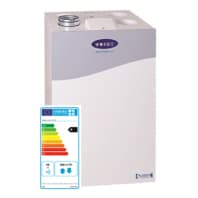
Pluggit Avent 310
Controls Pluggit room ventilation systems via Modbus TCP.
Template for the Pluggit Avent 310 ventilation unit via Modbus TCP. It reads fresh air, supply air, exhaust air, and outgoing air temperatures plus VOC levels. It also allows control of ventilation level and operating mode.
- Protocol
- Modbus TCP
- Connection
- Ethernet, Modbus TCP
- Registers
- 8, read and write
- Brand
- Pluggit
- Key readings
- Status · T1 Fresh air temperature · T2 Supply air temperature · T3 Exhaust air temperature · T4 Outgoing air temperature · VOC
- Available commands
- Ventilation level · Operating mode
- Compatible models
- Avent 310
- Last updated
Registers (8)
7 read, 2 write
| Name | Unit | Access | Address (Hidden until you enter your email) | Function (hidden) | Type (hidden) |
|---|---|---|---|---|---|
| Status | Read | ||||
| T1 Fresh air | °C | Read | |||
| T2 Supply air | °C | Read | |||
| T3 Ehaust air | °C | Read | |||
| T4 Outgoing air | °C | Read | |||
| VOC | ppm | Read | |||
| Act. ventilation level | Read and write | ||||
| Operating mode | Write |
Loading registers…
Send your device list
If a device is not in the library yet, we build the template for free as soon as we have the register data.
Use cases
- Monitor all four air temperatures on a live dashboard to verify heat recovery efficiency.
- Create an alert when the VOC level exceeds a threshold, indicating poor indoor air quality.
- Remotely adjust the ventilation level to boost airflow during high occupancy periods.
- Switch the operating mode to away mode when the building is unoccupied to save energy.
- Log supply and exhaust air temperatures over time to detect filter clogging or declining performance.
- Compare fresh air and outgoing air temperatures to calculate actual heat recovery rates.
Installation
Connect the ModbusCloud Gateway to the same local network as the Pluggit Avent 310 unit.
Verify that Modbus TCP is enabled on the Pluggit Avent 310 and note its IP address and Modbus TCP port (default is 502).
Configure the gateway with the correct IP address and port of the Pluggit unit in the ModbusCloud portal.
Import the Pluggit Avent 310 template from the ModbusCloud template library and assign it to the gateway.
Confirm that temperature readings (T1 through T4) appear with plausible values to verify correct communication.
Test write access by changing the ventilation level from the ModbusCloud dashboard and confirming the unit responds.
Things to watch for
Temperature values appear as zero or nonsensical numbers. What is wrong?
The Avent 310 uses float32 format for temperature registers, which spans two consecutive 16-bit registers. Make sure the byte order and word order settings in the gateway match. The template handles this automatically, but manual overrides can cause issues.
Can I control the ventilation level and read it at the same time?
Yes. Register address 324 is both readable and writable (int32). The template configures it for bidirectional access, so you can monitor the current level and change it remotely.
The VOC value does not update or always shows zero.
Not all Pluggit Avent 310 units are equipped with a VOC sensor. Verify that your specific unit has the optional VOC sensor installed. If the sensor is present, check that the Modbus TCP connection is stable and the register is being polled.
What network configuration does the Pluggit unit need?
The Avent 310 must have a static IP address or a DHCP reservation on your network. The default Modbus TCP port is 502. Ensure no firewall rules block traffic between the ModbusCloud gateway and the Pluggit unit on that port.





Want to see how it works?
