



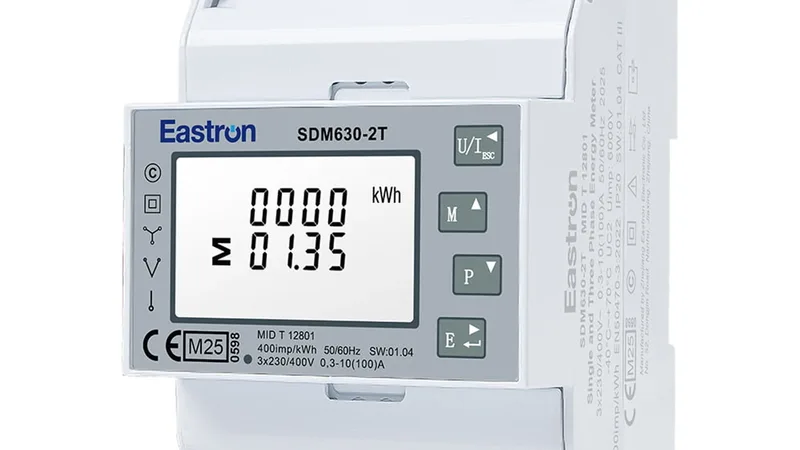
Power Walker UPS VFI ICT IoT Modbus TCP
Monitors PowerWalker VFI ICT IoT UPS parameters via Modbus TCP.
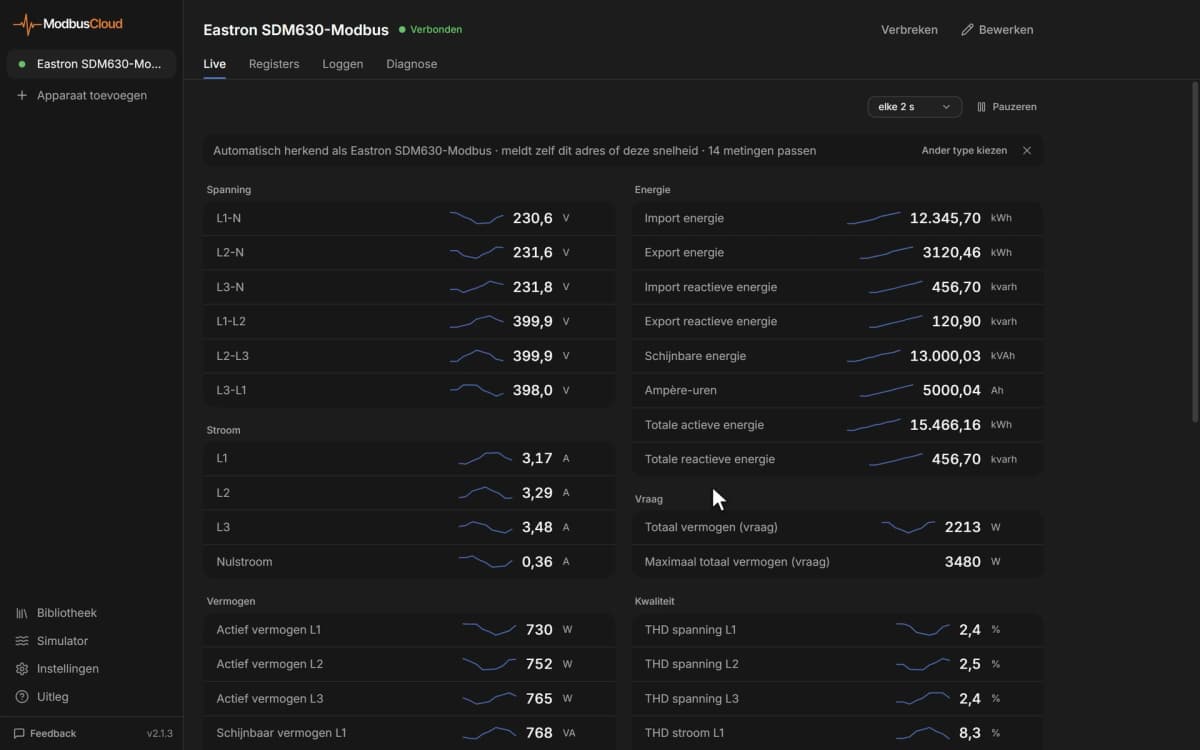
This template reads PowerWalker VFI ICT IoT UPS parameters over Modbus TCP. It provides real-time monitoring of input voltage, output voltage, battery percentage, load, temperature, and remaining runtime. No control registers are included.
- Protocol
- Modbus TCP
- Connection
- Ethernet, Modbus TCP
- Registers
- 10, read only
- Brand
- PowerWalker
- Key readings
- Input Voltage · Output Voltage · Input/Output Frequency · UPS Temperature · Load Ampere/KWatts/Percent · Battery Percent and Remaining Minutes
- Compatible models
- VFI ICT IoT
- Last updated
Registers (10)
10 read, 0 write
| Name | Unit | Access | Address (Hidden until you enter your email) | Function (hidden) | Type (hidden) |
|---|---|---|---|---|---|
| Input Voltage | <v1> | Read | |||
| Output Voltage | <v1> | Read | |||
| Input Frequency | <v1> | Read | |||
| Output Frequency | <v1> | Read | |||
| Ups Temperature | <v1> | Read | |||
| Load Ampere | <v1> | Read | |||
| Load KWatts | <v1> | Read | |||
| Load Percent | <v1> | Read | |||
| Remaining Minutes | <v1> | Read | |||
| Battery Percent | <v1> | Read |
Loading registers…
Send your device list
If a device is not in the library yet, we build the template for free as soon as we have the register data.
Use cases
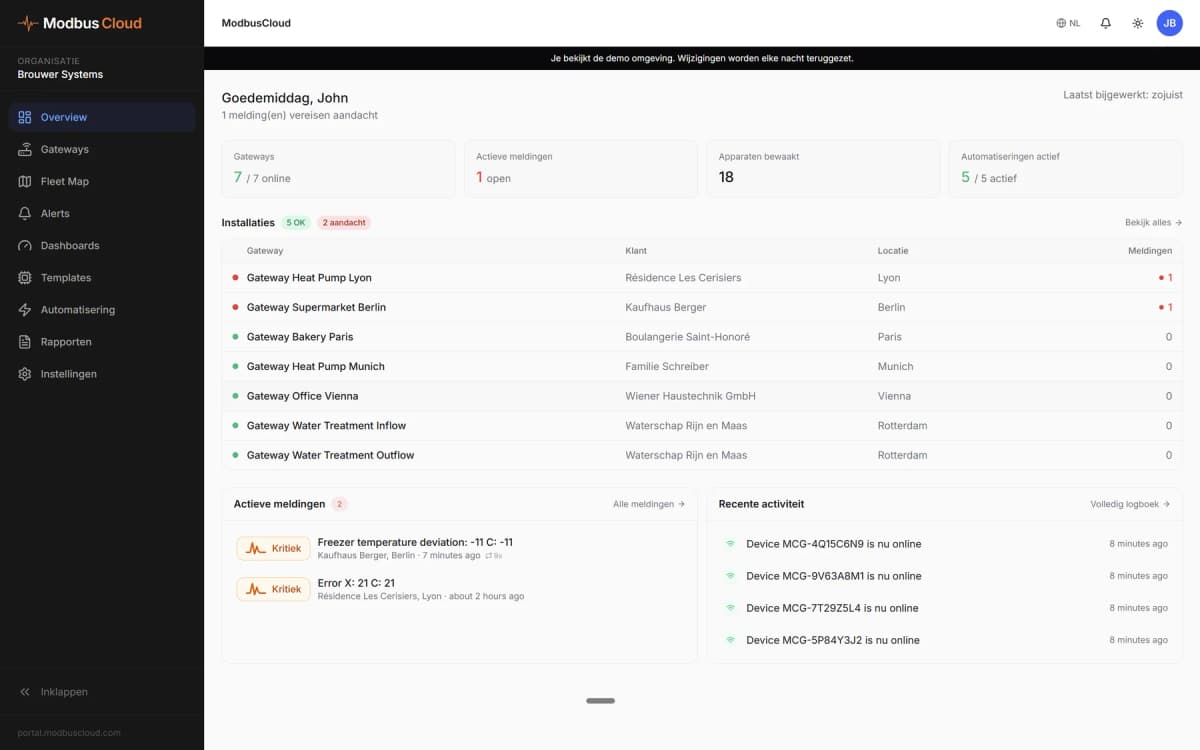
- Monitor input and output voltage of a PowerWalker UPS on a live cloud dashboard for remote sites.
- Create an alert when battery percentage drops below a critical threshold during a power outage.
- Track UPS load percentage over time to plan capacity upgrades before overload conditions occur.
- Log UPS temperature readings to detect cooling issues in server rooms or network cabinets.
- Review remaining battery runtime remotely to assess whether backup power is sufficient for planned maintenance windows.
Installation
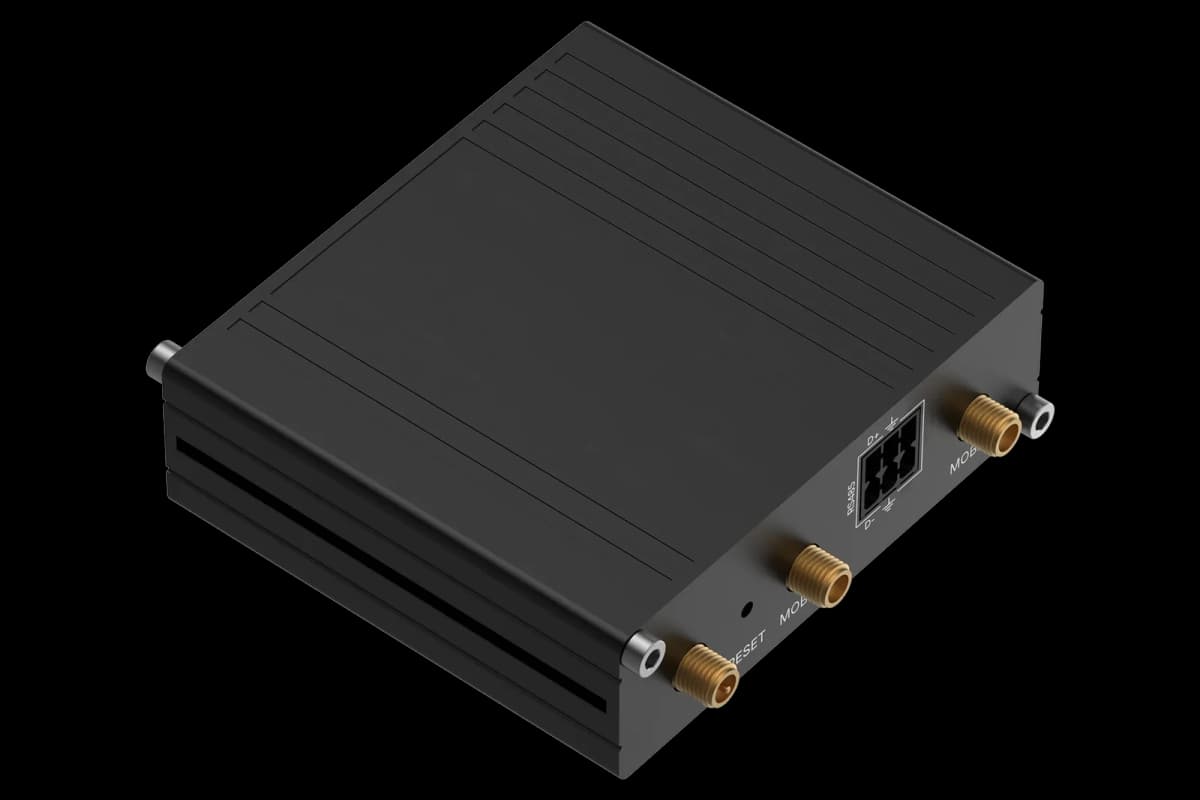
Connect the ModbusCloud Gateway to the same local network as the PowerWalker VFI ICT IoT UPS.
Verify the UPS has Modbus TCP enabled and note its IP address and Modbus TCP port (default is typically 502).
Assign a unique Modbus unit ID to the UPS if multiple devices share the same network.
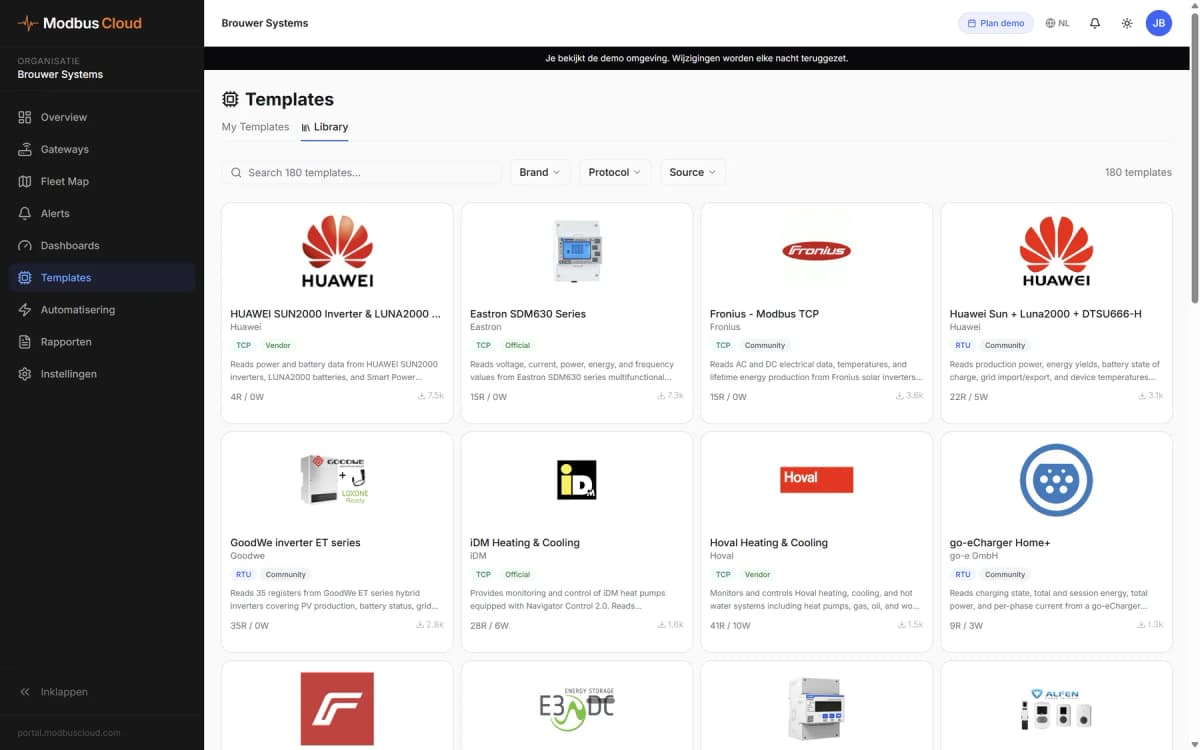
In the ModbusCloud platform, add a new device and import the PowerWalker VFI ICT IoT Modbus TCP template.
Enter the UPS IP address, port, and unit ID in the gateway configuration, then confirm that register data is being received.
Things to watch for
Which Modbus TCP port does the PowerWalker VFI ICT IoT use by default?
Most PowerWalker VFI ICT IoT units use the standard Modbus TCP port 502. Check the UPS network settings or documentation to confirm.
Do I need to apply scaling factors to the register values?
No scaling factors are documented in this template. All registers are uint16 read-only values starting at address 128. Verify actual values against the UPS display to confirm correctness.
Can I control the UPS through this template?
No. This template is read-only and does not include any writable registers. It is designed purely for monitoring purposes.
What if the gateway shows no data after configuration?
Confirm that the UPS and gateway are on the same network and subnet. Check that the correct IP address, port, and unit ID are configured. Also verify that no firewall is blocking port 502.





Want to see how it works?