

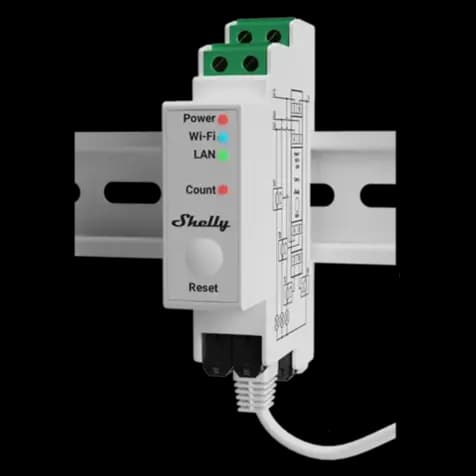
Shelly Pro EM-50
Two-channel energy meter with 50 A current transformers and a switchable dry contact.
The Shelly Pro EM-50 is a two-channel energy meter that measures consumption and solar feed-in with 50 A current transformers in the distribution board. This Modbus TCP template reads voltage, current, power, power factor, energy and error flags per channel and switches the dry contact from ModbusCloud.
- Protocol
- Modbus TCP
- Connection
- Ethernet, Modbus TCP
- Registers
- 41, read and write
- Brand
- Shelly
- Key readings
- Voltage · Current · Active power · Power factor · Imported energy · Returned energy
- Available commands
- Relay output
- Compatible models
- Shelly Pro EM-50
- Last updated
Registers (41)
41 read, 1 write
| Name | Unit | Access | Address (Hidden until you enter your email) | Function (hidden) | Type (hidden) |
|---|---|---|---|---|---|
| Channel 1 Voltage | V | Read | |||
| Channel 1 Current | A | Read | |||
| Channel 1 Active Power | W | Read | |||
| Channel 1 Apparent Power | VA | Read | |||
| Channel 1 Power Factor | Read | ||||
| Channel 1 Frequency | Hz | Read | |||
| Channel 2 Voltage | V | Read | |||
| Channel 2 Current | A | Read | |||
| Channel 2 Active Power | W | Read | |||
| Channel 2 Apparent Power | VA | Read | |||
| Channel 2 Power Factor | Read | ||||
| Channel 2 Frequency | Hz | Read | |||
| Channel 1 Total Active Energy | Wh | Read | |||
| Channel 1 Total Returned Active Energy | Wh | Read | |||
| Channel 1 Lagging Reactive Energy | varh | Read | |||
| Channel 1 Leading Reactive Energy | varh | Read | |||
| Channel 1 Perpetual Active Energy | Wh | Read | |||
| Channel 1 Perpetual Returned Energy | Wh | Read | |||
| Channel 2 Total Active Energy | Wh | Read | |||
| Channel 2 Total Returned Active Energy | Wh | Read | |||
| Channel 2 Lagging Reactive Energy | varh | Read | |||
| Channel 2 Leading Reactive Energy | varh | Read | |||
| Channel 2 Perpetual Active Energy | Wh | Read | |||
| Channel 2 Perpetual Returned Energy | Wh | Read | |||
| Channel 1 Meter Error | Read | ||||
| Channel 1 Overpower Error | Read | ||||
| Channel 1 Overvoltage Error | Read | ||||
| Channel 1 Overcurrent Error | Read | ||||
| Channel 2 Meter Error | Read | ||||
| Channel 2 Overpower Error | Read | ||||
| Channel 2 Overvoltage Error | Read | ||||
| Channel 2 Overcurrent Error | Read | ||||
| Relay Output Status | Read | ||||
| Relay Output | Read and write | ||||
| Channel 1 Measurement Timestamp | Read | ||||
| Channel 2 Measurement Timestamp | Read | ||||
| Channel 1 Energy Timestamp | Read | ||||
| Channel 2 Energy Timestamp | Read | ||||
| Device MAC | Read | ||||
| Device Model | Read | ||||
| Device Name | Read |
Loading registers…
Send your device list
If a device is not in the library yet, we build the template for free as soon as we have the register data.
Use cases
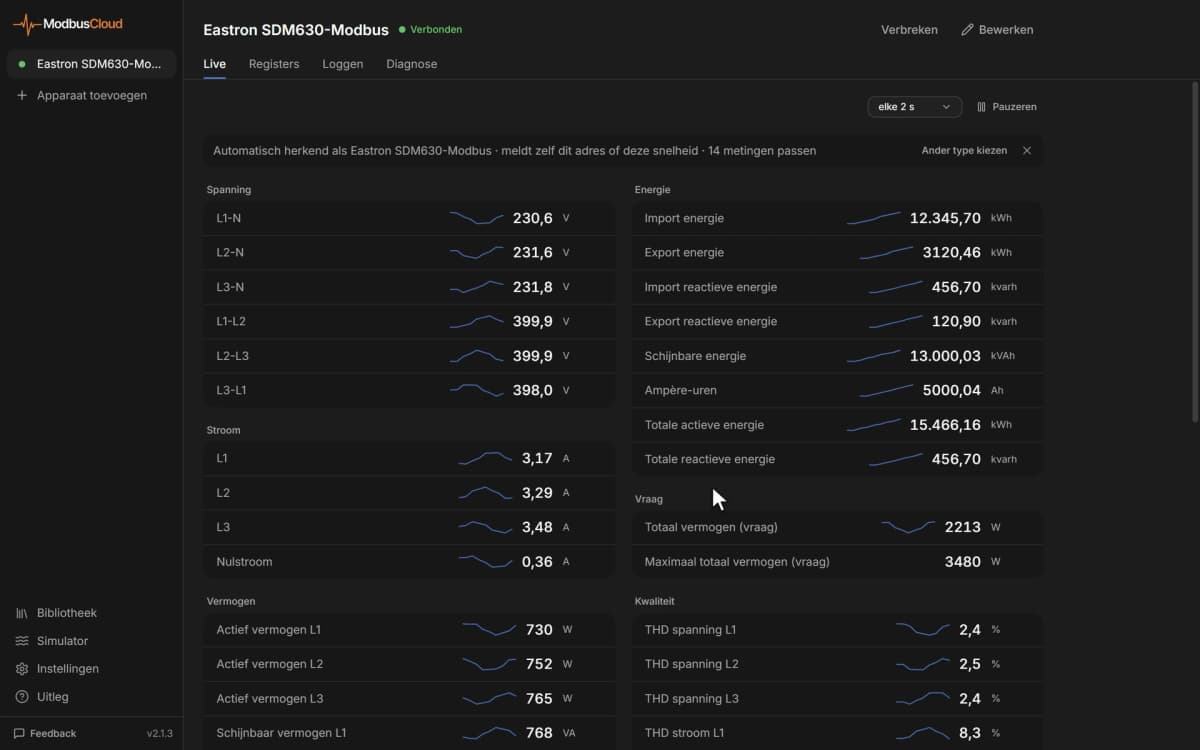
- Show grid import and solar feed-in from both channels on a ModbusCloud dashboard.
- Send an email alert when the power on a circuit stays above a limit you set.
- Keep 365 days of energy history per channel for monthly consumption reports.
- Switch a contactor through the dry contact from the portal or from an automation.
- Alert on the overcurrent or overvoltage error flag of either channel.
Installation
Install the meter on the rail, connect the voltage and clip the current transformers around the circuits.
Connect the LAN port of the meter to the same network as the ModbusCloud Gateway and give the meter a fixed IP address.
Open the Shelly web interface and enable Modbus in the settings.
In ModbusCloud, add a Modbus TCP device with the IP address of the meter, port 502, and import this template.
Check that voltage and power come in and match the Shelly app or web interface.
Things to watch for
Why does the Gateway get no answer from the meter?
Modbus is off by default on Shelly devices. Enable it in the web interface and check that the meter has a fixed IP address on the same network as the Gateway and that port 502 is not blocked.
Why is the power on one channel negative?
The current transformer is clipped on the other way round, or it measures a circuit that feeds back, such as an inverter. Turn the clamp around or use the reverse setting of the channel in the Shelly settings.
Why did the energy counters go back to zero?
The total energy counters are cleared when someone resets the counters in the Shelly app. The perpetual counters keep counting; use those for long-term reports.
What happens when I write the relay output?
Writing 1 closes the dry contact and 0 opens it, straight away. Check what is wired to the contact before you switch it remotely or from an automation.
More Shelly templates
Want to see how it works?