



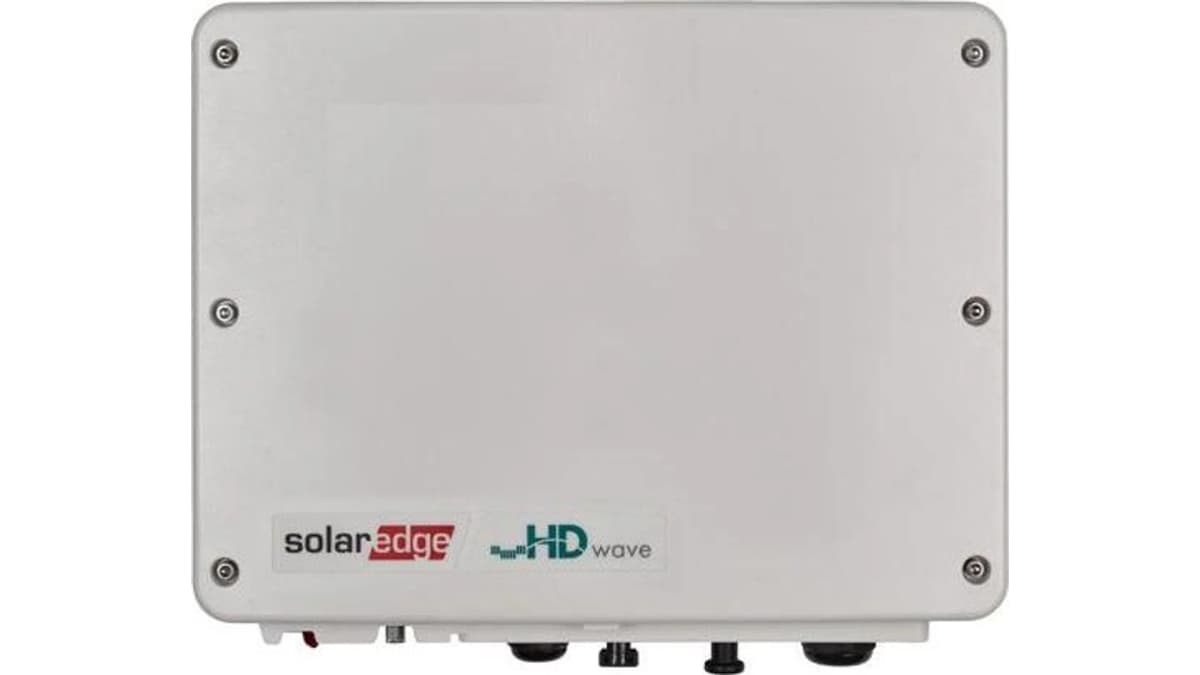
SolarEdge Inverter
Monitors SolarEdge inverter, grid meter, and battery data via Modbus TCP.
This template connects a SolarEdge inverter to ModbusCloud via Modbus TCP. It reads DC power, AC power, exported and imported energy, and battery state of energy for up to two batteries. A connected grid meter is also supported.
- Protocol
- Modbus TCP
- Connection
- Ethernet, Modbus TCP
- Registers
- 12, read only
- Brand
- SolarEdge
- Key readings
- DC Power (RAW + SF) · AC Power (RAW + SF) · Exported Energy · Imported Energy · Battery 1/2 State of Energy · Battery 1/2 Instantaneous Power
- Last updated
Registers (12)
12 read, 0 write
| Name | Unit | Access | Address (Hidden until you enter your email) | Function (hidden) | Type (hidden) |
|---|---|---|---|---|---|
| I_DC_Power_RAW | W | Read | |||
| I_DC_Power_SF | x | Read | |||
| I_Status | Read | ||||
| M_AC_Power_RAW | W | Read | |||
| M_AC_Power_SF | Read | ||||
| M_Exported_Energy_RAW | Wh | Read | |||
| M_Imported_Energy_RAW | Wh | Read | |||
| M_Energy_SF | Read | ||||
| B1_State_of_Energy | % | Read | |||
| B1_Instantaneous_Power | kW | Read | |||
| B2_State_of_Energy | % | Read | |||
| B2_Instantaneus_Power | kW | Read |
Loading registers…
Send your device list
If a device is not in the library yet, we build the template for free as soon as we have the register data.
Use cases
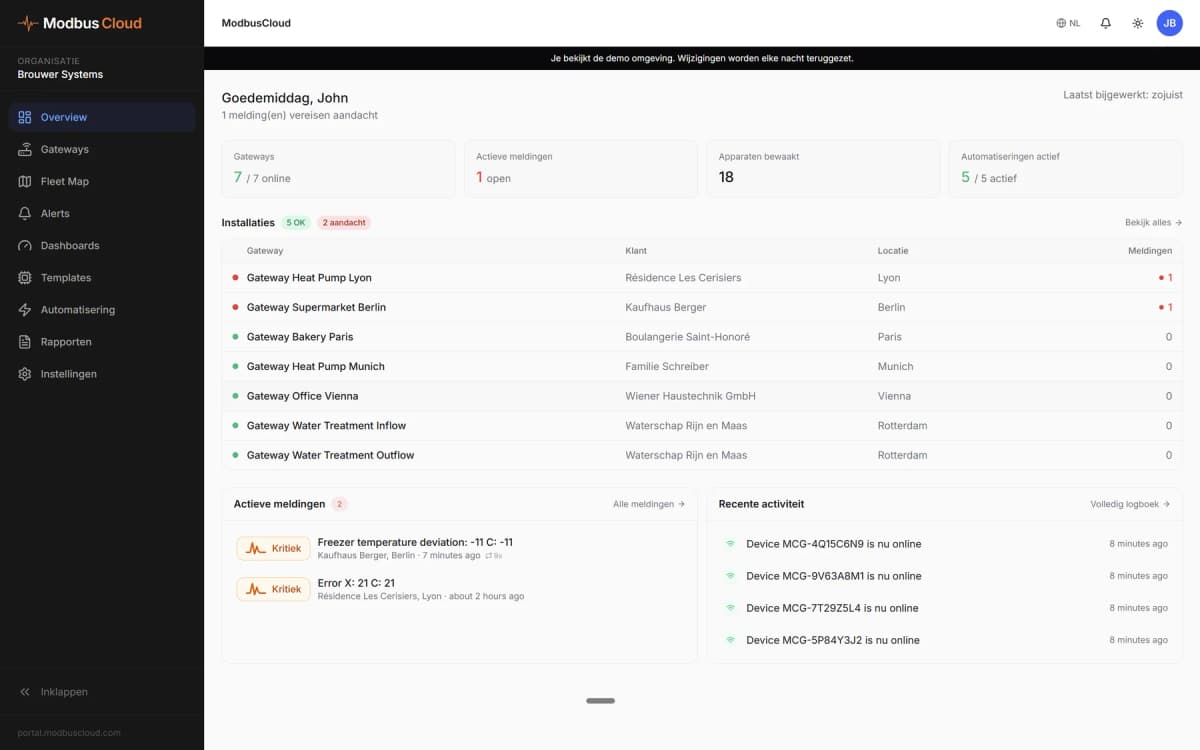
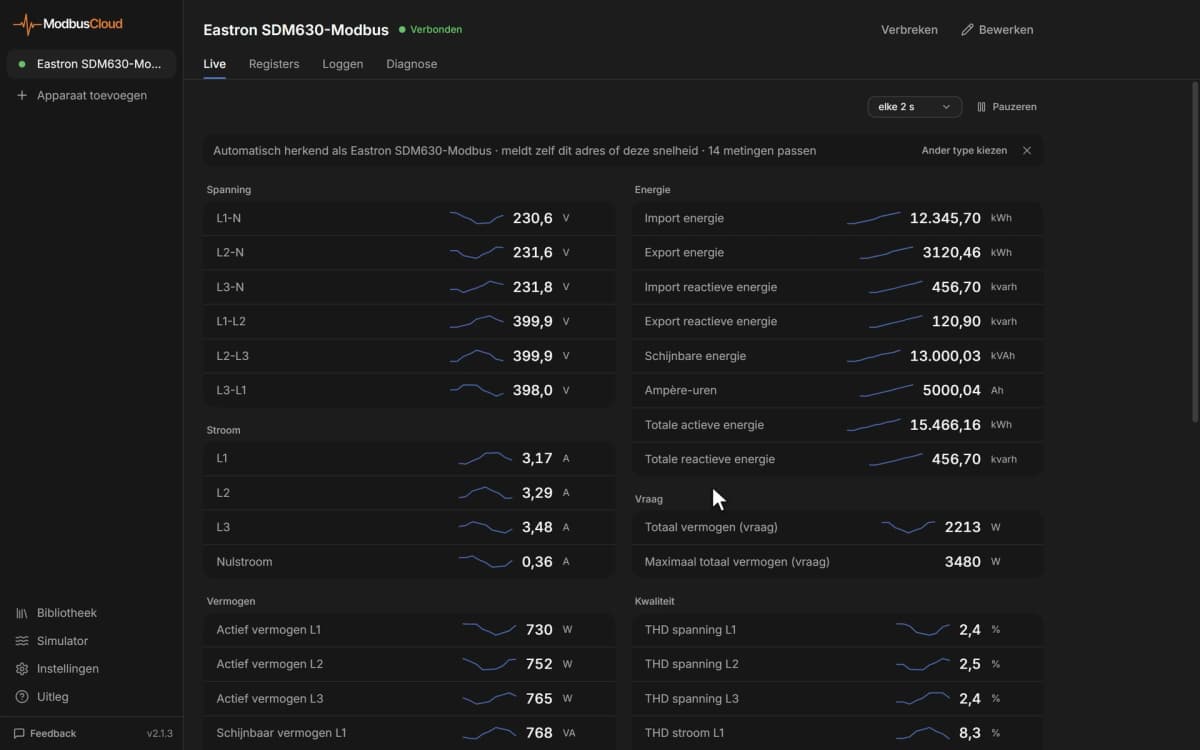
- Monitor real-time DC and AC power production from a SolarEdge inverter on a live cloud dashboard.
- Track exported and imported energy over time to verify grid feed-in and consumption patterns.
- Create an alert when battery state of energy drops below a defined threshold during peak hours.
- Generate monthly energy reports for residential or commercial PV customers showing production and self-consumption.
- Compare instantaneous power of two batteries to detect imbalanced charge or discharge behaviour.
- Verify grid meter readings remotely to support billing reconciliation or feed-in tariff compliance.
Installation
Enable Modbus TCP on the SolarEdge inverter via its SetApp or LCD menu, and note the IP address assigned on the local network.
Ensure the Modbus TCP port (default 1502 on SolarEdge) is accessible from the ModbusCloud gateway on the same LAN or VLAN.
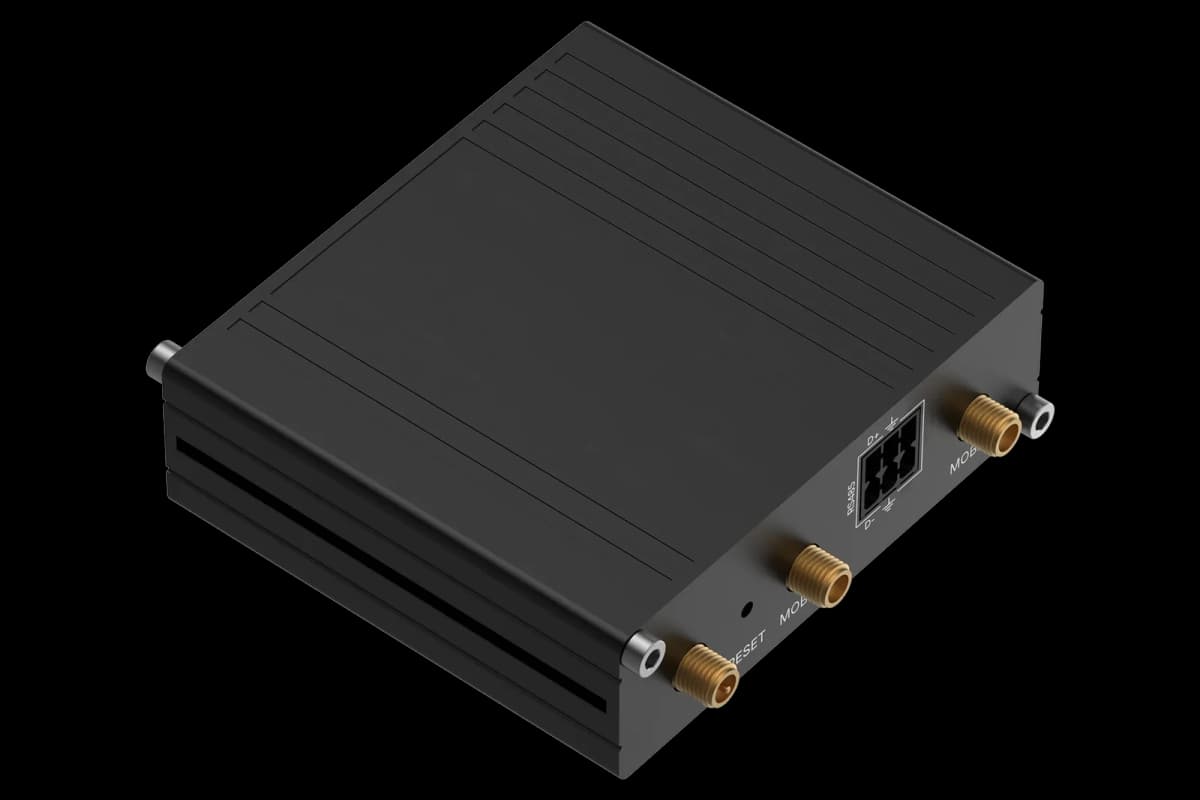
Connect your ModbusCloud Gateway to the local network and power it on.
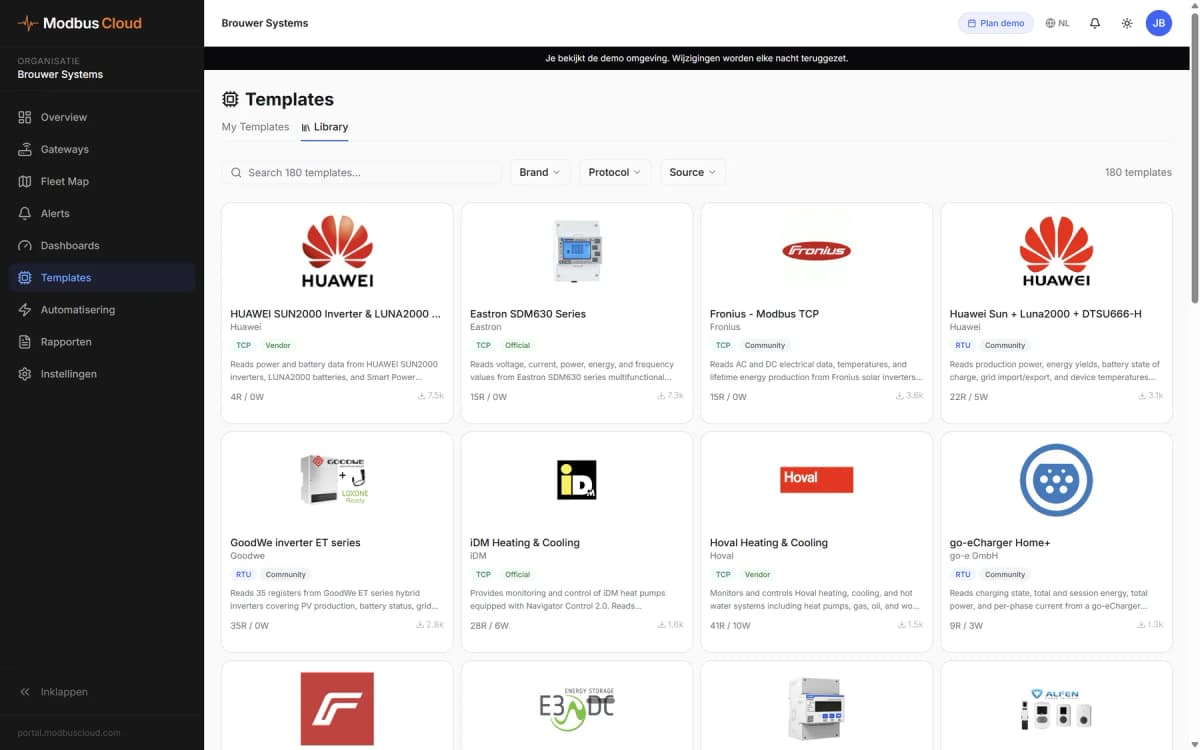
In the ModbusCloud portal, add a new device and select the SolarEdge Inverter template from the library.
Enter the inverter IP address and Modbus TCP port in the gateway configuration, then confirm the unit ID matches the inverter setting.
After importing the template, set up formula blocks to convert RAW and SF register pairs into proper floating point values as described in the template notes.
Things to watch for
Why do my DC power or AC power readings look incorrect or extremely large?
These values are provided as a raw integer plus a separate scaling factor register. You must apply a formula that calculates RAW multiplied by 10 to the power of SF. Without this conversion the readings will be meaningless raw integers.
What TCP port does SolarEdge use for Modbus?
SolarEdge inverters typically use port 1502 for Modbus TCP, not the standard port 502. Verify this in the inverter network settings via SetApp or the LCD configuration menu.
The grid meter AC power scaling factor returns unexpected values. What should I check?
Ensure you are using template version 3.0.2 or later. Earlier versions defined M_AC_Power_SF as an unsigned 16-bit integer instead of a signed 16-bit integer, which caused incorrect scaling.
Can I read two batteries even if only one is installed?
Yes, but the registers for the second battery will return zero or default values. You can safely ignore battery 2 data points in your dashboard if only one battery is connected.
More SolarEdge templates

Knowledge base articles for this device
Want to see how it works?