








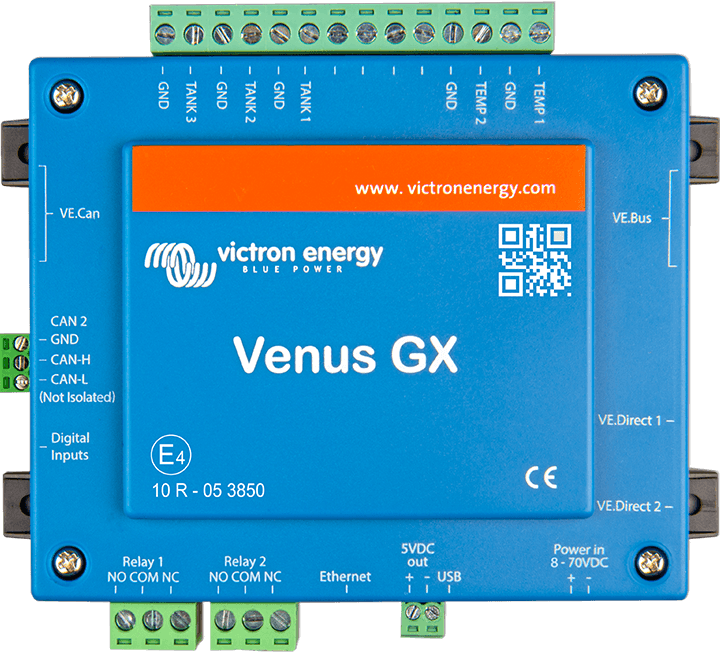
Venus GX
Monitors battery and energy data from Victron Venus GX via Modbus TCP.
This template connects to a Victron Energy Venus GX via Modbus TCP to read battery voltage, current, state of charge, energy counters, and health status. It also supports control of a relay output on the Venus GX.
- Protocol
- Modbus TCP
- Connection
- Ethernet, Modbus TCP
- Registers
- 9, read and write
- Brand
- Victron Energy B.V.
- Key readings
- Battery voltage · Current · State of charge · State of health · Discharged and charged energy · Time since last full charge
- Available commands
- Relay status
- Compatible models
- Venus GX
- Last updated
Registers (9)
9 read, 1 write
| Name | Unit | Access | Address (Hidden until you enter your email) | Function (hidden) | Type (hidden) |
|---|---|---|---|---|---|
| Battery voltage | V | Read | |||
| Current | A | Read | |||
| State of charge | % | Read | |||
| Relay status | Read and write | ||||
| Time since last full charge | s | Read | |||
| Discharged Energy | kWh | Read | |||
| Charged Energy | kWh | Read | |||
| State of health | % | Read | |||
| Capacity | Ah | Read |
Loading registers…
Send your device list
If a device is not in the library yet, we build the template for free as soon as we have the register data.
Use cases
- Monitor battery state of charge and voltage on a live cloud dashboard for remote energy installations.
- Create an alert when battery state of health drops below a defined threshold to schedule preventive maintenance.
- Track total discharged and charged energy over time to analyse battery cycling behaviour.
- Control the Venus GX relay output remotely to switch connected loads or signal external systems.
- Log time since last full charge to detect incomplete charging cycles in off-grid systems.
- Compare battery current and voltage trends across multiple Victron sites from a single dashboard.
Installation
Enable Modbus TCP on the Venus GX by navigating to Settings, then Services, and toggling the Modbus TCP option on.
Connect the ModbusCloud Gateway to the same local network as the Venus GX, either via Ethernet or a managed switch.
Note the IP address of the Venus GX from its display or router, and configure this IP in the ModbusCloud gateway as the Modbus TCP target on port 502.
Import the Venus GX battery template from the ModbusCloud template library and assign it to the gateway connection.
Verify the Modbus unit ID matches the battery system connected to the Venus GX by consulting the Victron Modbus register documentation.
Confirm data is flowing by checking the live readings for battery voltage and state of charge in the ModbusCloud dashboard.
Things to watch for
I see no data after connecting. What should I check?
Verify that Modbus TCP is enabled in the Venus GX under Settings, Services. Also confirm that the gateway and the Venus GX are on the same network and that TCP port 502 is not blocked by a firewall.
Why do I need multiple templates for one Venus GX?
The Venus GX uses different Modbus unit IDs for each connected device type, such as PV inverters, grid meters, and batteries. Each device type has its own register map and therefore requires a separate template.
How do I find the correct Modbus unit ID for my battery system?
Victron publishes a Modbus TCP register list that maps unit IDs to device types. You can download it from the Victron Energy website. The unit ID for the battery system is typically different from the one used for PV inverters or grid meters.
What firmware version is required on the Venus GX for Modbus TCP?
Modbus TCP support has been available on Venus OS for several years. Ensure your Venus GX is running a reasonably recent firmware version. Check the Victron community or changelog if you experience compatibility issues.
More Victron Energy B.V. templates
Want to see how it works?
