








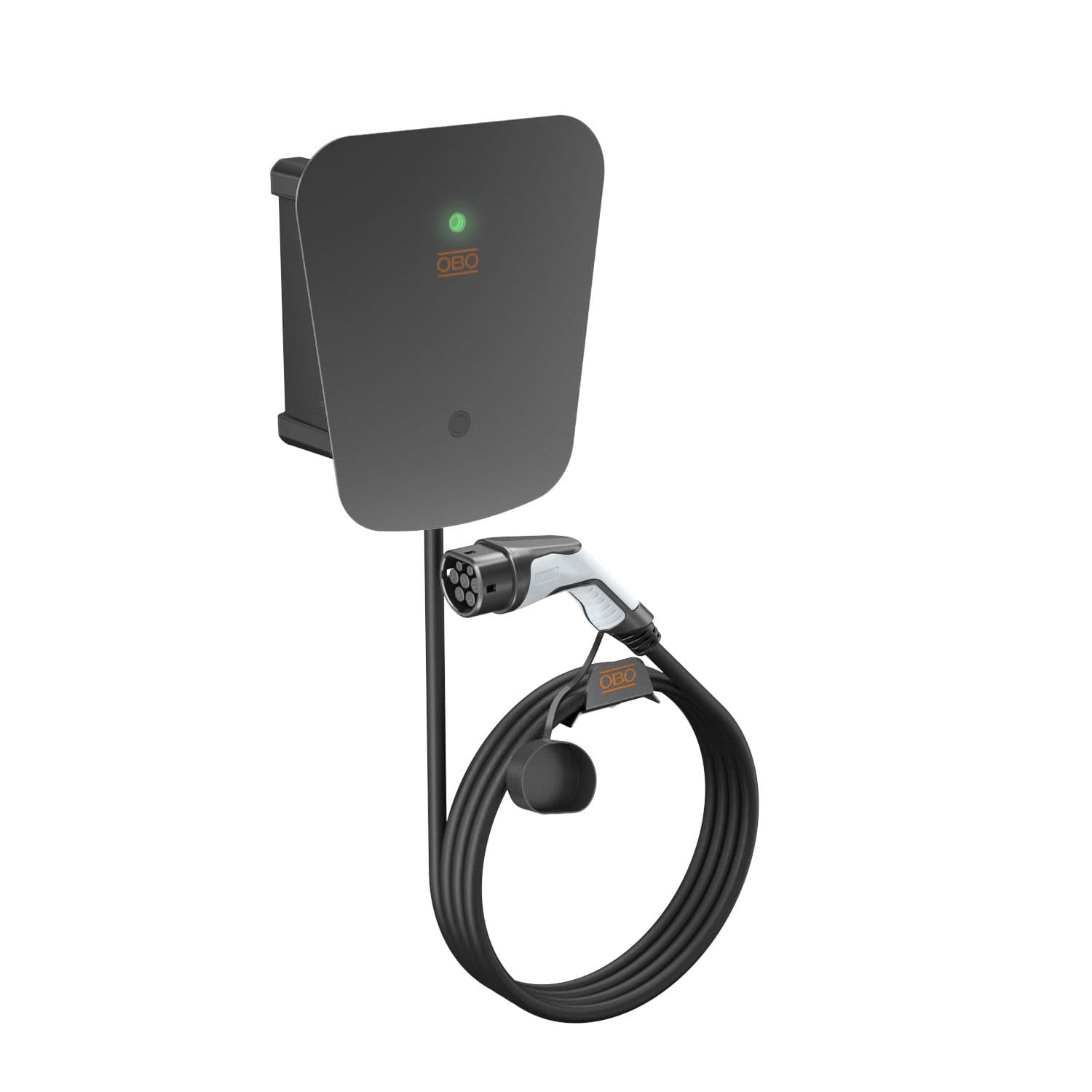
OBO Ion Wallbox
Controls and monitors OBO Ion Wallbox EV charging via RS485 Modbus RTU
This template connects OBO Bettermann Ion Wallbox EV chargers to ModbusCloud via RS485 Modbus RTU. It allows installers to control charging current, enable or disable charging, configure fallback behavior, and monitor CP state, advertised current, and error codes.
- Protocol
- Modbus RTU
- Connection
- RS485, 19200 baud
- Registers
- 8, read and write
- Brand
- OBO Bettermann
- Key readings
- EVSE advertised current · Active CP state · Active charging current · Error code · Comms time-out · Fallback current
- Available commands
- Charge disable · Active charging current · Charge disable behaviour on power loss · Fallback current
- Compatible models
- Ion Wallbox Basic · Ion Wallbox Key · Ion Wallbox Basic Protect · Ion Wallbox Key Protect
- Last updated
Registers (8)
8 read, 5 write
| Name | Unit | Access | Address (Hidden until you enter your email) | Function (hidden) | Type (hidden) |
|---|---|---|---|---|---|
| EVSE advertised current | A | Read | |||
| Active state | Read | ||||
| Charge disable behaviour on power loss | Read and write | ||||
| Active charging current | A | Read and write | |||
| Charge disable | Read and write | ||||
| Fallback current | A | Read and write | |||
| Comms time-out | ms | Read and write | |||
| Error code | Read |
Loading registers…
Send your device list
If a device is not in the library yet, we build the template for free as soon as we have the register data.
Use cases
- Monitor CP state and advertised current on a live dashboard to verify correct EV charging operation.
- Set the active charging current remotely to implement simple load management across multiple wallboxes.
- Create an alert when an error code is reported, such as a DC residual current fault or failed diode check.
- Configure fallback current and power loss behavior to ensure safe operation if communication is interrupted.
- Log historical charging current data to analyze energy usage patterns for billing or optimization.
- Disable charging remotely during peak tariff hours and re-enable it during off-peak periods.
Installation
Connect the RS485 A and B wires from the OBO Ion Wallbox to the corresponding terminals on the ModbusCloud Gateway.
Verify that the wallbox Modbus address is set to 101 (default), or adjust it to match the address configured in the template.
Ensure the gateway serial port is configured for 19200 baud, even parity, and 8 data bits to match the wallbox defaults.
Import the OBO Ion Wallbox template from the ModbusCloud template library into your project.
Confirm communication by checking that the CP state and advertised current registers return valid values on the ModbusCloud dashboard.
Set the communication timeout (register 28) and fallback current (register 30) to appropriate values for your installation.
Things to watch for
The gateway cannot communicate with the Ion Wallbox. What should I check?
Verify that the baud rate is set to 19200, parity is set to even, and the Modbus address matches 101 (0x65). Also confirm correct RS485 wiring with A and B lines not swapped.
What happens if the Modbus connection between the gateway and the wallbox is lost?
The wallbox will fall back to the current defined in the fallback current register (address 30) after the communication timeout (address 28) expires. You can also configure whether charging continues or stops after power loss using the charge disable behavior register (address 13).
Can I use this template for all Ion Wallbox variants?
Yes. The template is compatible with the Ion Wallbox Basic, Ion Wallbox Key, Ion Wallbox Basic Protect, and Ion Wallbox Key Protect. All share the same Modbus register map.
What do the error codes mean?
The error code register can indicate a failed diode check, a DC residual current fault, or an RCM self test failure. Refer to the OBO Bettermann documentation for the specific numeric values and recommended actions.




Want to see how it works?
