



Solarlog Solarlog (pv)
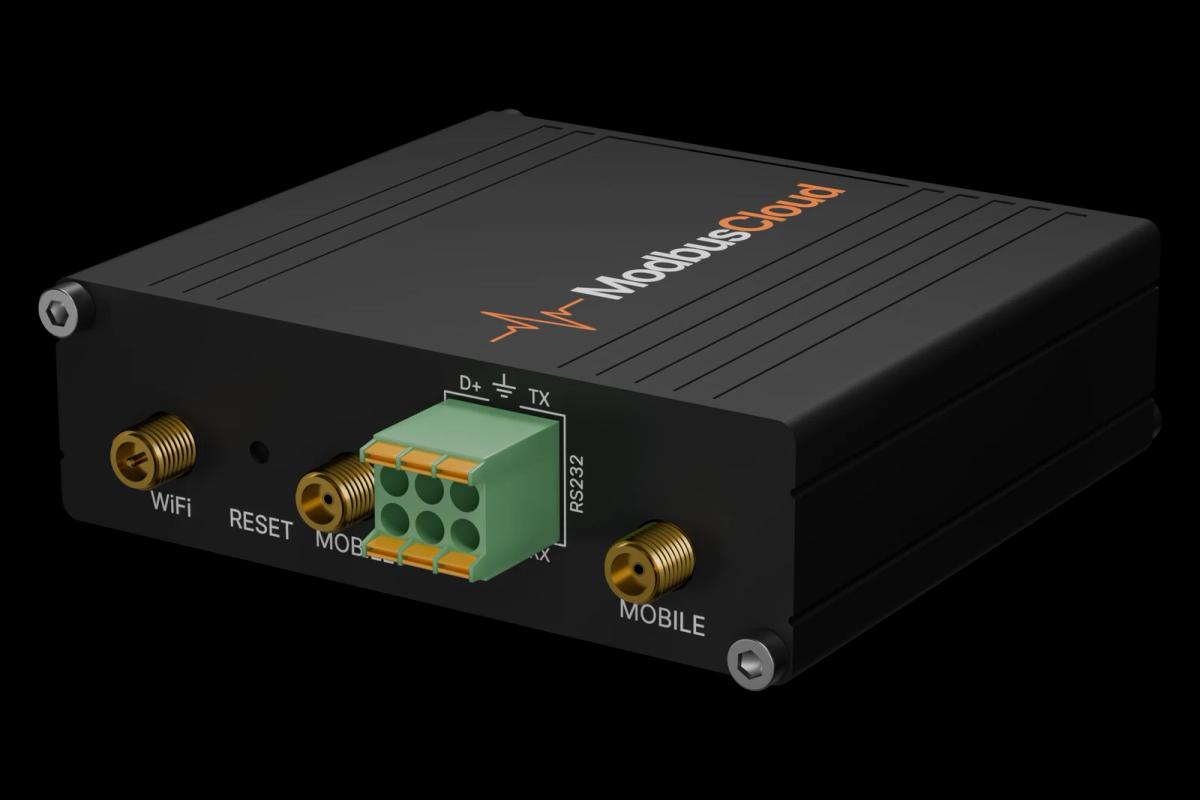
The Solarlog Solarlog (pv) is a PV datalogger and monitoring gateway from Solarlog, aggregating production data from all inverters connected to a single installation. This Modbus TCP template reads two core registers from the Solarlog device: current total AC generation power and cumulative energy yield. The input register map uses function code 4 with 32-bit unsigned values and a little-endian word order, which must be configured correctly in your client. Connecting the Solarlog Solarlog (pv) to your ModbusCloud Gateway gives installers and asset managers a live and historical view of site generation without proprietary cloud dependencies.
- Protocol
- Modbus TCP
- Connection
- Ethernet, Modbus TCP
- Registers
- 2, read only
- Brand
- Solarlog
- Last updated
Registers (2)
2 read, 0 write
| Name | Unit | Access | Address (Hidden until you enter your email) | Function (hidden) | Type (hidden) |
|---|---|---|---|---|---|
| power | W | Read | 3502 | FC04 | uint32 |
| energy | Wh | Read | 3516 | FC04 | uint32 |
Loading registers…
Send your device list
If a device is not in the library yet, we build the template for free as soon as we have the register data.
Use cases
- Monitor total site PV generation power in real time to verify system performance against design expectations.
- Track cumulative energy yield over weeks and months to identify seasonal production trends.
- Alert on an unexpected drop in reported power during daylight hours to detect inverter or string faults.
- Compare logged energy yield against utility import data to verify self-consumption ratios.
- Report daily and monthly generation totals to building owners or feed-in tariff administrators.
Installation
Enable Modbus TCP on the Solarlog device by logging into its web interface and activating the Modbus TCP server under the Configuration or Interfaces section, noting the assigned IP address and port (default 502).
Connect the Solarlog device to the same local network as the ModbusCloud Gateway, ensuring a stable Ethernet connection and that no firewall rules block TCP port 502 between the two devices.
In the ModbusCloud portal, add a new device, select TCP as the protocol, enter the Solarlog IP address and port 502, then import this template and assign Modbus unit ID 1 (the default for the Solarlog TCP interface).
Verify the connection by checking the live value of the power register during daylight hours; a non-zero reading confirms successful communication, while a value of zero at night is expected normal behaviour.
Things to watch for
Why are the power or energy values reading as very large, incorrect numbers?
The Solarlog uses little-endian word order for 32-bit registers: the low word is at the base address and the high word at the next address. If your Modbus client assembles the words in big-endian order, the result will be completely wrong. Swap the two 16-bit words before interpreting the uint32 value.
The gateway connects but both registers return zero at midday. What is wrong?
Check that the Modbus TCP server is actually enabled in the Solarlog web interface under Configuration or Interfaces. Also verify that at least one inverter is communicating with the Solarlog datalogger, as the aggregated power register reports zero when no inverter data is available, not an error code.
Readings update very slowly or appear frozen. What is the refresh rate?
The Solarlog datalogger refreshes its Modbus registers approximately every 15 to 60 seconds depending on firmware version and the number of connected inverters. Set your ModbusCloud polling interval to at least 30 seconds to avoid reading stale repeated values and to reduce unnecessary TCP connection load on the logger.
Connection is refused intermittently even though the network is stable. Why?
The Solarlog TCP server supports a limited number of simultaneous client connections. If another application, such as a home automation system or a grid operator portal, is holding a persistent TCP session open, the ModbusCloud Gateway may be refused. Ensure only one Modbus TCP client connects at a time, or configure connection timeouts on other clients.

Want to see how it works?