









Sungrow iHomeManager (iHM) (battery)
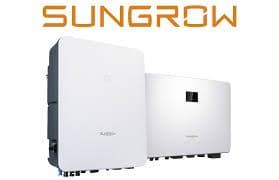
The Sungrow iHomeManager (iHM) is a residential home energy management system that sits at the centre of a Sungrow PV installation, coordinating inverters, battery storage, EV chargers, and heat pumps. This Modbus TCP template reads two battery-facing registers directly from the iHM: battery power flow and battery state of charge. When the iHomeManager is added to a site, these values are no longer available through the inverter's own Modbus interface, making a direct iHM connection essential. Monitoring power and state of charge via ModbusCloud Gateway gives installers and building owners a reliable view of battery behaviour without relying on the iSolarCloud portal.
- Protocol
- Modbus TCP
- Connection
- Ethernet, Modbus TCP
- Registers
- 2, read only
- Brand
- Sungrow
- Last updated
Registers (2)
2 read, 0 write
| Name | Unit | Access | Address (Hidden until you enter your email) | Function (hidden) | Type (hidden) |
|---|---|---|---|---|---|
| power | W | Read | |||
| soc | % | Read |
Loading registers…
Send your device list
If a device is not in the library yet, we build the template for free as soon as we have the register data.
Use cases
- Monitor battery state of charge continuously to detect sustained low-charge conditions across sites.
- Track battery power flow direction to verify that the iHomeManager charges from PV surplus as expected.
- Alert on unexpected discharge events during peak-tariff periods to spot EMS misconfiguration.
- Compare state-of-charge trends over weeks to identify capacity fade in the connected battery pack.
- Verify that the battery is not cycling unnecessarily during low-PV days by reviewing power flow history.
Installation
Log in to iSolarCloud with installer-level credentials, navigate to Device, select the iHomeManager, go to Settings, then Common Settings and System Parameters, and enable Modbus TCP on port 503 with SSL disabled.
Connect the iHomeManager to the same LAN as the ModbusCloud Gateway using an Ethernet cable, and confirm the device has a reachable IP address on the local network.
In the ModbusCloud portal, add a new Gateway, import the Sungrow iHomeManager (iHM) (battery) template, set the target IP to the iHomeManager's address, port to 503, and slave ID to 247.
Spot-check the soc register (address 8162) in the portal live-data view and confirm the reading matches the state of charge shown in the iSolarCloud app before going live.
Things to watch for
The gateway connects but no register values appear. What now?
Port 502 on the iHomeManager is often occupied by the EV charger. Switch the Modbus TCP port to 503 in iSolarCloud under the iHomeManager system parameters, update the port in your ModbusCloud portal device configuration, and ensure SSL is not enabled for port 503.
Why do power and soc readings appear stuck or zero?
Modbus TCP on the iHomeManager allows only one simultaneous connection per port. If another client such as Home Assistant or a third-party logger is already connected, the ModbusCloud Gateway will be refused. Close any other active Modbus sessions and retry.
The soc value looks off by one register compared to my manual test. Why?
Sungrow numbers registers starting at 1, while some Modbus tools apply a zero-based offset. The template uses the protocol address directly. If your test tool adds or subtracts 1 automatically, account for that offset; the template addresses 8160 and 8162 are authoritative as supplied.
Where did the battery data go after installing the iHomeManager?
Adding the iHomeManager removes battery power and state-of-charge data from the inverter's own Modbus interface. These registers are now served only by the iHomeManager itself. Point the ModbusCloud Gateway to the iHomeManager IP rather than the inverter IP to restore visibility.

Want to see how it works?
