









VARTA pulse (battery)
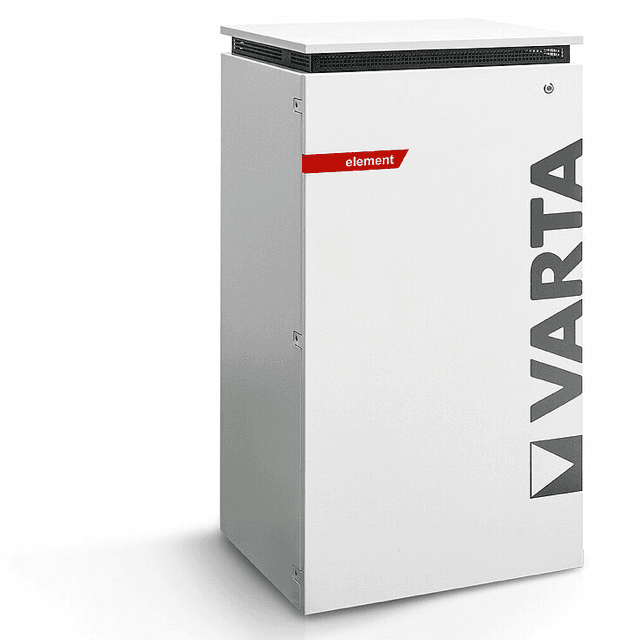
The VARTA pulse is an AC-coupled residential battery storage system, available in the pulse, pulse neo, element, and element backup variants, designed to store solar surplus and reduce grid dependency. This ModbusCloud template connects via Modbus TCP to read battery power flow and state of charge, and to write the battery mode setpoint. With these three registers you can track real-time charge and discharge power, monitor the state of charge trend over time, and send operating mode commands directly from your portal. Installers gain live visibility into VARTA pulse system behaviour without relying on the proprietary VARTA portal.
- Protocol
- Modbus TCP
- Connection
- Ethernet, Modbus TCP
- Registers
- 3, read and write
- Brand
- VARTA
- Compatible models
- pulse · pulse neo · element · element backup
- Last updated
Registers (3)
2 read, 1 write
| Name | Unit | Access | Address (Hidden until you enter your email) | Function (hidden) | Type (hidden) |
|---|---|---|---|---|---|
| power | W | Read | |||
| soc | % | Read | |||
| batterymode | Write |
Loading registers…
Send your device list
If a device is not in the library yet, we build the template for free as soon as we have the register data.
Use cases
- Monitor battery state of charge continuously to detect gradual capacity loss across seasons.
- Alert on sustained discharge power readings that exceed expected household baseload levels.
- Track charge and discharge power cycles to verify the battery responds correctly to solar surplus.
- Compare state of charge at morning and evening to validate daily self-consumption performance.
- Log battery mode changes over time to audit whether remote setpoints were applied as expected.
Installation
Confirm the VARTA pulse device is connected to your local network via Ethernet and note its IP address from your router's DHCP table or the VARTA web interface.
Connect the ModbusCloud Gateway to the same LAN segment as the VARTA pulse; no RS485 wiring is required since the device communicates over Modbus TCP on port 502.
In your ModbusCloud portal, add a new device, import the VARTA pulse (battery) template, enter the device IP address, set port to 502, and use unit ID 255 as recommended in the VARTA Modbus documentation.
Verify the connection by checking that the power and soc registers return plausible live values in the portal dashboard; a reading of 0 W with a non-zero state of charge is normal when the system is in standby.
Things to watch for
All registers return zero or show no data after setup.
Confirm the VARTA pulse is reachable on your network by pinging its IP address. Check that port 502 is not blocked by a firewall on the device or the local router. Also verify the unit ID is set to 255 in the ModbusCloud template configuration, as the VARTA Modbus documentation recommends this value.
The power register shows unexpected values or alternates between positive and negative.
The power register at address 1066 is signed int16: positive values indicate the battery is charging, negative values indicate discharge. If the sign appears inverted compared to your expectation, check whether your energy management convention differs. No scaling factor applies; the value is in watts, one to one.
Writing to the batterymode register fails or has no effect.
Community reports indicate the VARTA pulse may reject writes to register 1074 when a simultaneous Modbus poll is actively reading holding registers. Pause or stagger your polling cycle before sending the write command. Also note that register 1074 is not listed in all versions of the official VARTA Modbus documentation; its behaviour may vary by firmware version.
Should I use the batterymode write register during normal operation?
Use the batterymode setpoint with caution. Sending incorrect values can override the system's built-in energy management logic and may affect battery protection routines. Test write commands in a controlled window, confirm the expected response via the power and soc registers, and consult your VARTA installation documentation before automating setpoint changes in production.
Want to see how it works?
