








All topics
On this page
The recipients of an alert email add up. An address that appears in more than one place gets one email. Alerts from automatic monitoring and from a rule with the condition Gateway offline follow the same route.
What you need
- The role Owner or Admin for the Default email addresses, the Email digest, single addresses and the switches of other people. The roles are described in Team members and roles.
- For your own switch on the gateway page and your own preferences, any role is enough.
Where recipients come from
An alert email goes to the addresses from three sources. The table shows where you set each source and which alert rules it applies to.
| Source | Where | Applies to |
|---|---|---|
| Default email addresses | Settings > Notifications | Every alert rule, except a rule set to Only to these addresses |
| Email recipients | Block Notifications in the alert rule | Only that rule |
| Who gets emails for alarms | Bottom of the gateway page | Every alert rule of that gateway, including those set to Only to these addresses |
If an address belongs to an account in your organisation, that person's choice under My notification preferences applies next. For any other address, such as a shared fault address, no preferences apply. If no source contains an address, no alert email is sent. The alert still appears in the portal.
You enter addresses in a rule as described in Create an alert rule.
Set the default addresses of the organisation
The Default email addresses apply to the whole organisation. They also receive the email of every automation with an email action.
Open notifications
Go to Settings > Notifications.
Enter an address
Under Default email addresses, enter an email address, for example
storing@voorbeeld.nl.Add the address
Click Add. The portal saves the list immediately.
You remove an address with the cross next to it.
Set the recipients per gateway
Loading the walkthrough.
The block Who gets emails for alarms decides who receives the alert email of one gateway.
Open the gateway list
Open Gateways in the menu.
Open the gateway
Click the gateway.
Find the block
Scroll to the block Who gets emails for alarms below the tabs.
Turn on a person
Turn on the switch next to a name. From now on, that person receives the alert email of this gateway.
Enter a single address
To add someone without an account, enter their address in the field Add an email address.
Add the address
Click Add. The address now appears in the list Email only, no access to the portal.
An owner or admin sees all team members in the block, each with a switch. They turn anyone on or off and add single addresses. Other team members only turn themselves on or off. Nobody is on by default.
If you enter the address of someone with an account in your organisation, the portal turns that person on. No single address is added. You remove a single address with the bin icon next to it.
The Default email addresses also appear, with Via the notification settings of the organisation. You change them under Notifications.
If someone is turned on but has switched off the email for every kind of alert under My notification preferences, their name shows Will not receive it: alarm email is switched off in their own profile.
Choose your own alert email per kind of alert
Under My notification preferences you choose which alert email you receive yourself. The choice applies to your own address, whichever source the email comes from.
Open notifications
Go to Settings > Notifications.
Turn off the email
In My notification preferences, turn off the switch in the column E-mail in the row of the kind of alert. The portal saves the choice immediately.
The table shows which row belongs to which alert email.
| Row | Email for |
|---|---|
| Critical alerts | An alert with the severity Critical |
| Warnings | An alert with the severity Warning |
| Informational alerts | An alert with the severity Info |
| Gateway offline | The email about an offline gateway, from a rule with the condition Gateway offline |
If you have not saved anything, you receive all alert email. If a row is grey, the switch in the column On is off and E-mail does not work. Turn on On first.
Bundle alert email in a summary
With Email digest, the organisation receives alert email bundled in a summary instead of one email per alert. Only an owner or admin can change this choice.
The table shows what each choice does.
| Choice | What happens |
|---|---|
| Immediately | Every alert email is sent at once. This is the default |
| Hourly | A summary every full hour, if there were new alerts |
| Daily | A summary every day at 08:00 Dutch time, if there were new alerts |
Open notifications
Go to Settings > Notifications.
Open the list
Open the list under Email digest.
Choose the setting
Choose Hourly or Daily. The portal saves the choice immediately.
The summary goes to the Default email addresses. If that list is empty, the owners and admins receive it. If you only want less email from one rule, increase the cooldown of that rule as described in Create an alert rule.
Check who receives the email
The block Outgoing mail works out who actually receives each email, counting all sources and preferences. Every team member can view it.
Open notifications
Go to Settings > Notifications.
Show the recipients
In the block Outgoing mail, click Who gets it. Under each address you see the sources, such as Organisation, or Alert rule and Gateway followed by the name.
Next to each address you see how many of the configured emails it receives, for example receives 2 of 3. The address is then in three alert rules, reports or automations, and the preferences of that person block one of them.
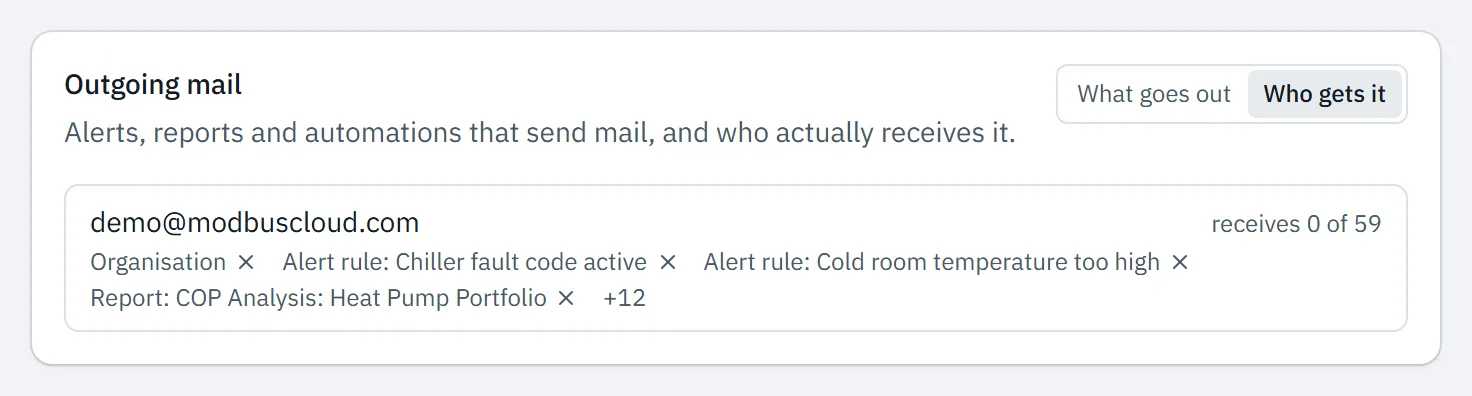
Under What goes out you see every alert rule, report and automation that sends email, with its recipients. Anything that reaches nobody is not listed. An owner or admin uses the switch next to an alert rule to turn off the email of that rule. The alert still appears in the portal.
Under Who gets it, an owner or admin removes the address from a source with the cross next to that source (Remove). Under Organisation, the address disappears from the Default email addresses.
If an email still does not arrive, follow Alert email or report does not arrive.
Content of the alert email
The alert email comes from ModbusCloud with the address noreply@modbuscloud.com. It is in Dutch, even if you use the portal in another language. The table shows which emails go out for an alert.
| Subject | Content | |
|---|---|---|
| Alert email | Customer name - name of the rule | Date and time, Klant (customer) with town, Gateway, Melding (message) and Waarde (value). If the template knows the meaning of the value, such as a fault code, that text follows the name of the rule |
| Gateway offline | Customer name - gateway name offline | Which gateway is unreachable and since when |
| Summary | Uurlijkse samenvatting (hourly summary) or Dagelijkse samenvatting (daily summary), with the number of alerts and the name of your organisation | The number per severity, and per alert the severity, the time, the gateway and the message |
The button Bekijk in portal (view in portal) in the alert email and in the email about an offline gateway opens the gateway page. In the summary, Bekijk alle alerts (view all alerts) opens the page Alerts. After an alert email, one more email follows when the value is normal again, see How alerts work. Anyone who saw the alert only in a summary does not receive that email.
Updated on 7 October 2026
Still stuck?
Email or call us. Include the serial number of the gateway, so we can take a look straight away.
Go to support