








All topics
On this page
An alert rule monitors one register of a Modbus device or the connection of one gateway. When the rule fires, an alert appears under Alerts and an email goes to the recipients. What happens to an alert afterwards is described in How alerts work.
What you need
- The role Owner, Admin or Technician in your organisation.
- A gateway with a Modbus device that returns values, see Add Modbus devices.
Create a rule
Loading the walkthrough.
The steps below create a rule with a threshold on one register.
Open the alert rules
Go to Alerts > Manage alert rules.
Start a new rule
Click New rule. The form New alert rule opens.
Open the register choice
Under Source, click Select register.
Choose the gateway
Choose the gateway. The list then shows the Modbus devices of that gateway.
Choose the Modbus device
Choose the Modbus device. The list then shows the registers, each with its live value.
Choose the register
Choose the register.
Choose the condition
In Condition, choose when the alert fires. Greater than is already selected.
Enter the threshold
In Threshold, enter the limit, for example
8. A sentence that starts with Preview: appears above the form and summarises the rule.Choose the severity
Under Severity, click Info, Warning or Critical.
Save the rule
Click Create rule. The portal shows Alert rule created and the rule is on in the list Alert rules.
Choose a condition
The table shows when the rule fires for each condition and which field you fill in.
| Condition | Alert when | Field |
|---|---|---|
| Greater than | the value rises above the threshold | Threshold |
| Less than | the value drops below the threshold | Threshold |
| Greater or equal to | the value reaches the threshold or rises above it | Threshold |
| Less or equal to | the value reaches the threshold or drops below it | Threshold |
| Equal to | the value equals the threshold | Threshold |
| Not equal to | the value differs from the threshold | Threshold |
| On change | the value changes | What counts as a change |
| On inactivity | the register gives no new value for a while | Minutes without data |
| Gateway offline | the gateway goes offline | none, the rule applies to the whole gateway |
The threshold is in the unit that the portal shows for the register, such as °C or kW. If the register has status texts or fault texts, you choose from a list for Equal to and Not equal to. Each choice shows the text with the number in brackets.
On inactivity fires after 15 minutes without data at the earliest, and after at least five times the polling interval. If you enter less, the form tells you from how many minutes the rule works. If there are enough readings, the form also shows how long the register stayed away at its longest in the past days. If that was longer than your setting, click the button with the suggested number of minutes. If the gateway itself is offline, this rule does not fire.
Gateway offline monitors the whole gateway and has no register. With this condition the form has no choice for the gateway. Create this rule with Add alarm on the gateway page. A newly linked gateway already has this rule, see Automatic monitoring.
Report faults
Many Modbus devices put a fault as a code in a register, with 0 when everything is in order. For such a register, create a rule Not equal to with threshold 0. If the template knows the code, the fault text appears in the alert and in the email.
First check in the list Alert rules whether such a rule already exists. A gateway with the default alerts of automatic monitoring gets such a rule for registers of the kind Fault code. In the list, the label Default follows the name of that rule.
Limit false alerts
For a condition with a Threshold, a second block appears below the block Alert settings, called Fewer false alarms. It holds back alerts caused by a single outlier or a short peak.
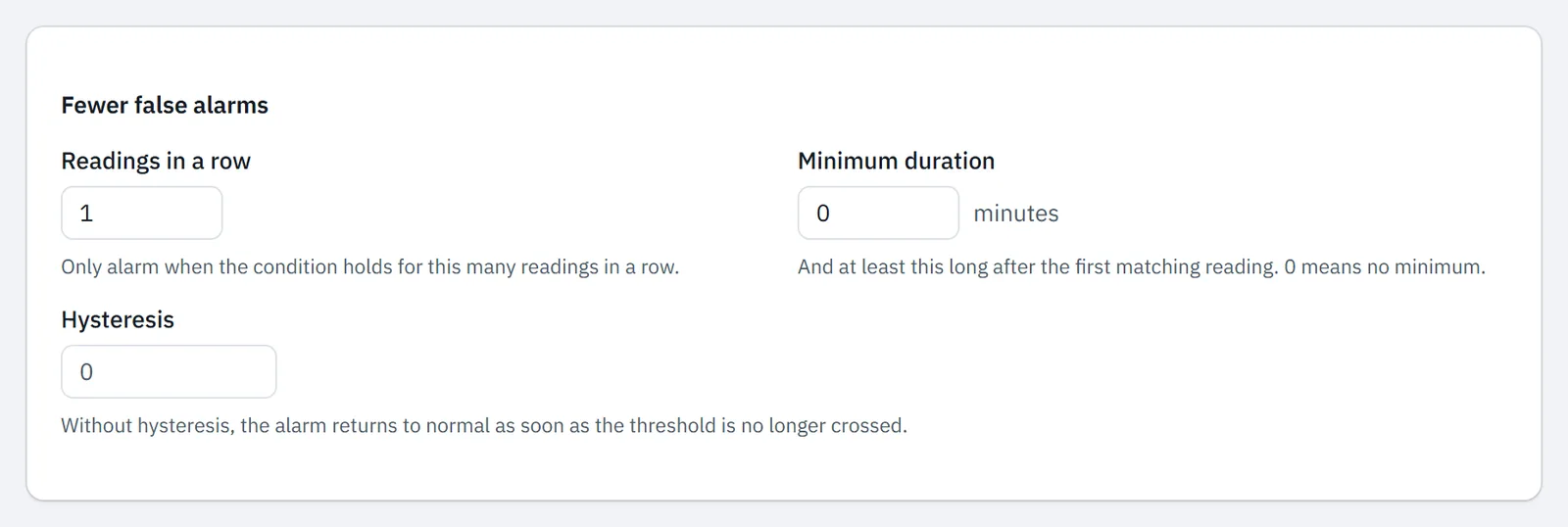
The table shows what each field does.
| Field | Effect | Value |
|---|---|---|
| Readings in a row | The alert only fires when the condition is true for this many readings in a row | 1-20, default 1 |
| Minimum duration | The condition must also stay true this long, counted from the first reading that matches | 0-1440 min, default 0 (no minimum) |
| Hysteresis | The alert is only back to normal when the value is this margin past the threshold | 0 or more, in the unit of the register |
If one reading in between does not match, the count starts again. If you choose more than one reading or a minimum duration, the block shows the earliest moment the alert can fire. It uses the polling interval of the Modbus device. With a polling interval of 60 seconds and 3 readings in a row, that is 2 minutes after the first reading that matches.
Hysteresis only appears for Greater than, Less than, Greater or equal to and Less or equal to. A rule Greater than 8 °C with Hysteresis 1 is only back to normal below 7 °C. If a rule still fires too often after that, read Alert does not fire, fires too often or stays open.
Report changes
On change reports that the value of a register changes, such as an operating mode or a setpoint. In What counts as a change, choose how large the change must be.
- Automatic counts every different value. This choice only appears for statuses, fault codes, setpoints, bit fields and integers without a scale.
- Fixed step only counts a change larger than the step, in the unit of the register.
- Percentage only counts a change larger than this percentage of the previous value.
Below Fewer false alarms there is then only Group per, default 5 minutes and adjustable from 1 to 1440 minutes. The first change after a quiet period appears in the alert immediately. Later changes are grouped per interval into one line of the log. A change is an event, so the alert is immediately Returned until someone resolves it. How that works is described in Handle an alert.
Choose the severity and cooldown
Severity has three levels and defaults to Warning. Each team member chooses for which severity they receive alert email, see Choose who receives alert emails.
Cooldown is the minimum time between two alert emails from the same rule, 60 minutes by default. If the rule fires again within that time, the portal shows it, but no new email goes out.
Name can stay empty. The portal then makes a name from the register and the condition, such as Temperature > 8.
Add extra recipients
Without addresses in the rule, the email goes to the Default email addresses of the organisation. Anyone listed under Who gets emails for alarms on the gateway page receives it too. Enter extra addresses in the block Notifications before you click Create rule.
Add an address
In Email recipients, type an email address and press Enter. Repeat for each address.
Choose how to send
In Send, choose Also to these addresses or Only to these addresses. This field appears as soon as there is an address.
Also to these addresses is the default and sends the email to the default addresses and to your extra addresses. Only to these addresses skips the default addresses. Anyone listed under Who gets emails for alarms receives the email in that case too.
Webhooks apply to the whole organisation and not per rule. How to set one up is described in Set up a webhook.
Monitor a range
A rule has one limit. If a value must stay within a range, create two rules. For a cold room between 2 and 8 °C, that is a rule Greater than 8 and a rule Less than 2.
Change a rule
You open an existing rule with the pencil in the column Actions of the list Alert rules. After your change, click Save changes.
Updated on 7 October 2026
Still stuck?
Email or call us. Include the serial number of the gateway, so we can take a look straight away.
Go to support