


All topics
On this page
You set up both routes from your own portal, on the page of the dashboard or of the customer. You can use them side by side for one customer.
Share a dashboard through a link
A public link opens one dashboard in the browser, without an account and without signing in. Anyone who has the link can view it. If your customer forwards it, the recipient can view it too. Put a password on it if that is not what you want.
The page is read-only. Widgets for control only show the value there. The link does not expire and works until you revoke it.
A public link shows exactly the widgets of that dashboard. What you turn off in What the customer sees only applies to a login of their own. An owner, admin or technician creates the link with Share on the dashboard, as described in Share a dashboard with a link.
Give your customer a login of their own
With a login of their own, your customer only sees the gateways linked to them. They do not see other customers and their gateways. How to create a customer and link gateways to them is described in Manage customers.
You invite someone with their email address in the block Portal access on the customer page. They get the role end customer. Only an owner or admin sees that block. You can only invite once the customer portal of that customer is on. The invitation is described step by step in Give a customer access.
Do not invite a customer through Team members. A team member sees all customers and gateways of your organisation, even with the role Read only.
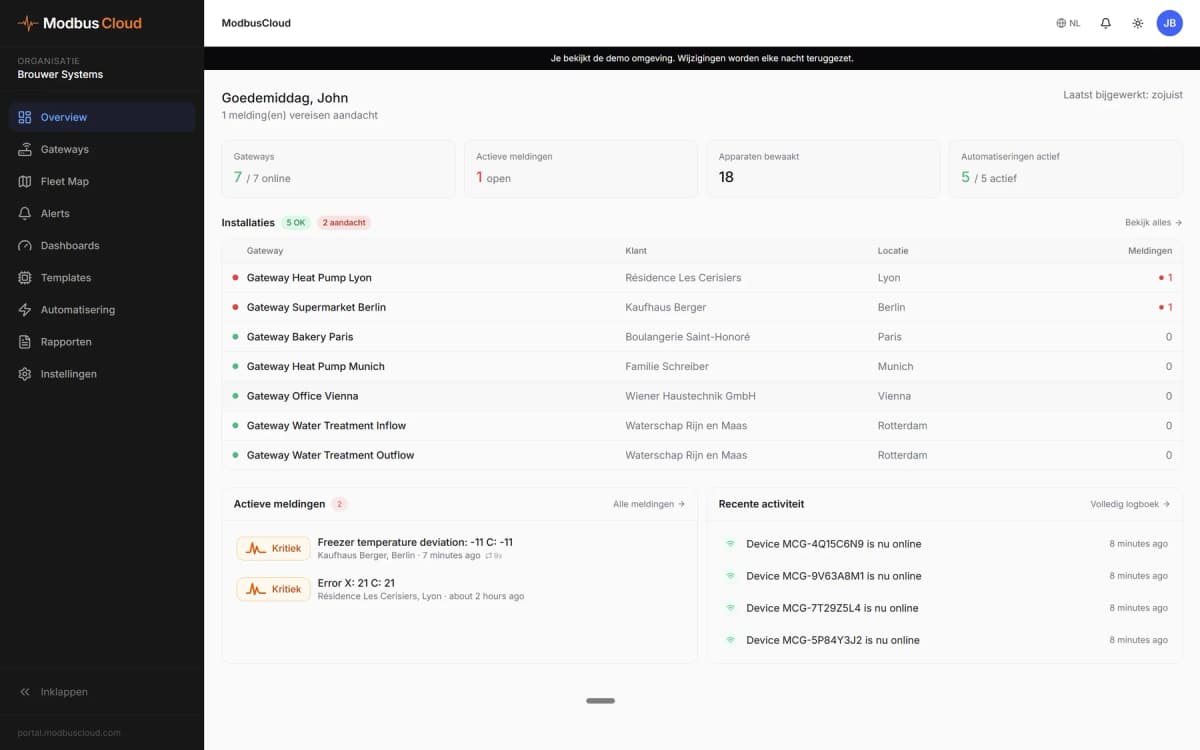
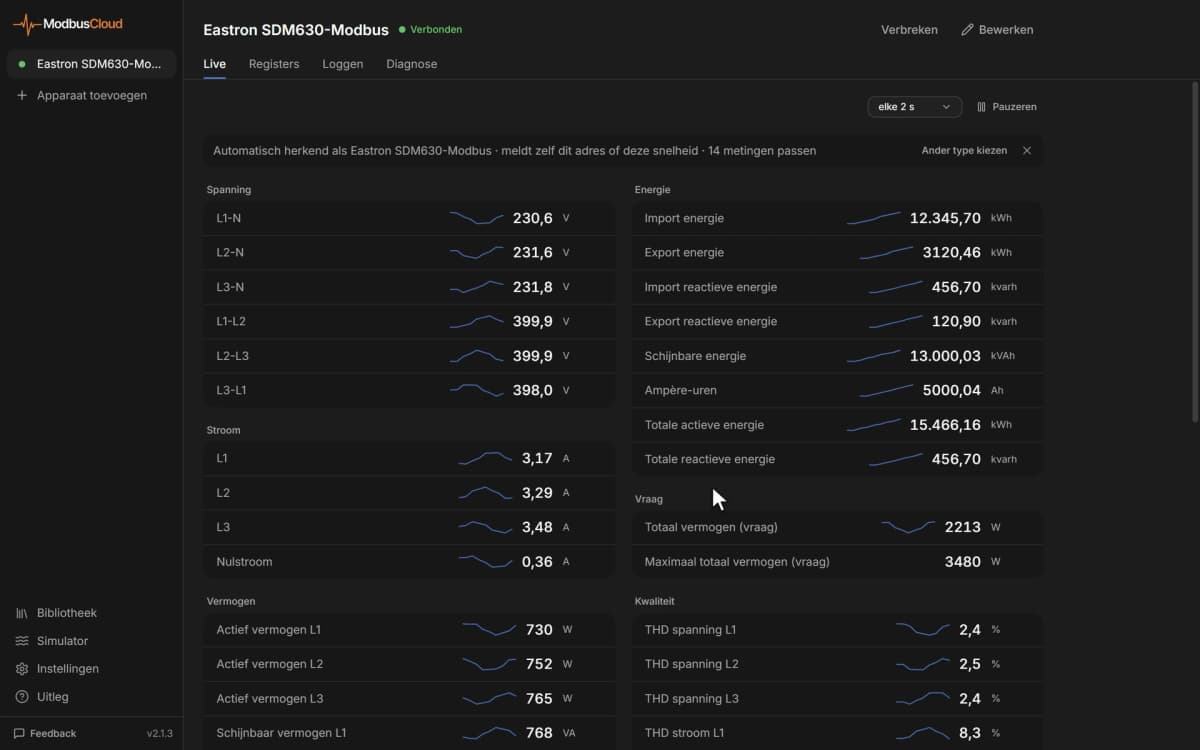
After signing in, your customer has a short menu with Overview, Alerts, Dashboards and Reports. Their overview shows tiles with values they choose themselves, the list of their gateways and the open alerts. From that list, they open the gateway page with live values and charts.
By default, your customer creates alert rules, dashboards and reports for their own gateways. The email of an alert rule they create only goes to them or to the addresses they enter. They also see the alerts from your alert rules on their gateways.
You decide what they see. In What the customer sees, you turn off per gateway, Modbus device and register what they do not need to see. That is described in Choose what your customer sees. You prepare dashboards, reports and the first tiles of their overview for them, as described in Prepare the overview, dashboards and reports.
Link and own login compared
The table puts the two routes side by side.
| Topic | Public link | Own login |
|---|---|---|
| Signing in | Not needed | Own account after an invitation by email |
| Who can view | Anyone who has the link | Only those who receive an invitation |
| What your customer sees | One dashboard | Their gateways, alerts, dashboards and reports |
| What your customer does | Only view | Create their own alert rules, dashboards and reports, download readings |
| What you decide | The widgets on the dashboard | What they see and what you prepare for them |
| Who turns it on | Owner, admin or technician | Owner or admin |
| Stopping access | Turn off Public link | Revoke access under Portal access or Close customer |
With Close customer you revoke all access of a customer in one go. How that works is described in Close a customer.
What your customer can never do
Even with a login of their own, an end customer changes nothing in the installation.
- They do not open Gateway settings and do not add Modbus devices.
- They do not control registers. The tab Control is not there for them.
- They see alerts, but do not acknowledge or resolve them.
- They do not create API keys or webhooks.
- They do not see Customers, Fleet Map, Templates and Automations.
What your customer sees and does in the portal is described in Invited by your installer.
Updated on 5 November 2026
Still stuck?
Email or call us. Include the serial number of the gateway, so we can take a look straight away.
Go to support