








All topics
On this page
Anyone who has the link can view the dashboard. If the recipient forwards it, the next person can view it too. If that is not what you want, protect the link with a password.
What you need
- The role Owner, Admin or Technician. With the role Read only, the Share button is not there.
- A dashboard. How to create one is described in Create a dashboard.
Create a public link
Loading the walkthrough.
Open the dashboards
Open Dashboards in the menu.
Choose the dashboard
Click the dashboard you want to share.
Open the share window
Click Share at the top right. The window Share dashboard opens.
Turn on the link
Turn on Public link. The link appears below the switch.
Copy the link
Click the icon with the two squares to the right of the link. The portal shows Link copied.
Send the link
Paste the link into an email or message to the people who may view the dashboard.
A dashboard has one public link at a time. If you open Share again later, the same link is there.
Protect the link with a password
With a password, the link opens the dashboard only after the recipient enters the password. The block Password protection appears below the link as soon as Public link is on.
Turn on protection
Turn on Password protection. A field for the password appears.
Enter a password
Enter a password. If you want a random password, click the icon with the two round arrows. The portal fills in 8 characters and shows them.
Save the password
Click Save. The portal shows Password set and below Password protection it says Password is active.
Pass on the password
Pass on the password separately, not in the same message as the link.
The recipient first sees This dashboard is protected. They enter the password and click Open. If it is wrong, the page says Incorrect password.
If you close the window Share dashboard, the portal no longer shows the password. To set a different password, type a new password in the field and click Save. To remove the password, turn off Password protection and click Remove password.
What the recipient sees
The page shows only this dashboard, with the name at the top, Read-only at the top right and Powered by ModbusCloud at the bottom. The menu, gateways and other dashboards of your organisation are not on it. Only registers from the widgets of this dashboard appear on the page. For a gateway, the page shows at most the name, the status and the time of the last message.
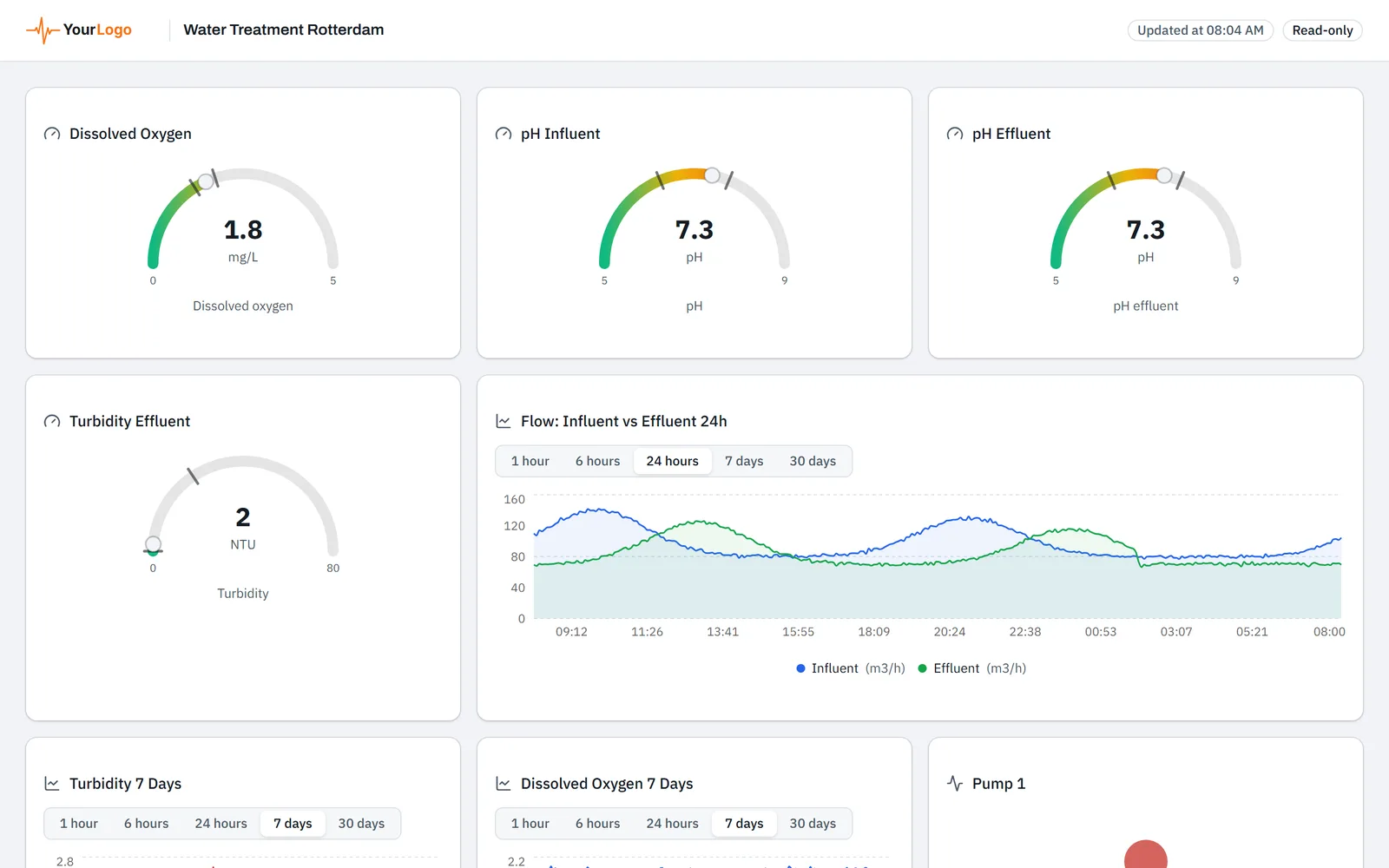
The page fetches the newest values every 10 seconds. At the top right, Updated at shows the time of the newest reading. If that reading is older than 15 minutes, the page shows No live data, last reading with the date and time.
The widgets Switch, Button, Slider and Manual input show only the value on the page. Nobody controls a register through the link. In a Chart widget, the recipient chooses a period from 1 hour to 30 days.
If you change the dashboard, the recipient sees the change as soon as they reload the page. Refreshing stops 4 hours after the page is opened. If the dashboard is on a fixed screen, reload the page at least every 4 hours. If the link has a password, the page asks for the password again after reloading.
Revoke the link
A public link does not expire by itself and works until you revoke it.
Open the dashboard
Open the shared dashboard under Dashboards.
Open the share window
Click Share.
Turn off the link
Turn off Public link. The portal shows Link revoked.
Anyone who opens the link afterwards sees Dashboard not found. A page that is already open receives no new values. A new password does not stop such an open page straight away, but revoking does.
If you turn on Public link again later, the portal creates a new link without a password. The old link stays invalid.
Updated on 7 October 2026
Still stuck?
Email or call us. Include the serial number of the gateway, so we can take a look straight away.
Go to support