








All topics
On this page
A template contains the registers of one type of Modbus device, with the address, function, data type, byte order and scale of each register. If you choose a template from the library, the portal first copies it to the templates of your organisation. When you add the Modbus device, it gets its own copy of the registers again.
What you need
- A gateway in the portal, as described in Add a gateway.
- The role Owner, Admin or Technician in your organisation. Other roles do not see the Add Modbus device button.
- The brand and the model number of the Modbus device, as shown on the rating plate.
- The address set on the Modbus device, and for Modbus TCP also the IP address.
Add a Modbus device from the library
Loading the walkthrough.
Open the gateway
Open the gateway to which the Modbus device is connected.
Start adding
On the Overview tab, click Add Modbus device. The window shows one tile for each way of adding.
Choose the library
Choose Library. Templates that your organisation already has appear at the top under Your templates.
Search for the template
Type the model number in the search field. If you find nothing, type only the brand. If the type is still not listed, follow Modbus device is not in the library.
Open the template
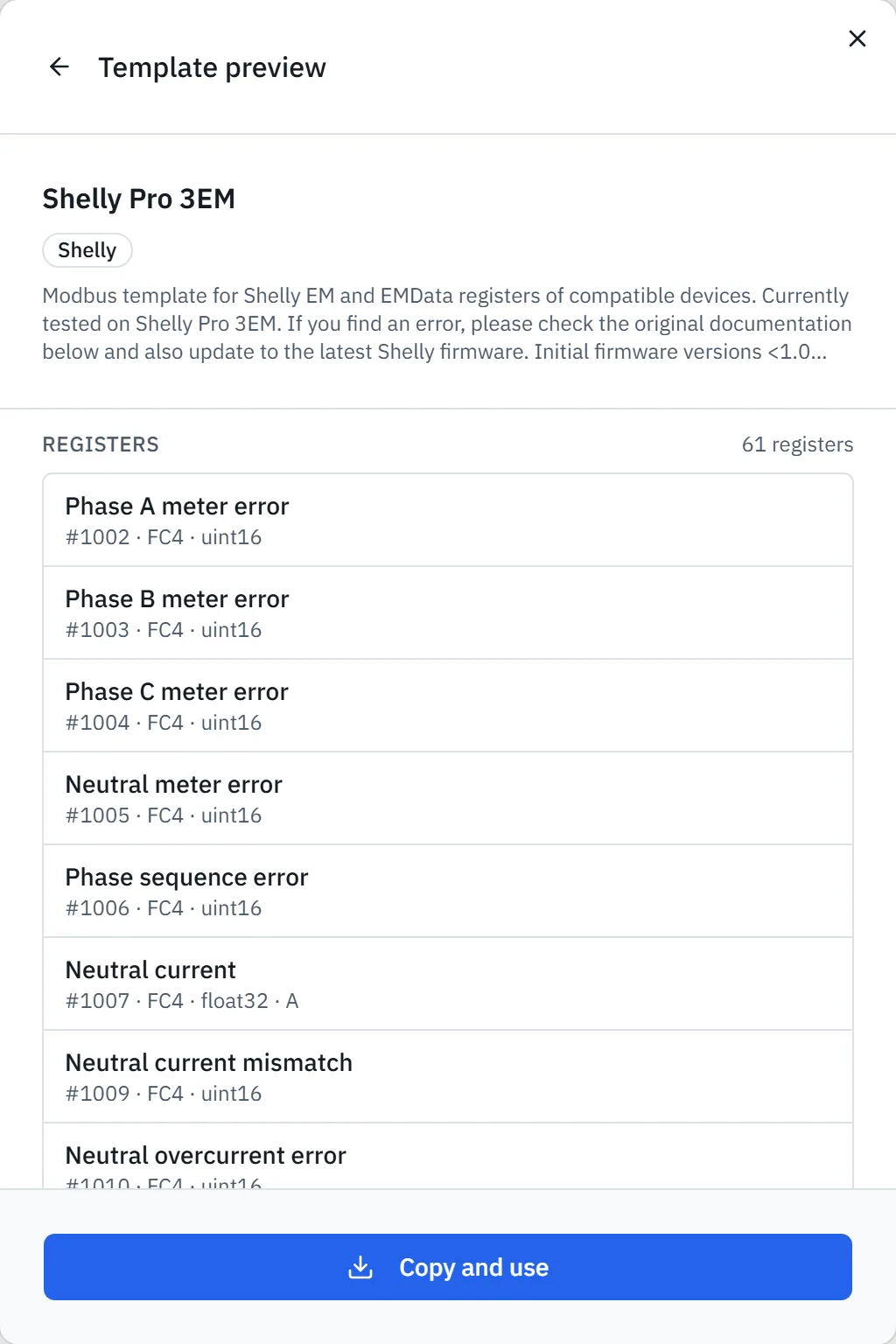
Click the template of the Modbus device. The Template preview window shows the registers with address, function code, data type and unit.
Copy the template
Click Copy and use. The Configure Modbus device window opens, with the template and the number of registers at the top.
Enter the name
In Name, enter a name that your customer recognises, such as Heat pump basement. The name of the template is filled in by default.
Check the protocol
In Protocol, choose how the Modbus device is connected. Modbus RTU is the RS485 bus, Modbus TCP the network. The template fills in the protocol, and it is not always correct.
Enter the address
In Slave-adres (slave address), enter the address set on the Modbus device. The first free address on this gateway is already filled in. With Modbus TCP, the field is called Unit-ID (unit ID) and you also enter IP-adres (IP address) and Poort (port).
Add the Modbus device
Click Add. The portal reports Modbus device added with the number of registers and sends the configuration to the gateway.
If you choose a template under Your templates, the portal skips Template preview and opens Configure Modbus device directly. The portal does not copy a register without a name or with an address outside 0 to 65535. The other registers are copied.
With Modbus RTU, Seriële bus (serial bus) shows the baud rate, parity, stop bits and data bits of the gateway. The template does not change them. Every Modbus RTU device on the RS485 bus must use the same settings, and you change them in Gateway settings.
How you determine the address, the IP address and the port is described in Set the address and connection of a Modbus device. Uitleesinterval (seconden) (polling interval in seconds) is 300 seconds (5 minutes) by default. How to choose a different interval is described in Choose the polling interval. If the portal shows a message after Add, see Message when adding or saving a Modbus device.
Check one value
A value that you read on site shows whether the template fits the Modbus device. Do this check as soon as the first values arrive.
Open the Modbus device
On the gateway page, under Modbus devices, click the Modbus device. The registers appear in a table with their Laatste waarde (last value).
Read a value
On the display of the Modbus device, read a value that is not 0, such as the voltage.
Compare the values
Compare that value with the Laatste waarde of the same register. Below the value you see how old the reading is.
A template sets a byte order and a scale for each register. If the value is wrong, check those two first, as described in Set the byte order and scale factor.
The Type column shows the data type of each register. The gateway reads int16, uint16, int32, uint32 and float32. A library template can also contain registers of another type, and those do not give a correct value. If you do not want such a register in the list, remove it with the bin (Register verwijderen, remove register).
Adjust a library template
You adjust a library template in the copy under Templates. A change in the copy applies to Modbus devices that you add afterwards. A Modbus device that is already there keeps its own registers. You change those on the page of the Modbus device, as described in Set up registers.
Copy and use makes the copy while you add the Modbus device. In the message that appears, Edit your copy opens the copy in a new tab. If you add such a Modbus device again later, choose your copy under Your templates.
If you want to adjust the template before you add a Modbus device, copy it from Templates.
Open Templates
Open Templates in the menu.
Open the library
Under the page title, click Library. The page shows the templates from the library.
Search for the template
Type the model number in the search field.
Open the template
Click the template. The page of the template opens with the registers and the connection details.
Copy the template
Click Importeer naar mijn bibliotheek (import to my library). The portal reports Template toegevoegd aan jouw bibliotheek (template added to your library). If the button says Al in jouw bibliotheek (already in your library), your organisation already has the copy.
The copy is then in the list under Templates. Open it with the eye at the end of the row (Bekijken / bewerken, view / edit) and adjust it as described in Create a custom template.
Updated on 7 October 2026
Still stuck?
Email or call us. Include the serial number of the gateway, so we can take a look straight away.
Go to support