

All topics
On this page
Your installer gives you access to the gateways that belong to you. You do not see other gateways and customers of your installer. Your installer manages the installation, so you do not change settings of a gateway or Modbus device.
Create your account
Your account uses the email address the invitation was sent to. You cannot change that address later.
Open the invitation
Click Create account in the email. The page Invitation opens with your email address.
Enter your name
Enter your full name in Name.
Choose a password
Enter a password of at least 8 characters in Password.
Create the account
Click Create account & accept. You are signed in straight away and see your Overview.
If you already have an account with this email address, click Sign in below Already have an account?. Enter your password and click Sign in and accept.
If the link does not work, the page shows Invalid invitation with one of these messages.
| Message | What you do |
|---|---|
| This invitation has expired. | Ask your installer for a new invitation |
| This invitation has already been accepted. | Sign in with your email address and password |
| Invitation not found or invalid. | Open the link from the email again. If that does not work, ask for a new invitation |
Sign in again
Later, sign in at the web address of the invitation link, with your email address and password. Bookmark that page.
If you have lost your password, click Forgot password? on the sign-in screen. If signing in still does not work after that, see Signing in does not work.
Menu and overview
The menu consists of Overview, Alerts, Dashboards and Reports. On a phone, these four are at the bottom of the screen. Your profile is under the round button with your initials at the top right.
At the top right there is also Guides, with short walkthroughs of the screens, such as viewing values in a chart or downloading readings. On a phone, Guides is under the button with your initials.
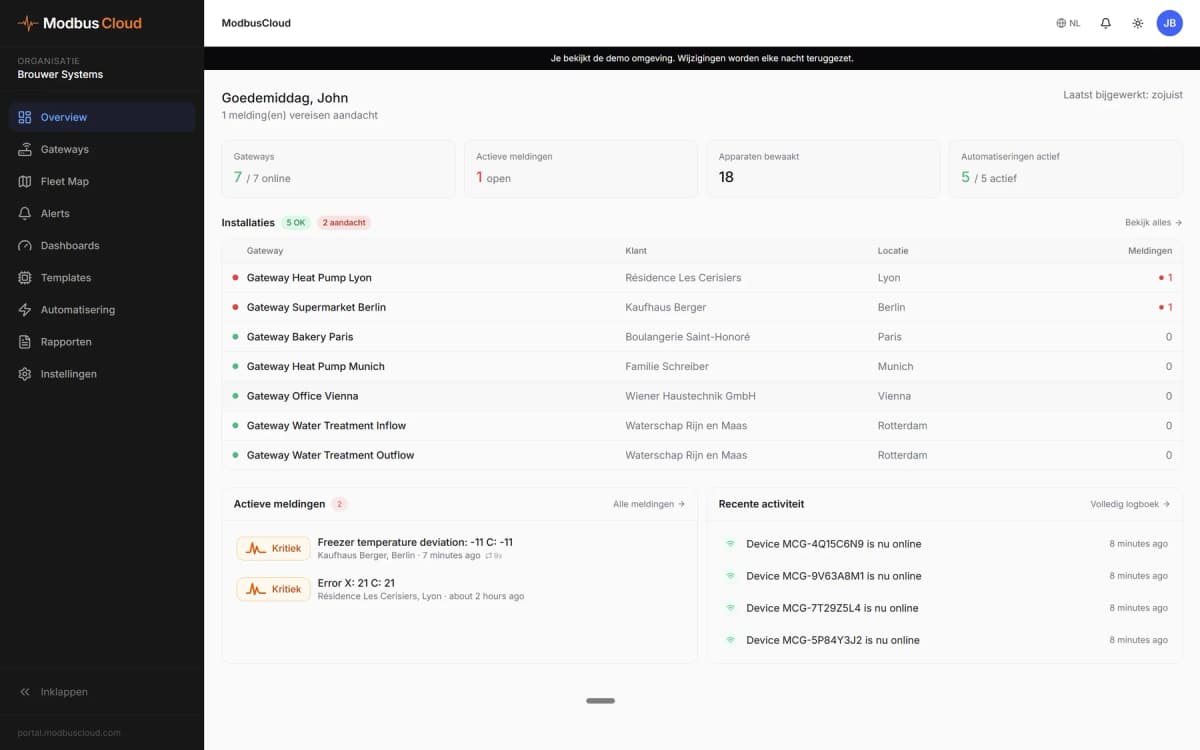
Overview is your start screen. At the top you see how many gateways are online and how many alerts are open. Below that are your tiles under My overview and the list Gateways with all your gateways. For each gateway you see whether it has a connection and whether an alert is open. On a computer, Active alerts and your dashboards and reports appear below that.
Choose the tiles on your overview
A tile shows one register as a number, as a chart of the last 24 hours or as a gauge.
Start editing
If there are tiles already, click Edit next to My overview.
Add a tile
Click Add tile. The window Add tile opens.
Choose the type
Under Type, choose Value, Chart or Gauge.
Choose the register
Under What do you want to see, choose the register for the tile.
Enter the range
If you chose Gauge, enter the lower and upper limit of the gauge under From and To.
Save the tile
Click Add. The tile appears on your overview straight away.
If you leave Name empty, the tile gets the name of the register. After Edit, you drag a tile by its handle or remove it with the cross. Finish with Done.
View a gateway
On Overview, click a gateway in the list Gateways. Above the tabs of the gateway page is the block Alarms of that gateway.
The table shows which tabs you see.
| Tab | What you see |
|---|---|
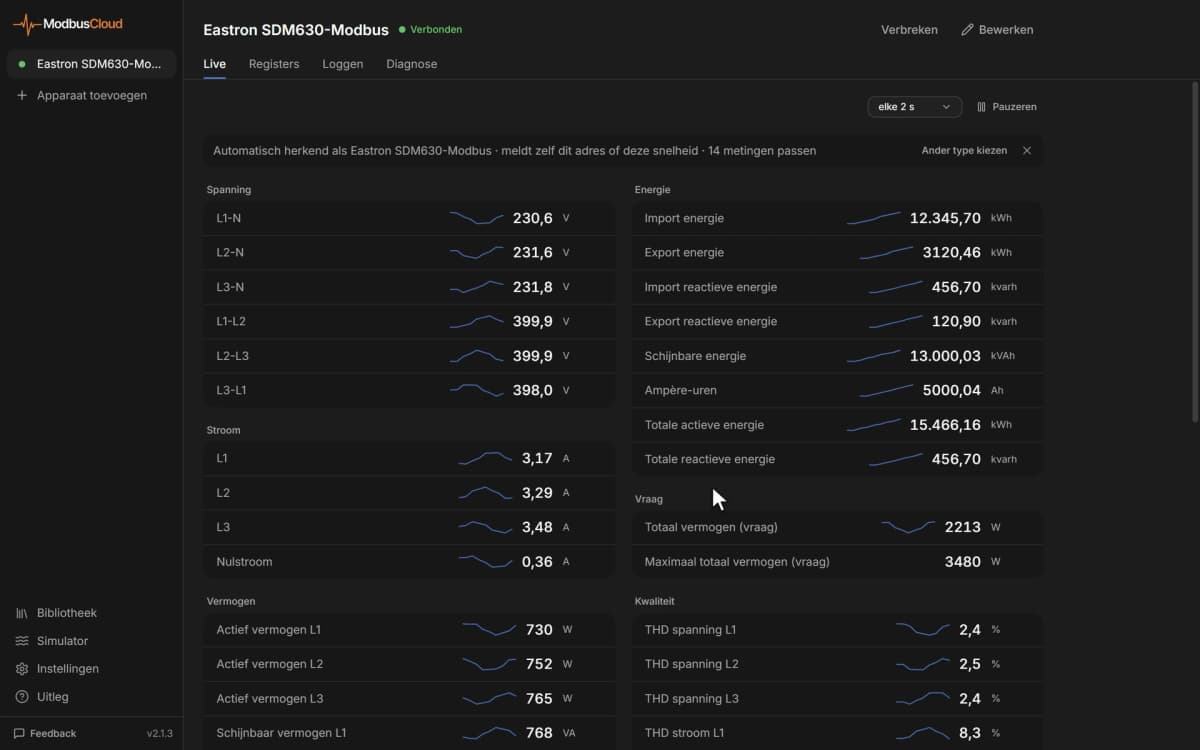
| Overview | A card per Modbus device with the latest value of each register |
| Trends | The history of registers in a chart, from the last hour to 30 days |
| Variables | Values that the portal calculates with formulas from your installer |
| Tariff | Only with a kWh meter, the consumption split over peak and off-peak hours |
| History | When the gateway went online and offline |
How to put registers in the chart and choose a period is described in View values and charts.
You get readings as a file for Excel with Download readings. On a computer, that option is in the menu with the three dots at the top right of the gateway page. On a phone, it is the button with the downward arrow. The file contains the registers you see in the portal. The options in the window are described in Download readings.
Follow alerts
Under Alerts you find the alerts of your gateways, including those from the alert rules of your installer. Filter with Open, Acknowledged and Resolved. Click an alert for its history. View Modbus device opens the gateway that goes with it.
Your installer acknowledges and resolves alerts. If a value is back to normal, the alert does not close by itself. It gets the status Returned and stays under Open until your installer resolves it.
If you want email for alerts of a gateway, look at the bottom of the gateway page under Who gets notified of alarms. Turn on the switch after your name marked (you). After an alert email, you get one email as soon as the value is back to normal.
Notifications also appear under the bell at the top right. You remove one there with the cross, and all of them with Clear all. That only applies to you, in the browser where you do it.
Create alert rules, dashboards and reports yourself
Your installer decides whether you may do this. If you do not see the button New rule, New dashboard or New report, that option is off for you. You cannot change rules, dashboards and reports of your installer.
Create an alert rule
On the page Alerts, click New rule. You only create a rule for your own gateways. Your email address is already filled in under Email recipients. The email of your rule only goes to the addresses in that field, or to you if you leave it empty. The other fields are described in Create an alert rule. You find your own rules again with the button Manage alert rules on the page Alerts.
View and copy dashboards
Under Dashboards, you first see the dashboards that your installer prepared for you, under a heading with the installer's name. You can only view those. Open one and click Make a copy for a version of your own under My dashboards. You start a new dashboard with New dashboard. How to add widgets is described in Create a dashboard.
View and create reports
Under Reports, click the name of a report. A report from your installer opens in a new tab. Your browser then immediately offers to print it or save it as a PDF. You create your own reports on a computer with New report, as in Create and schedule reports.
Manage your profile and password
You open your profile with the round button with your initials at the top right and then My profile. The Settings page has these sections for you.
| Section | What you do there |
|---|---|
| My profile | Change Full name, Preferred language and Timezone, or delete your account with Delete account |
| Security | Change password and Sign out on all devices |
| Colleagues | Invite a colleague with their email address. Only there if your installer allows it |
Sign out under the button with your initials only applies to the browser where you do it.
Contact your installer
You ask your installer any questions about your installation, your access or your account. If your installer filled in their contact details, the button Contact is at the top right. On a phone, it is a button with a phone. It shows the installer's name and, as far as filled in, Call, WhatsApp and Email.
Updated on 5 November 2026
Still stuck?
Email or call us. Include the serial number of the gateway, so we can take a look straight away.
Go to support