








All topics
On this page
The simulator is a Modbus TCP server in ModbusCloud Diagnostics. It runs on your own computer and answers with the registers of a template from the library, without a cable and without a Modbus device. You cannot practise RS485 wiring or bus faults with it. What a simulator does and does not teach you is covered in the lesson Practise Modbus TCP with a free simulator.
What you need
- ModbusCloud Diagnostics on your computer. How to install it is described in Install ModbusCloud Diagnostics.
Simulate a device type from the library
The simulator imitates every device type in the library, including a device type you created yourself.
Open the library
In the sidebar, click Library.
Find the device type
In the search field, type the brand or the model.
Open the template
Click the device type in the list.
Start the simulator
Click Simulate. The simulator starts on port
5020and the Simulator screen opens.Add the Modbus device
Click Add a device for this simulator. Diagnostics finds the simulator on
127.0.0.1and compares its values with the library.Choose the device type
Click Use next to the device type you are simulating. If it is not listed, click Choose a different device and pick it from the list.
The Modbus device opens with its live values. How to read and write values is described in Identify a Modbus device, read and write values.
You can also add it yourself with Add device > Via network, the address 127.0.0.1 and, under More options, port 5020. That route is described in Connect and find a Modbus device with Diagnostics.
Only one simulator runs at a time. If you click Simulate on another device type, it replaces the simulator that is already running. It stops when you close Diagnostics.
If another program already uses port 5020, Diagnostics reports that starting failed. Stop that program and click Simulate again.
Start the demo meter
The demo meter is a fictional three-phase energy meter with two relays and an energy counter in byte order CDAB. It does not take part in identification. If the simulator is already running with another device type, first click Stop simulator on the Simulator screen.
Open the window
In the sidebar, click Add device.
Start the demo meter
Click No device at hand? Try the demo meter. Diagnostics starts the simulator on port
5020, adds the Modbus device Demo-meter and opens the live values.
On the welcome screen, the button is called Or try it with the demo meter.
Set the port, unit IDs and faults
On the Simulator screen, you choose the template, the port and the unit IDs. You can also imitate a slow or silent connection there. The screen stays in the sidebar while the simulator runs.
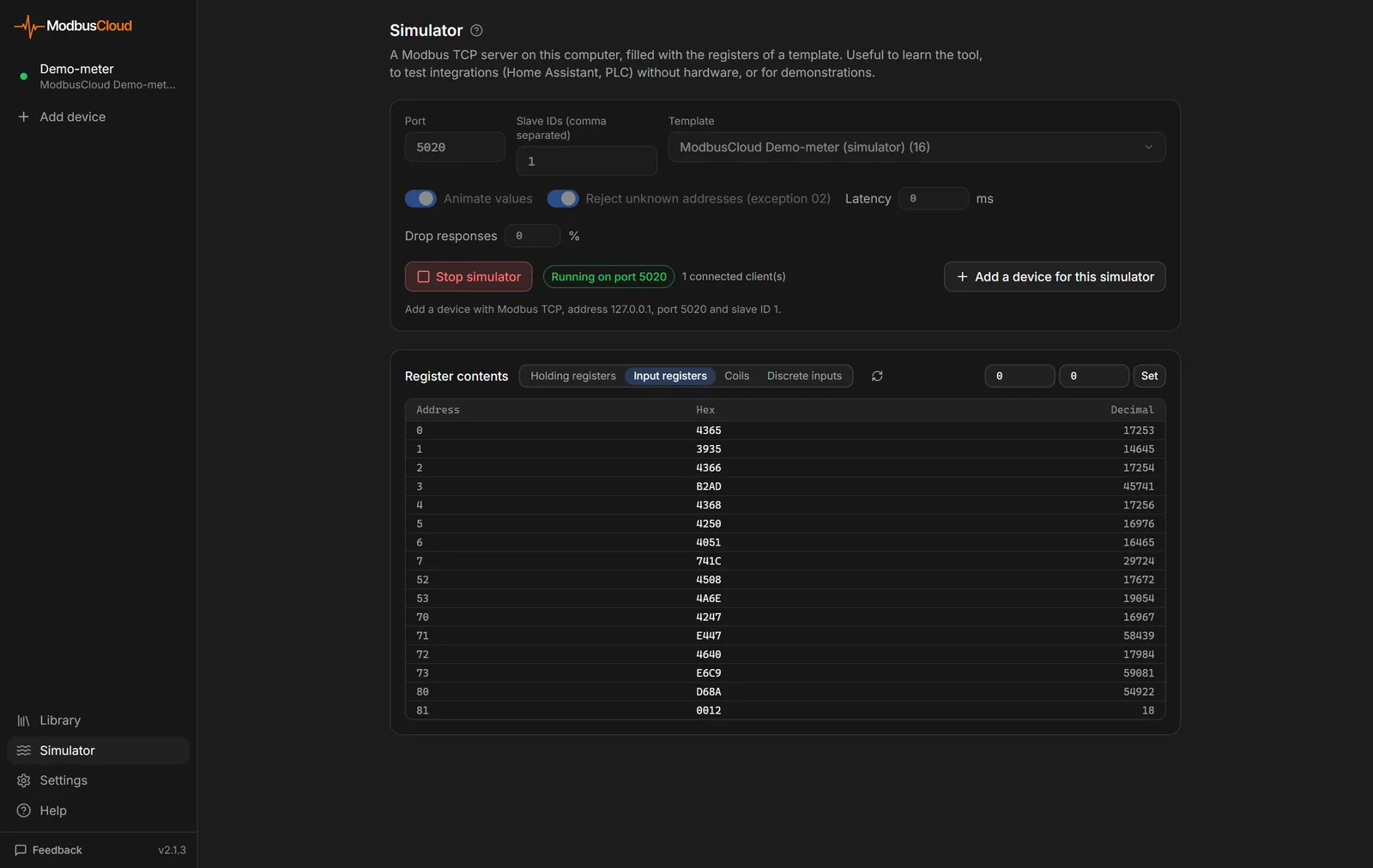
The table shows the settings.
| Setting | What it does | Default |
|---|---|---|
| Port | TCP port the simulator listens on | 5020 |
| Slave IDs (comma separated) | Unit IDs it answers on, 1-247, all with the same template | 1 |
| Device type | Device type for the registers. With None they are empty | Demo-meter |
| Animate values | Measured values fluctuate and counters count up, on the first unit ID only | On |
| Reject unknown addresses (exception 02) | An address outside the template gets exception 02, otherwise the value 0 | On |
| Latency | Wait time before each answer, 0-5000 ms | 0 ms |
| Drop responses | Percentage of requests without an answer | 0% |
Below the buttons, the screen shows which address, port and unit ID to connect to.
Stop the simulator
Click Stop simulator. The fields can only be changed while the simulator is stopped.
Choose the template
In Device type, choose the device type.
Adjust the fields
Adjust the other fields, for example
1,2,3in Slave IDs (comma separated).Start the simulator
Click Start simulator. Next to the button, you see the port and the number of connected clients.
If the device type is not in the Device type list, start it with Simulate in the library.
Under Register contents, you see the values per register type. To set a value yourself, enter an address, a value and click Set. If you set a moving value, the simulator overwrites it within a second.
Test your own software
The simulator listens on all network cards of your computer. Software on the same computer connects to 127.0.0.1. A PLC or SCADA system elsewhere in the network connects to the IP address of your computer. That only works if the firewall of your computer allows incoming traffic on that port.
Another unit ID gets no answer, just as on an RS485 bus. On unit ID 0 and 255, the simulator answers as the first unit ID. With Latency and Drop responses, you test how your software handles slow answers and timeouts.
You can see the frames of your software in the console of Diagnostics. Turn on the console with Ctrl+L (on a Mac Cmd+L) and choose Simulator in the All devices list. How to read the console is described in Find faults with the Diagnostics tab and the console.
Updated on 7 October 2026
Still stuck?
Email or call us. Include the serial number of the gateway, so we can take a look straight away.
Go to support