


All topics
On this page
Branding applies to the customer portals of all your customers at once. Your own portal and the emails to you and your team members stay in the ModbusCloud style.
What you need
- The role Owner or Admin. Team members with another role see the page, but cannot change anything.
- Your logo as a PNG, JPG or SVG of at most 2 MB.
Set the name and brand colour
The name appears in the browser tab, on the sign-in page and as the sender of the emails to your customer. The brand colour colours the buttons, the links and the active menu item in the customer portal, and the button in the emails.
Open branding
Go to Settings > Branding.
Enter the name
In the block Customer portal, enter under Portal name the name your customers see, up to 60 characters. If you leave the field empty, the portal uses the Organization name under Settings > Organization.
Enter the brand colour
Under Brand colour, enter the colour as a hex code, for example
#0055AA. The colour box in front of the field opens a colour picker.Save name and colour
Click Save. The portal shows Branding saved.
Below Brand colour, the portal warns if the colour is very light or very dark. Saving still works, but another shade reads better.
If the hex code is not valid, the portal shows Enter a colour as #RRGGBB. and Save is disabled. Default sets the brand colour back to #2563eb. Then click Save.
Upload logo and icon
The portal saves a logo or icon as soon as you choose the file. You do not need to click Save for it.
The table shows which files the portal accepts and where they appear.
| Field | File | Where it appears | Without a file |
|---|---|---|---|
| Logo for a light background | PNG, JPG or SVG up to 2 MB, preferably landscape | Sign-in page, top bar on a phone, emails to your customer, Header of a new report | The portal name as text, in the top bar the first letter |
| Logo for a dark background | PNG with a transparent background or SVG up to 2 MB, usually a white version | Sidebar of the customer portal | In the sidebar, the logo for a light background on a white tile |
| Browser tab icon | Square, PNG or SVG up to 2 MB, for example 64 x 64 pixels | Browser tab, collapsed sidebar | The first letter of the name on a tile in your brand colour |
Open branding
Go to Settings > Branding.
Upload the light logo
In the block Logo and icon, click Upload under Logo for a light background.
Choose the logo file
Choose the file of your logo. The portal shows Image saved and places the logo above the button.
Upload the dark logo
Click Upload under Logo for a dark background.
Choose the white version
Choose the version of your logo for a dark background.
Upload the icon
For an icon of your own in the browser tab, click Upload under Browser tab icon.
Choose the icon file
Choose the square file of your icon.
You replace an uploaded file with Replace or remove it with Remove. That also happens immediately. If a file is larger than 2 MB, the portal shows The file is larger than 2 MB. and the old file stays.
If you set a logo of its own for a customer, for example that of a school, that customer sees that logo instead of yours. That applies in their customer portal and in the emails. Name, brand colour, icon and contact details remain yours. How to set that logo per customer is described in Turn on a customer portal.
Enter contact details
Your customer sees the contact details in the customer portal behind the button Contact at the top right. On a phone, it is a button with a phone. There they choose Call, WhatsApp or Email. If you fill in nothing, the button is not there.
The email address and the phone number also appear at the bottom of the emails to your customer. If your customer replies to such an email, the reply goes to the email address.
Open branding
Go to Settings > Branding.
Enter the email address
In the block Contact for your customers, enter in Email address the address at which your customers reach you, for example
service@example.com.Enter the phone number
In Phone number, enter the number, for example
+44 20 7946 0000.Enter WhatsApp
To be reachable through WhatsApp, enter your mobile number with country code in WhatsApp, such as
+44 7700 900123. The portal reads a number that starts with 0 as a Dutch number.Save the contact details
Click Save. The portal shows Branding saved.
View the preview
The block Preview shows the sign-in page, the portal and an alert email as your customer sees them. The preview changes while you type, before you save. On a narrower screen, the block appears below the fields.
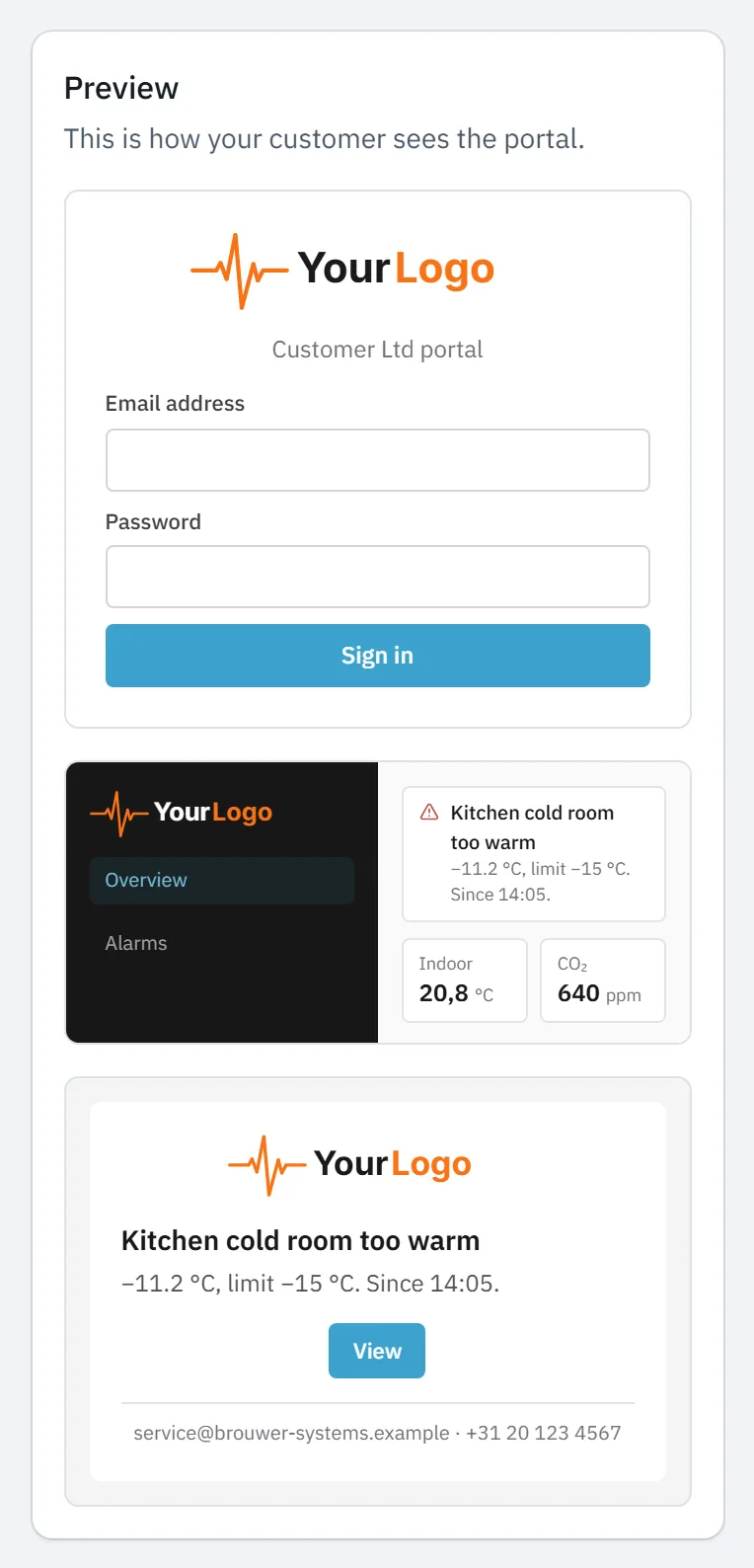
If a customer has an active customer portal, View as customer on the customer page opens their actual portal in a new tab. How that works is described in Turn on a customer portal.
Updated on 5 November 2026
Still stuck?
Email or call us. Include the serial number of the gateway, so we can take a look straight away.
Go to support