








All topics
On this page
Organization applies to everyone in your organisation, My profile only to you. Both are under Settings.
What you need
- The role Owner or Admin to change the organisation details. A technician and a team member with the role read only can see the details, but without the Save button.
Enter the organisation details
After these steps, the portal knows the name, address and timezone of your company. The fields are in four blocks, one below the other.
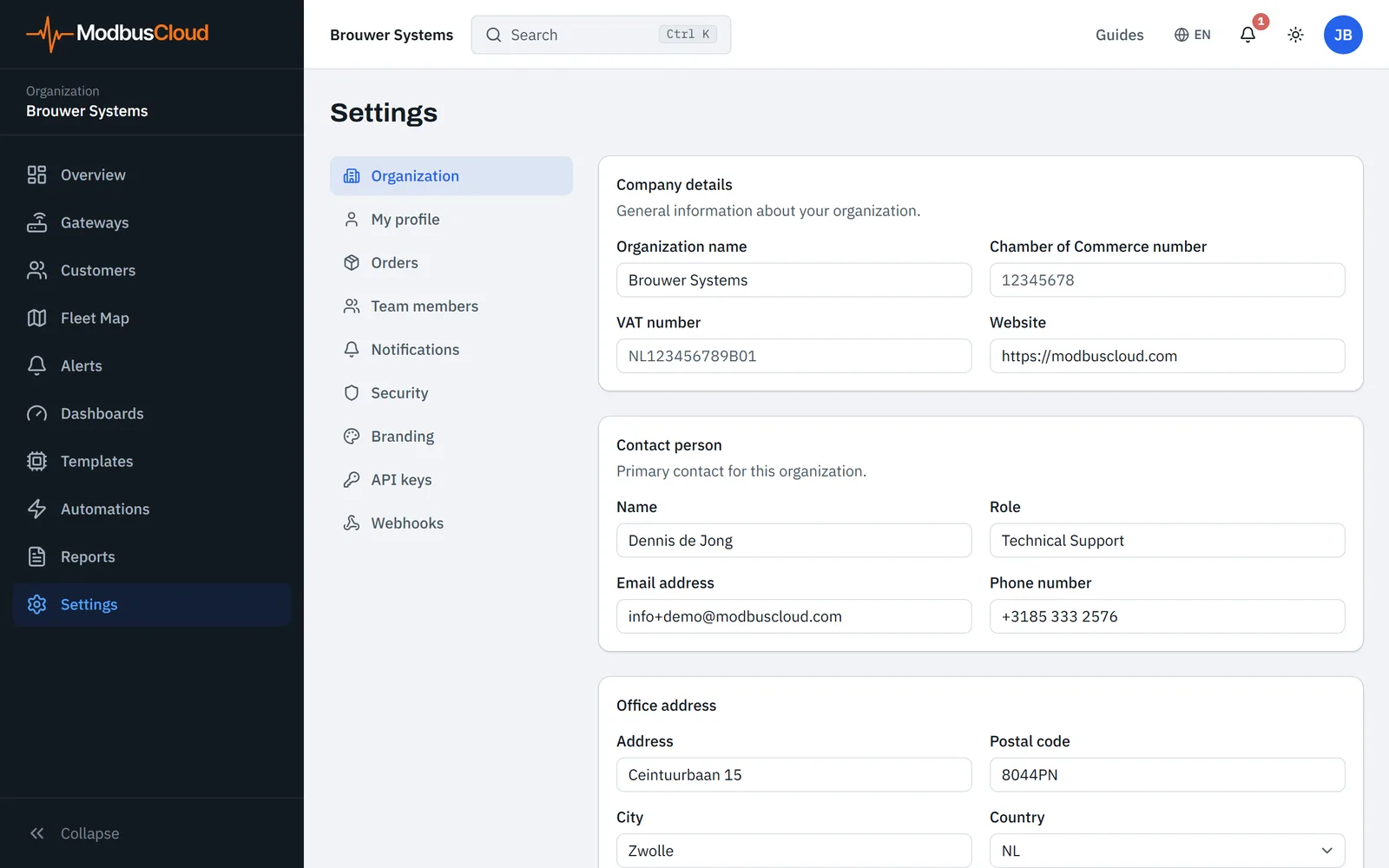
Open Organization
Go to Settings > Organization.
Enter the company details
Under Company details, enter the Organization name, the Chamber of Commerce number, the VAT number and the Website.
Enter the contact person
Under Contact person, enter the Name, the Role, the Email address and the Phone number of your regular point of contact.
Enter the address
Under Office address, enter the Address, the Postal code and the City.
Choose the country
In Country, choose the country of your office. If it is not in the list, choose Other.
Choose the timezone
Under Timezone & date format, in Timezone, choose the timezone of your office. The default is Europe/Amsterdam (CET/CEST).
Save the details
Click Save. The portal shows Settings saved.
The Organization name appears on the left in the top bar and in the invitation that a new team member receives by email. The VAT number here does not change your invoices. Those use the details you enter at checkout in the webshop.
The Timezone decides where a day, week or month starts in dashboards. This applies to a Bar chart, a Heatmap and a period such as Today or This month. A dashboard that you share with a link uses the same timezone.
A week always starts on Monday in dashboards. Date format and First day of the week do not change how the portal displays anything.
Set up your profile
Your profile holds your name and the language of emails about your account. You can change your profile with any role.
Open the profile
Go to Settings > My profile. You can also reach it through My profile in the menu under your initials at the top right.
Enter your name
In Full name, enter your first and last name.
Choose the language
In Preferred language, choose the language of your account emails, for example English.
Save the profile
Click Save. The portal shows Profile updated.
Your name appears in the list of team members, in the menu under your initials and in the block Who gets emails for alarms. In the log of an alert, it appears with your notes and with acknowledging and resolving. Save your profile once for this, even if Full name is already filled in. Otherwise the part of your email address before the @ may appear there.
Preferred language sets the language of emails about your account, such as the email for resetting your password. If you requested control for a gateway, the email that confirms it is switched on also arrives in that language. You choose the language of the portal itself with the globe in the top bar. Alert email to team members is in Dutch, whichever language you choose.
Dashboards use the Timezone of the organisation, not the Timezone in your profile.
You change your password under Settings > Security, as described in Secure your sign-in and account. At the bottom of My profile is the block Delete account. What a deletion request does is described in Cancel your licence and have your account deleted.
Sign in with a different email address
The email address you sign in with is shown in grey at the top of My profile, with the message Email address cannot be changed. A different address therefore becomes a new account in your organisation.
Invite the new address
Ask an owner or admin to invite the new address, as described in Team members and roles. If you are the owner yourself, invite the address with the role Owner.
Open the invitation
On the new address, open the link in the invitation.
Create the account
In Name, enter your name. In Password, enter a password of at least 8 characters.
Accept the invitation
Click Create account & accept. If the role was Owner, the new account becomes the owner and the old one becomes admin.
Set up the profile
In the new account, set your Full name and Preferred language, using the steps under Set up your profile.
Turn on alert email
Turn on the new account in the block Who gets emails for alarms of every gateway, as described in Choose who receives alert emails. A new account is not turned on there yet.
Delete the old account
Ask an owner or admin to delete the old account under Settings > Team members.
Updated on 7 October 2026
Still stuck?
Email or call us. Include the serial number of the gateway, so we can take a look straight away.
Go to support