


All topics
On this page
The setting applies to everyone who signs in as an end customer of this customer, now and later. You and your team members keep seeing everything. How to invite someone at the customer is described in Give a customer access.
What you need
- The role Owner or Admin. Other team members see the block, but cannot change the checkboxes.
- A customer with at least one linked gateway.
By default the customer sees everything
The portal only stores what is turned off. A gateway that you link to the customer later is therefore visible to the end customer straight away. The same applies to a new Modbus device or a new register. Something new only stays hidden if it is below a gateway or Modbus device that is turned off.
If you add a register that the customer does not need to see, turn it off right after.
Turn off a gateway, Modbus device or register
The block What the customer sees has a checkbox per gateway, per Modbus device and per register. Checked means visible. The portal saves every click immediately, without a button to confirm.
Open the customer list
Open Customers in the menu.
Choose the customer
Click the customer. The customer page opens.
Find the block
Scroll to the block What the customer sees. Every gateway of the customer is listed, with its Modbus devices below it.
Turn off whole items
To hide everything below a gateway or Modbus device, uncheck that item. The name turns grey and is struck through. For a gateway, its Modbus devices also disappear from the block.
Expand the registers
To hide only individual registers, click the name of the Modbus device. The registers appear below it, each with a checkbox.
Turn off registers
Uncheck every register the customer does not need to see. To turn off all registers of this Modbus device at once, click All off.
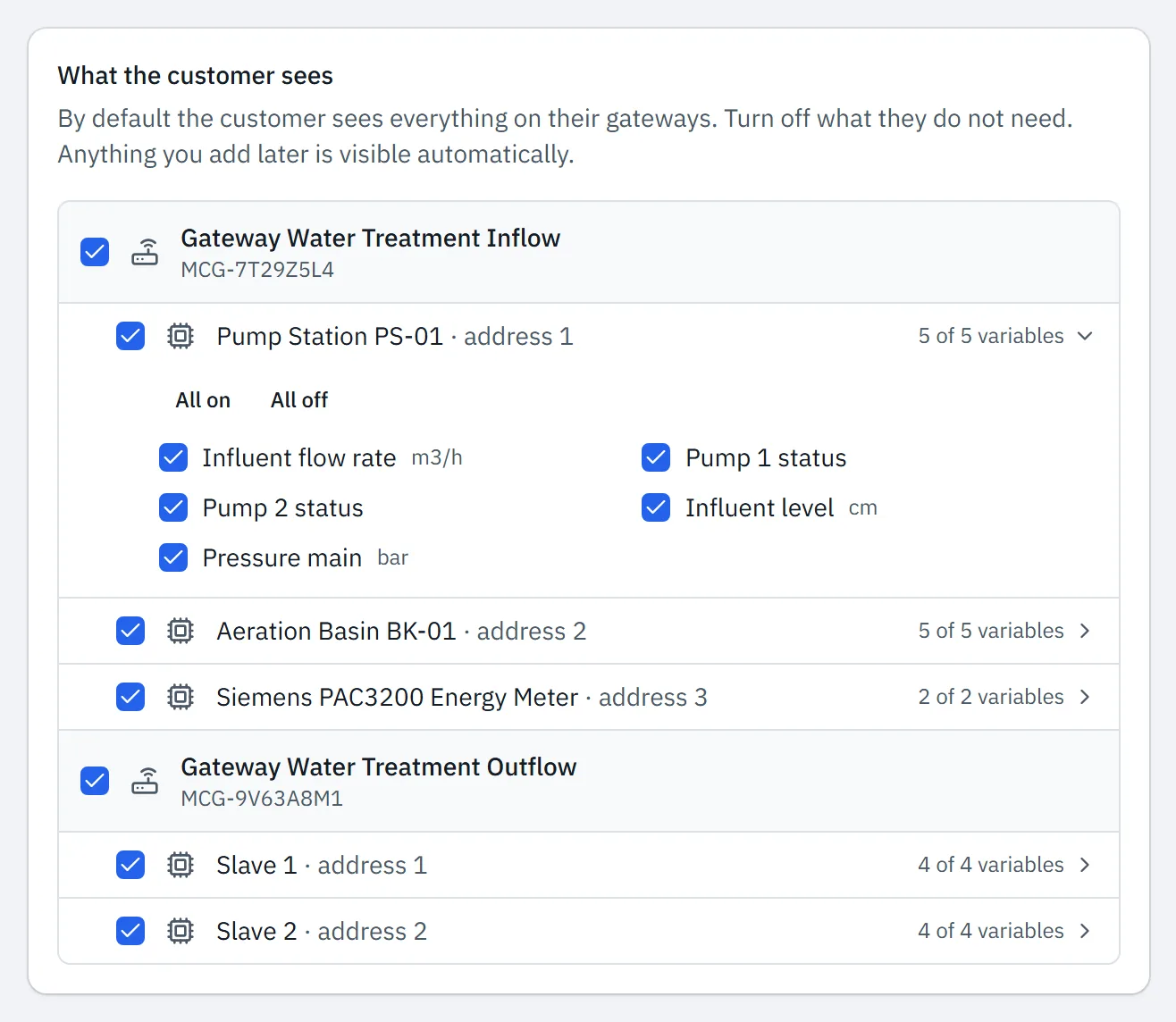
If something is off, the sentence above the list says how many items are off. Next to each Modbus device, you see how many of its registers the customer sees. If saving fails, the portal shows Saving failed. and the checkbox returns to how it was.
Check an item again to show it again. All on turns all registers of a Modbus device back on at once. If you turn a gateway or Modbus device back on, the registers below it are set as you had them before.
What the end customer no longer sees
The table shows what the end customer misses in the portal when an item is off.
| Off | What the end customer misses |
|---|---|
| Gateway | All Modbus devices, registers and variables of the gateway with their values and charts, and all alerts and alert rules of the gateway |
| Modbus device | The Modbus device and all its registers with their values and charts, and the alerts and alert rules on them |
| Register | The value and the chart of the register, and the alerts and alert rules on it |
The tab Trends and the file from Download readings also leave out hidden items. A widget with a hidden register shows the end customer no value, also in a dashboard or report that you prepare for the customer. Preparing itself is described in Prepare the overview, dashboards and reports.
What stays visible
A gateway that is off stays on the Overview of the end customer with its name and status. The end customer does not see what is below it.
The end customer still sees a variable that calculates with a hidden register on the tab Variables. They see the result and the name of the register in the formula. How variables work is described in Calculate values with variables.
Alert email does not follow this setting. If someone at the customer is listed under Who gets notified of alarms on the gateway page, they also receive alert email about hidden items.
Hiding only applies to people who sign in as an end customer. A dashboard that you share with a public link shows everyone with the link everything on it. How sharing works is described in Share a dashboard with a link.
Updated on 5 November 2026
Still stuck?
Email or call us. Include the serial number of the gateway, so we can take a look straight away.
Go to support