








All topics
On this page
ModbusCloud Diagnostics reads a Modbus device from your laptop, through a USB-RS485 adapter or over the network. The program recognises the type from the library and tells you what to check when something fails. Use it during commissioning, before the gateway is connected to the bus. How to use it to find a fault on the bus later is described in Find faults with the Diagnostics tab and the console.
What you need
- A computer with Windows 10 or 11 (64-bit), or with macOS 10.15 or newer.
- Internet for the download. After that, the program also works without internet.
Install on Windows
The installer (.exe) puts the program in your own user account and does not ask for administrator rights.
Open the download page
Open the ModbusCloud Diagnostics download page.
Download the installer
Click Download for Windows. The browser saves the installation file.
Start the installer
Open the downloaded file. Windows does not know this installer yet, so it may show the window Windows protected your PC.
Expand the message
If that window appears, click More info.
Allow the installer
Then click Run anyway. The installer starts.
Finish the installation
Follow the steps of the installer. ModbusCloud Diagnostics is then in the Start menu.
Install on macOS
One program works on a Mac with Apple silicon and on a Mac with Intel.
Open the download page
Open the ModbusCloud Diagnostics download page.
Download the disk image
Click Download for macOS. The browser saves the disk image (.dmg).
Open the disk image
Open the downloaded file. A window opens with the program and the Applications folder.
Install the program
Drag ModbusCloud Diagnostics to the Applications folder.
Open the menu
In Finder, right-click ModbusCloud Diagnostics.
Open it the first time
Choose Open. If macOS asks whether you want to open the program, confirm.
If macOS still blocks the program, allow it in System Settings under Privacy & Security and open it again. After that, it starts with a double-click.
Start for the first time
The program starts in the language of your system. If that is not Dutch, English or German, it starts in English. You choose another language under Settings in Language.
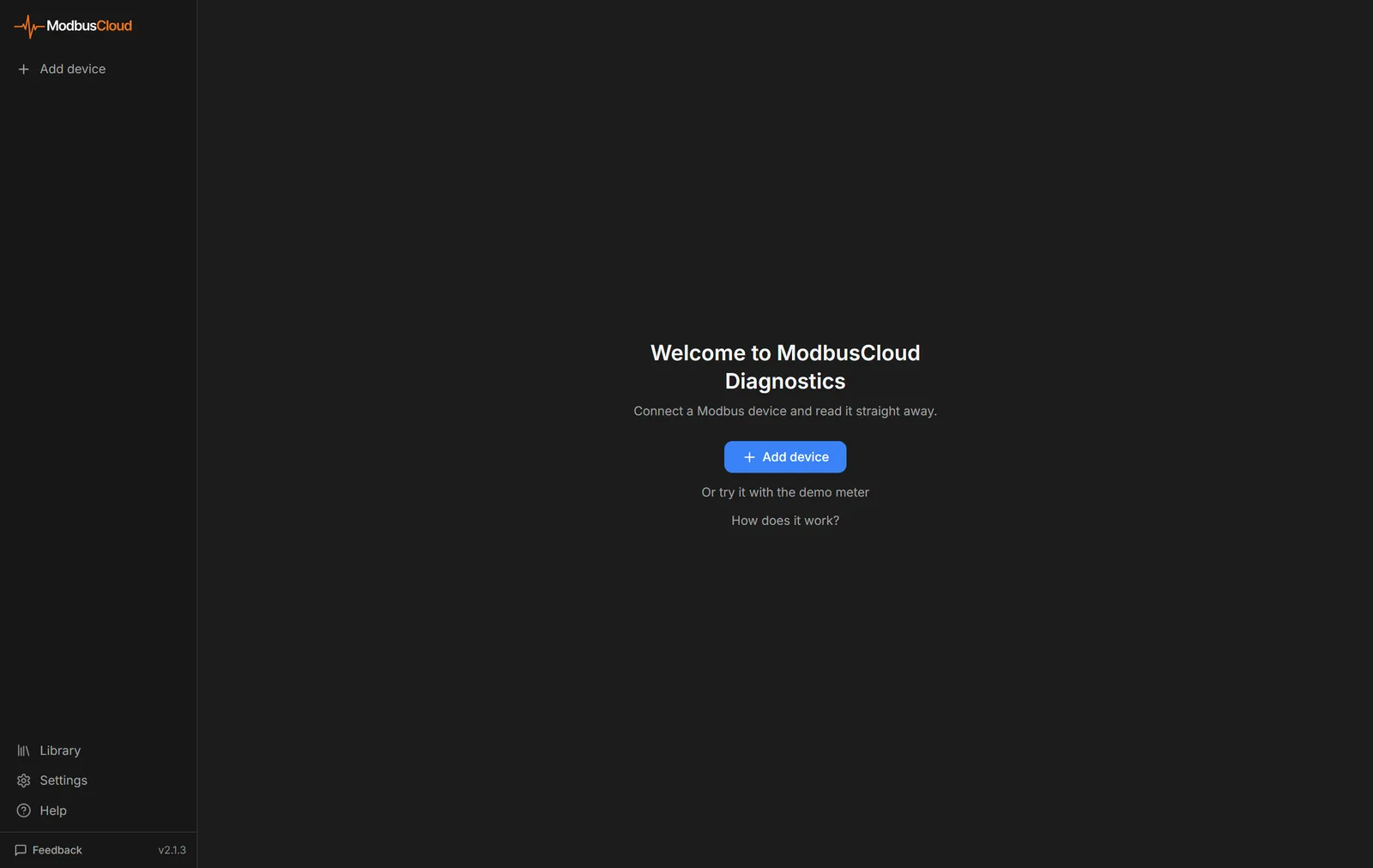
The welcome screen has the Add device button for your first Modbus device. How to connect it is described in Connect and find a Modbus device with Diagnostics. If you have no Modbus device at hand, click Or try it with the demo meter. More about practising without hardware is in Practise with the simulator.
Install updates
The program checks at startup whether a new version is available, at most once every 12 hours. If there is one, a button with the new version number appears at the bottom of the sidebar.
Open the update
Click the button with the new version number at the bottom of the sidebar. Settings opens.
Install the update
Click Download and install. The program installs the new version and restarts.
To check yourself, use Check for updates under Settings. The version you are using is shown at the bottom right of the sidebar.
Update the library
The template library is part of the program, so recognising a Modbus device also works without internet. At startup, the program fetches the latest version at most once a day. If you want it straight away, click Update in Library. If a Modbus device is still missing afterwards, import the manual as described in Import the manual of an unknown Modbus device.
Data and privacy
The program asks for no account and sends no usage data. It only connects to the internet to look for updates and to update the library. The Modbus devices you add, your recordings, custom templates, imported manuals and settings are stored in the file diagnostics-v1.db on your own computer.
The table shows the folder that contains this file.
| System | Folder |
|---|---|
| Windows | %APPDATA%\com.modbuscloud.diagnostics |
| macOS | ~/Library/Application Support/com.modbuscloud.diagnostics |
Uninstall the program
On Windows, you remove the program from the list of installed apps in the Windows settings. On a Mac, you drag it to the Trash. By default, the data folder stays in place. If you also want to remove your saved data, delete that folder.
Updated on 7 October 2026
Still stuck?
Email or call us. Include the serial number of the gateway, so we can take a look straight away.
Go to support