








All topics
On this page
The Gateway settings page belongs to one gateway. The blocks Algemeen (General), Modbus RTU-bus (Modbus RTU bus) and Uitlezen via de SIM (Reading via the SIM) each have their own save button, which saves only that block. After you save, the portal sends a changed bus and a new SIM interval to the gateway.
What you need
- The role Owner, Admin or Technician in your organisation.
Open the settings
The settings have their own page, which you open from the gateway page.
Open the gateway list
Open Gateways in the menu.
Open the gateway
Click the gateway.
Open the settings
Click the pencil at the top right of the header (Gateway settings). The Gateway settings page opens.
On a phone, open the settings with the gear icon at the top right of the gateway page.
The table shows which blocks the page has.
| Block | What it contains |
|---|---|
| Algemeen | Name, installation location, customer, address, notes and tags |
| Modbus RTU-bus | Baud rate, parity, stop bits and data bits of the RS485 bus |
| Uitlezen via de SIM | The connection the gateway currently sends over, and the SIM interval |
| Automatic monitoring | The checks that watch the readings of this gateway, explained in Automatic monitoring |
| Gateway info | Fixed details, such as the serial number and the date of linking |
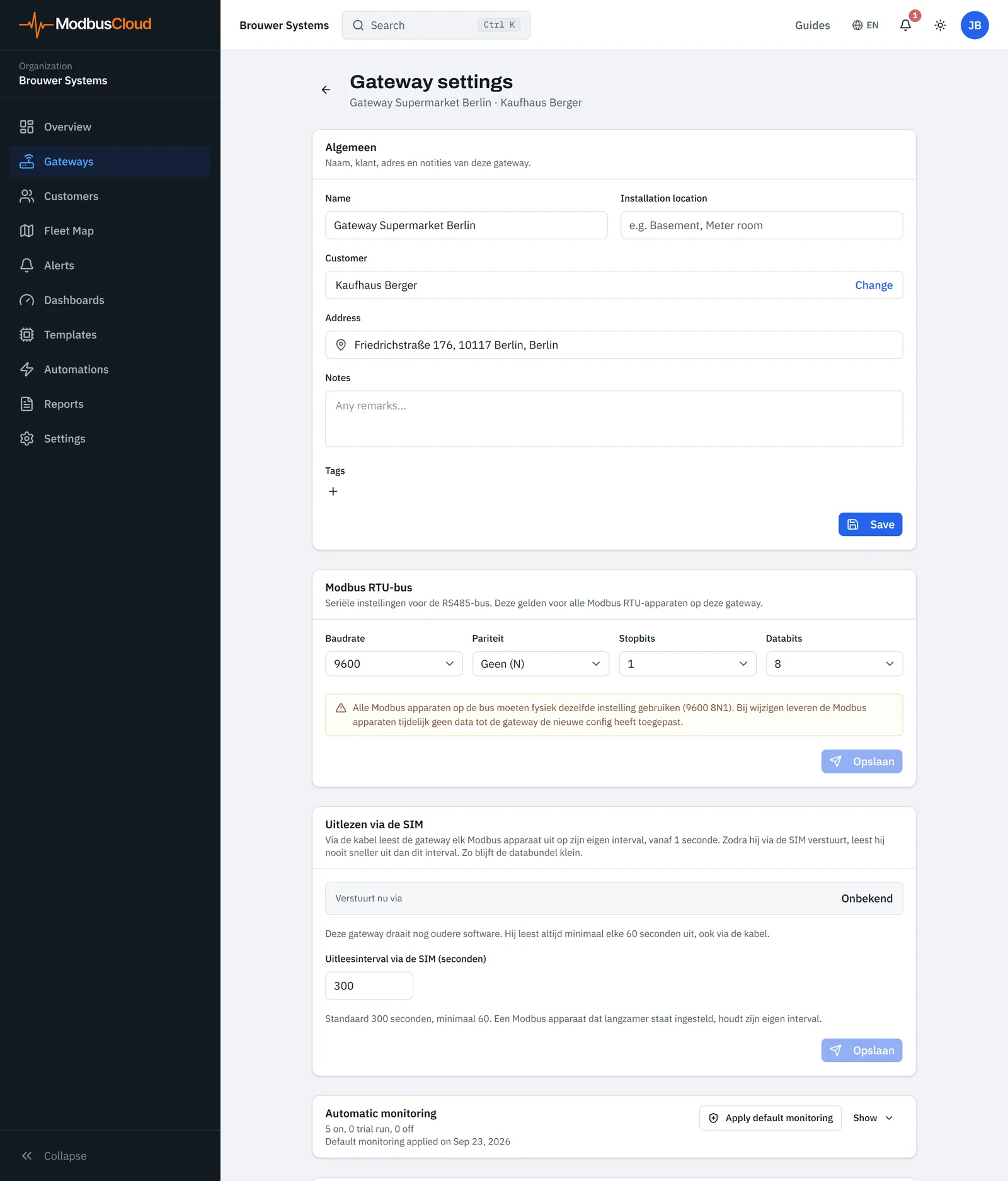
Change the name, customer and address
The block Algemeen holds details of the gateway and of its customer. The table shows which field belongs to which.
| Field | Belongs to | What you enter |
|---|---|---|
| Name | The gateway | The name in the header of the gateway page and in the list under Gateways |
| Installation location | The gateway | Where the gateway is installed, for example Meter room |
| Customer | The gateway | The customer where the gateway is installed |
| Address | The customer | The address of the customer, which also sets the place on the Fleet Map |
| Notes | The customer | Remarks about the customer and their installation |
| Tags | The gateway | Coloured labels for this gateway |
The portal stores address and notes with the customer. If you change them here, they change for all gateways of that customer. If Customer shows No customer, the portal stores no address and no notes.
Enter the name
In Name, enter the name of the gateway.
Search the address
In Address, type at least three characters of the address. A list of suggestions appears.
Choose the address
Choose the address from the list.
Save the change
At the bottom of the block Algemeen, click Save. The portal shows Settings saved.
Only an address from the suggestions puts the gateway on the Fleet Map. If you change the address without choosing a suggestion, the portal stores it as text. The gateways of that customer then do not appear on the Fleet Map.
To choose another customer, click Change next to the customer name, as Manage customers explains. You save that choice in the window Choose customer itself.
You add a tag with the plus sign next to Tags. It is on the gateway at once, without Save.
Set up the RS485 bus
The bus settings apply to all Modbus RTU devices on the gateway. Each Modbus device on the bus must use the same settings itself, otherwise it does not answer. By default the bus uses 9600 8N1.
| Field | Choices | Default |
|---|---|---|
| Baudrate (baud rate) | 1200, 2400, 4800, 9600, 19200, 38400, 57600, 115200 | 9600 |
| Pariteit (parity) | Geen (N) (none), Even (E) (even), Oneven (O) (odd) | Geen (N) |
| Stopbits (stop bits) | 1, 2 | 1 |
| Databits (data bits) | 8, 7 | 8 |
If you add the first Modbus RTU device with automatic search, the bus gets the settings that this Modbus device answered on. The slave address does not belong to the bus. You set it per Modbus device, as Set the address and connection of a Modbus device explains.
Choose the values
Under Modbus RTU-bus, choose for each field the value that your Modbus devices use.
Save the change
At the bottom of the block, click Opslaan (Save). The portal asks Businstellingen wijzigen? (Change bus settings?)
Confirm the change
Click Bevestigen (Confirm). The portal shows Businstellingen opgeslagen en config verstuurd (Bus settings saved and config sent).
If the portal shows only Businstellingen opgeslagen (Bus settings saved), with a warning, it could not send the configuration to the gateway. The new bus then goes along with the next change you save to the SIM interval or to a Modbus device. If the gateway has no Modbus RTU device yet, the bus goes along with the first Modbus RTU device you add.
How to wire the bus is in Connect the RS485 bus. The lesson Baud rate and parity explains why the whole bus must use the same settings.
Change the SIM interval
Under Uitlezen via de SIM, Verstuurt nu via (Sending now via) shows whether the gateway sends over Kabel (Cable) or SIM, and since when. If it shows Onbekend (Unknown), the gateway has not yet reported which connection it sends over. A gateway with older software never reports this. It never reads more often than once per 60 seconds, also over the cable.
Over the SIM, the gateway never reads faster than the SIM interval. By default this is 300 seconds (5 minutes). A Modbus device with a longer polling interval keeps its own interval. How both intervals work together is in Choose the polling interval.
Enter the SIM interval
In Uitleesinterval via de SIM (seconden) (polling interval via the SIM in seconds), enter a value from
60to86400.Save the change
In the same block, click Opslaan (Save). The portal shows SIM-interval opgeslagen en naar de gateway gestuurd (SIM interval saved and sent to the gateway).
When the gateway switches from the cable to 4G is explained in 4G and the backup SIM.
Read the serial number and linking date
Under Gateway info, Serial number shows the number the gateway was added with. A click on it copies it. Claimed on shows the date the gateway was linked to your organisation.
Permissions per role
A team member with read-only access sees no pencil on a computer. On a phone, they do open the settings with the gear icon, but the save buttons are missing. An end customer cannot reach the settings, not even with a typed link.
Only the owner may decommission a gateway. This goes through the menu with the three dots on the gateway page, as Decommission or replace a gateway explains.
Updated on 7 October 2026
Still stuck?
Email or call us. Include the serial number of the gateway, so we can take a look straight away.
Go to support