








All topics
On this page
On RS485, Diagnostics is the master on the bus for as long as you test. If a gateway or another master is also on the same RS485 bus, disconnect it temporarily. Two masters on one bus cause garbled answers. While the gateway is disconnected, the portal receives no new readings from that bus.
What you need
- ModbusCloud Diagnostics on your laptop. See Install ModbusCloud Diagnostics.
- The Modbus device added in the app, through a USB-RS485 adapter or the network. See Connect and find a Modbus device with Diagnostics.
Open the Diagnostics tab
The tab shows the state of one Modbus device.
Choose the Modbus device
In the left column, click the Modbus device.
Make the connection
If the Modbus device is not connected, click Connect at the top right.
Open the tab
Open the Diagnostics tab. The connection test starts by itself.
If the Modbus device has a device type and does not answer, the Live tab also shows a Diagnostics button.
Judge the connection
At the top of the tab is one sentence about the connection. It starts with a verdict on the share of requests that get an answer.
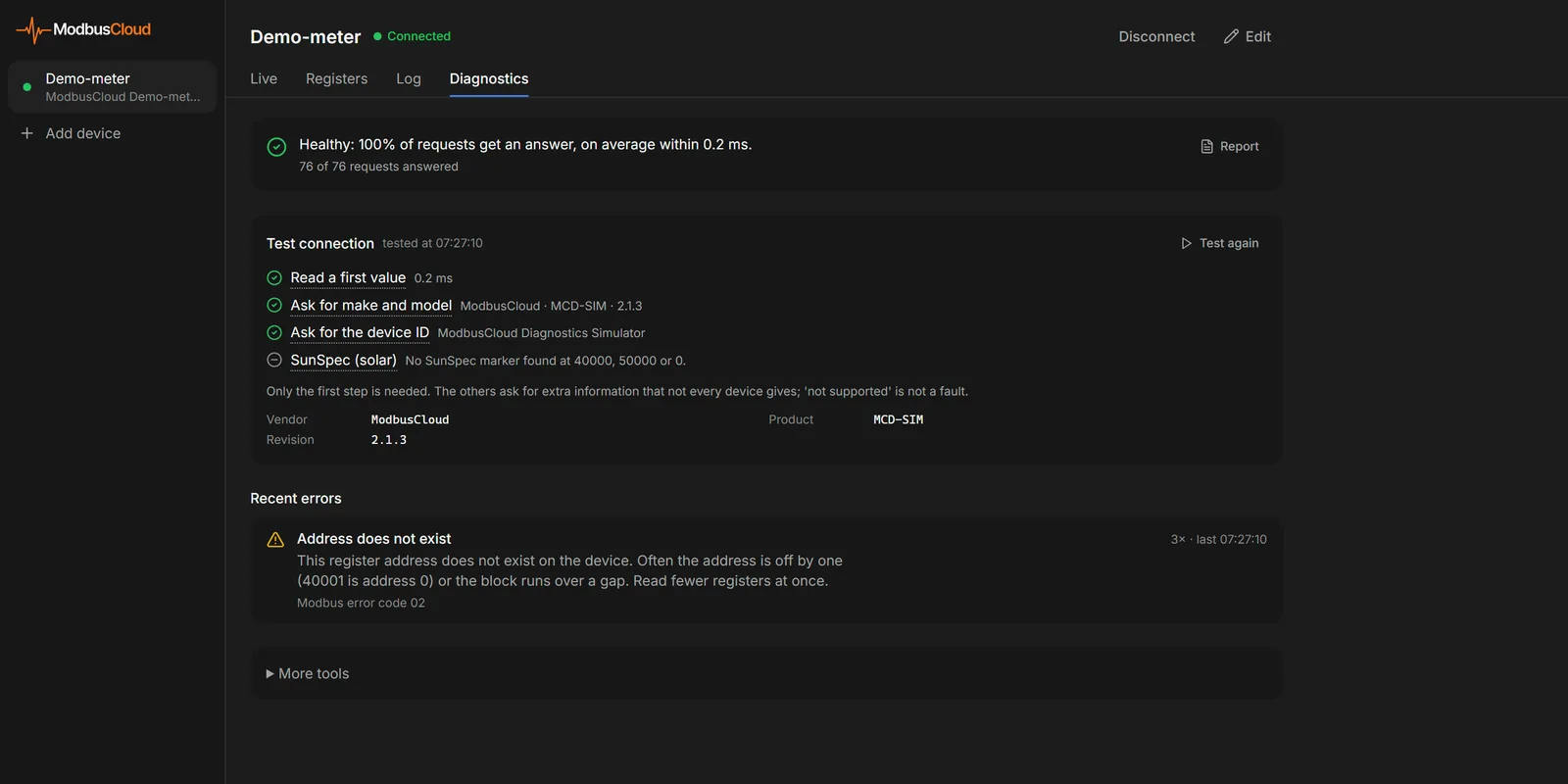
The table shows which verdict belongs to which share.
| Verdict | Requests with an answer | What the app shows with it |
|---|---|---|
| Healthy | 95-100% | The average response time |
| Mediocre | 70-94% | A check of cable, termination resistor and a second master |
| Poor | 1-69% | Search settings again (RS485) or a list of causes (TCP) |
| The device does not answer. | 0% | Search settings again (RS485) or a list of causes (TCP) |
Under the sentence is the number of requests that got an answer. The app counts the traffic of the last 30 seconds. If no request went out in that time, it counts the last 20 requests. Traffic from before a change of settings does not count.
Test the connection
The connection test asks four questions in a row and marks each step with a tick, a dash or a cross. Click Test again to run it once more.
| Step | What the app asks |
|---|---|
| Read a first value | One value. With a device type, the first register of that type. Without a device type, holding register 0, and if the Modbus device refuses that, input register 0 |
| Ask for make and model | Make, model and firmware version, with function code 43 |
| Ask for the device ID | A short identification, with function code 17. Mainly older Modbus devices know this |
| SunSpec (solar) | A SunSpec marker at address 40000, 50000 or 0. SunSpec is a standard for inverters and batteries. Energy meters and sensors usually do not support SunSpec |
Only the first step is needed. If it fails, the cause follows it, such as No answer. A dash at the other three steps is not a fault. At Ask for make and model and Ask for the device ID, it then says not supported (normal for many devices).
Read recent errors
Under Recent errors are at most four causes from the last 5 minutes, with the newest at the top. Each cause says in plain language what goes wrong and what you check. It also shows how often it occurred and when it last occurred.
The table shows some of the messages.
| Message | What happens | What you check |
|---|---|---|
| No answer | No answer arrives within the wait time | RS485: slave address, speed, and A and B. Modbus TCP: IP address, port, unit ID and whether another program keeps the connection busy |
| Garbled answers | Bytes arrive, but the checksum does not match | Speed and parity, a second master on the bus and the termination resistor |
| Address does not exist | Modbus error code 02. The register address does not exist on the Modbus device | The address is often off by one (40001 is address 0), or the block spans a gap. Read fewer registers at a time |
| Function not supported | Modbus error code 01. The Modbus device does not know this request | Read the other register type (holding or input). If you write, do one register at a time |
| Invalid value or too many registers | Modbus error code 03. The Modbus device refuses the request | Ask for fewer registers at a time, or check the value you write |
| Answer from another device | A different slave address answers than the one requested | A second master on the bus, or a gateway in between that changes the address |
| Device ignores this request | The Modbus device answers other requests, but not this register type | Another register type or address |
How to walk the bus for Garbled answers is described in Answers on RS485 drop out or are garbled. The course lesson Reading exception codes and choosing a function code explains what the error codes mean. For a Modbus device without values in the portal, see Modbus device shows no values.
Search the settings again
On RS485, the app itself searches for a changed speed, parity, slave address or COM port. It tries its own slave address and 14 common addresses, in the 13 most common combinations of speed, parity and stop bits. It does not find a setting outside those.
If the Modbus device has a device type, this search starts by itself on the Live tab as soon as the device goes silent. On the Diagnostics tab, you start it with Search settings again.
The table shows what the app reports after the search.
| What the app reports | What happened |
|---|---|
| Found and applied, with slave address and speed | The app saved the settings and reconnected |
| The Modbus device is now on another COM port | The USB adapter is in a different USB port, such as COM6 instead of COM5. The app adjusted for that |
| The COM port is not plugged in | The app cannot find the USB adapter. Plug it in (again) and the app continues the search |
| The device does not answer on any setting. | Swap A and B, check the power supply and the RS485 port, and disconnect a second master. Then click Search again |
On Modbus TCP, the app does not search by itself. It then shows three checks.
- Is the IP address reachable, and is Modbus TCP turned on at the set port?
- Does the Modbus device allow only one Modbus connection at a time? Many inverters do. Close other software then.
- Is there an RS485-to-Ethernet gateway in between? Then check that the slave address on the RS485 side is correct.
If you do not know the slave address at all, use Find devices on this bus. It is under More tools at the bottom of the tab and tries every address from 1 to 247 at the set speed.
Turn on the console
The console is off by default. It shows every question and every answer as raw bytes in hex.
Open the settings
At the bottom of the left column, click Settings.
Turn on the console
Turn on Show console (all frames, for experts). The console appears at the bottom of the window.
Ctrl+L also turns on the console, on a Mac Cmd+L. After that, the same key shows and hides it, just like a click on Console.
Read the console
Each line is one frame, with TX for a question from the app and RX for an answer. After the slave address, such as #9, come the bytes with one colour per part. For an answer, the response time follows.
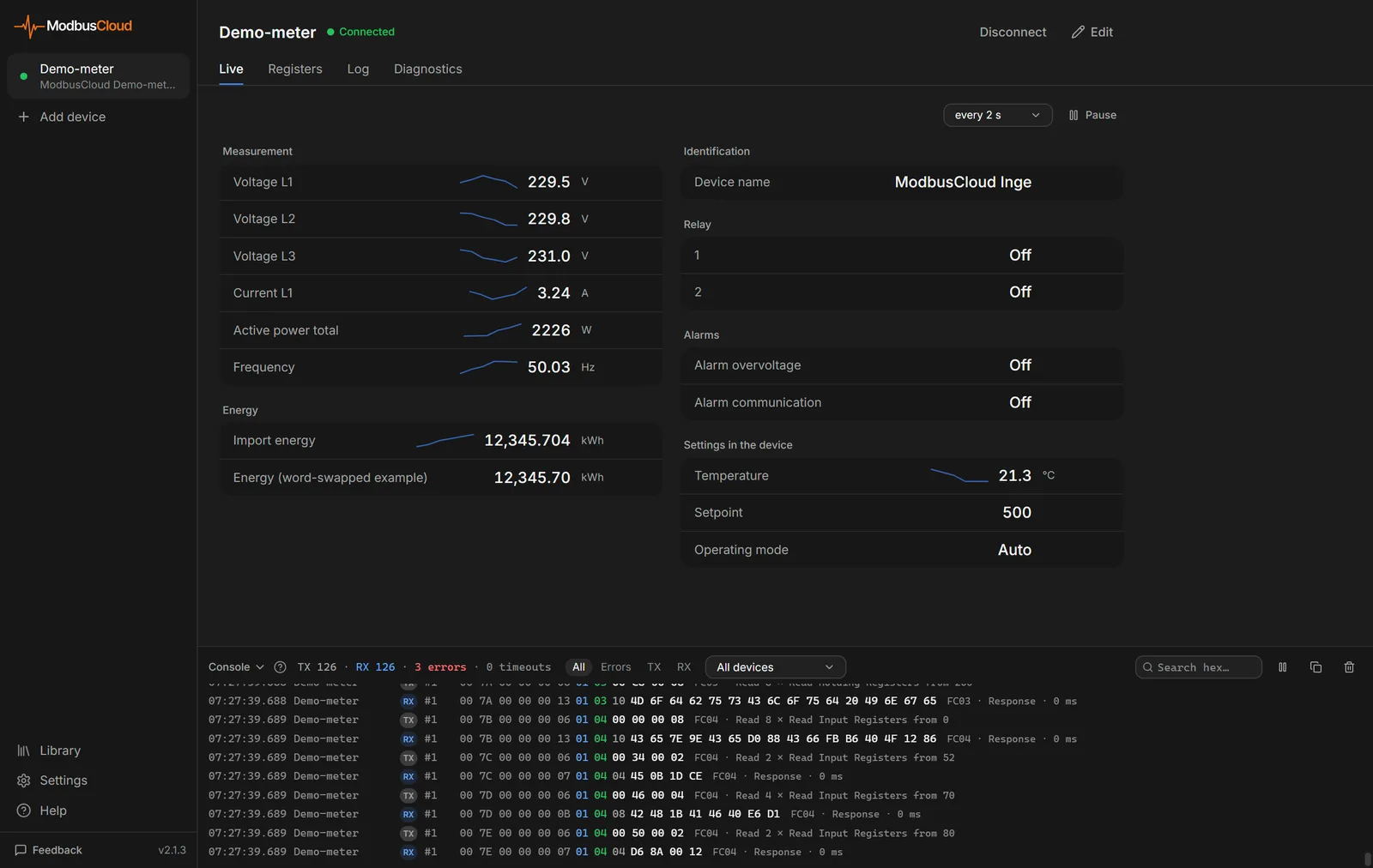
The table shows a question and an answer of an energy meter on RS485 with slave address 9. The app asks for 8 input registers from address 0.
| Part | Question (TX) | Answer (RX) |
|---|---|---|
| Slave ID | 09 | 09 |
| Function code | 04 | 04 |
| Length | not in the question | 10 (16 data bytes) |
| Data | 00 00 00 08 (start address 0, 8 registers) | 43 6D BB D0 and then 12 times 00 |
| CRC | F0 84 | EF 4B |
The first four data bytes give 237.7 V as float32, the voltage on L1. The answer came after 48 ms. On Modbus TCP, a line starts with the MBAP header and has no CRC. How an RTU frame is built is described in the course lesson The Modbus RTU frame byte by byte, plus CRC.
At the top are counters for TX, RX, errors and timeouts. All, Errors, TX and RX filter the lines, and the search field searches for bytes such as 09 04. The icons on the right pause the list (Pause), copy the lines shown as text (Copy all) and empty the list (Clear).
If a value is wrong while the Modbus device does answer, compare the data bytes with the register table in the manual. For values in the portal, see Values are wrong.
Create a report
The report summarises the state of one Modbus device, for the customer or for support.
Open the report
On the Diagnostics tab, click Report, to the right of the sentence about the connection.
Enter the location
In Site or customer, enter where the Modbus device is installed.
Add a note
If you want to record what you did, enter it in Note.
Keep the report
Click Copy text. Or click PDF or print, and the print window of your computer opens.
The report contains the connection, the Conclusion, the Checks and the version of the app. If the tab shows recent errors, they appear under Problems found. If the Modbus device is connected and has a device type, the app also reads each register once for Readings.
If you ask for help through the support page, paste the text of the report into your question. If the question is about the bytes themselves, also add the lines from Copy all.
Updated on 7 October 2026
Still stuck?
Email or call us. Include the serial number of the gateway, so we can take a look straight away.
Go to support