








All topics
On this page
A template supplies the registers of a Modbus device, with the address, data type and scale of each register, among other things. If the type is not in the library, someone has to enter those registers. ModbusCloud can do it, or you can do it yourself.
The table shows which route suits which situation.
| Route | When |
|---|---|
| Have a template created | You do not want to enter the registers yourself |
| Add registers yourself | There is one Modbus device of this type and you want to measure now |
| Create a custom template | You connect this type more often |
| Import the manual with Diagnostics | You want to take the register table from a PDF or Excel file and check it on the Modbus device first |
What you need
- The register map of the Modbus device, usually in the manufacturer's manual. How to read it is covered in the course lesson How to read a Modbus datasheet, step by step.
- The role Owner, Admin or Technician in your organisation, if you enter registers in the portal yourself. With another role, the Add Modbus device button is not there.
Search the library
A short search term finds more than a full name. The search field under Library searches what you type as one piece of text in the name, brand and category of each template. Type only the type number or part of it. If the type number contains a space or a hyphen, type it without too.
If that finds nothing, type only the brand. With a search term, the list shows at most 50 templates from the library, sorted by name. Templates that your organisation created or copied itself appear above them under Your templates.
Have a template created
ModbusCloud creates a missing template at no cost once the register data is available. The portal has no button to request a template. Email the request to support. The email address is on the support page.
Include the following.
- The brand and type of the Modbus device, as on the rating plate.
- The register map, or the manufacturer's manual that contains it.
- How the Modbus device is connected, on RS485 (Modbus RTU) or on the network (Modbus TCP).
If the manual does not contain the register map, ask the manufacturer or the supplier for it.
If you want to measure before the template is ready, add the registers yourself. A template that becomes available later does not change a Modbus device you have already added.
Add registers yourself
If there is one Modbus device of this type, add it without a template and then enter the registers.
Open the gateway
Open the gateway that the Modbus device is connected to.
Start adding
On the Overview tab, click Add Modbus device.
Choose the library
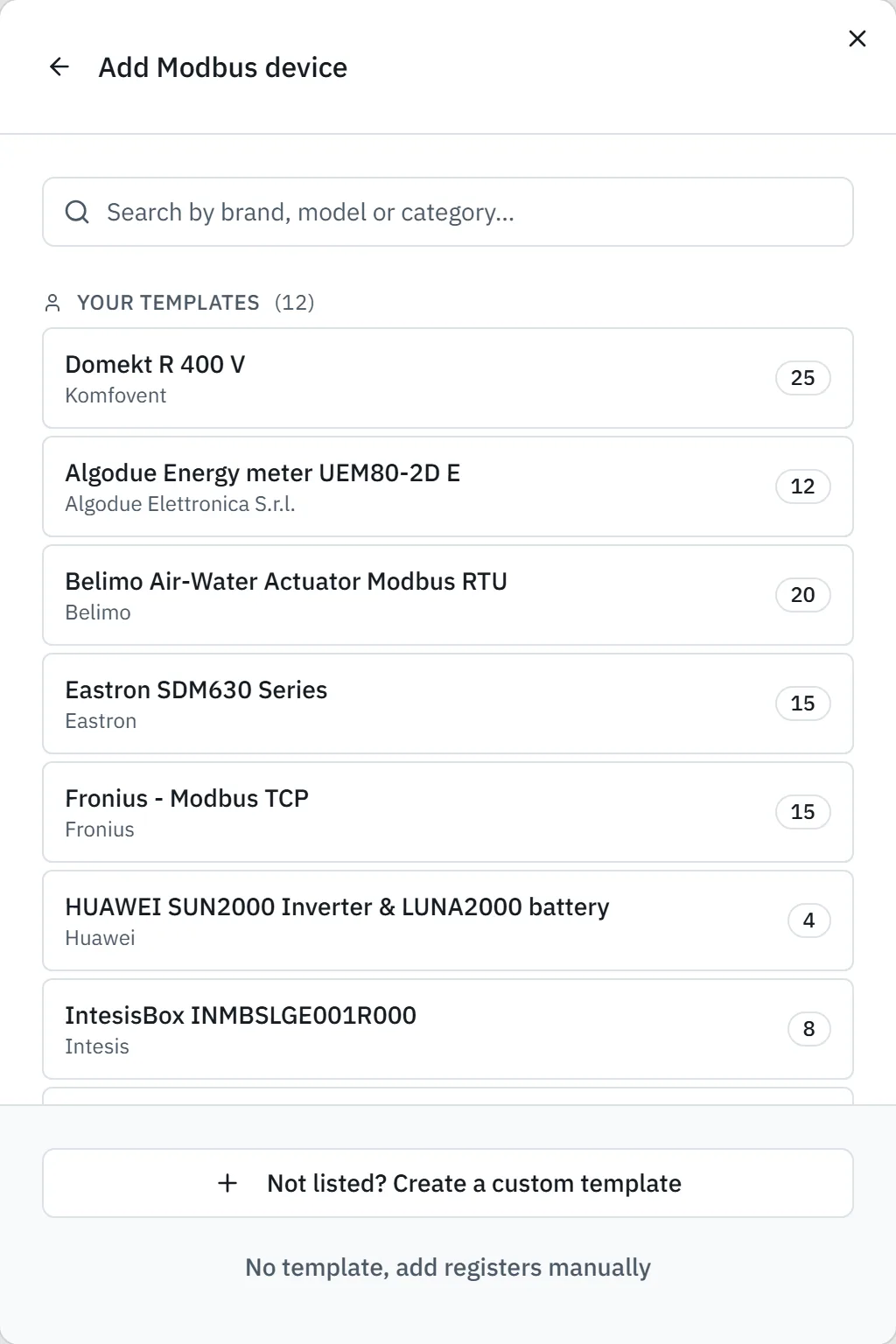
Choose Library.
Continue without a template
At the bottom, click No template, add registers manually. The Configure Modbus device window opens, without registers.
Enter the name
In Name, enter a name that your customer recognises. Without a template, the field is empty.
Set the connection
Set the protocol and the address as in Set the address and connection of a Modbus device. Protocol is set to Modbus RTU by default, and the first free address on this gateway is already filled in.
Add the Modbus device
Click Add. The portal reports Modbus device added and the Modbus device appears on the gateway page, still without registers.
Open the Modbus device
Click the card of the Modbus device. The page of the Modbus device opens, still without registers.
Add registers
For each register in the register map, click Register toevoegen (Add register). The fields you fill in are described in Set up registers.
The Adres (address) field expects the real Modbus address, which starts at 0. If the manual gives addresses such as 30001 or 40001, convert them as described in Enter a register address from the manual.
Create a custom template
A custom template records the registers once. After that, you add every Modbus device of that type with all its registers, on any gateway in your organisation.
Open template creation
In the Add Modbus device window, click the Custom template tile. If you are already in the library, click Not listed? Create a custom template at the bottom. The window closes and the Templates page opens with the Create template window.
Fill in the template
Complete the template with the brand, model and registers, as in Create a custom template.
Choose the template
When you add the Modbus device, choose your template under Library. It appears at the top under Your templates.
Import the manual with Diagnostics
ModbusCloud Diagnostics takes the register table from the manual and can check it on the Modbus device before you enter anything in the portal. The free program for Windows and macOS reads a PDF, an Excel file (.xlsx), CSV, TSV, a text file or pasted text. It does not read scanned pages.
Diagnostics saves the registers you choose as a device type of its own, which is called a template in the portal. You transfer it as a JSON file to a template in the portal. How both steps work is described in Import the manual of an unknown Modbus device.
If you check on RS485, disconnect the gateway from the bus for the time being. During the check, Diagnostics is the master itself through a USB-RS485 adapter, and two masters on one bus do not work.
Updated on 7 October 2026
Still stuck?
Email or call us. Include the serial number of the gateway, so we can take a look straight away.
Go to support