








All topics
On this page
A variable calculates with the registers of one gateway and sits on the Variables tab of the gateway page. The portal stores only the latest result, so a variable has no history. Charts, dashboards, alert rules, automations, reports and the API do not know it. They work with the registers themselves, as described in View values and charts.
What you need
- The role Owner, Admin or Technician in your organisation. A team member with Read only sees the variables, but cannot add, switch off or delete anything.
- Modbus devices on the gateway that already return values. How to add them is described in Add Modbus devices.
Add a variable
After these steps, the variable with its formula appears on the Variables tab.
Open the gateway
Open the gateway whose registers you want to use.
Choose the tab
Choose the Variables tab.
Start adding
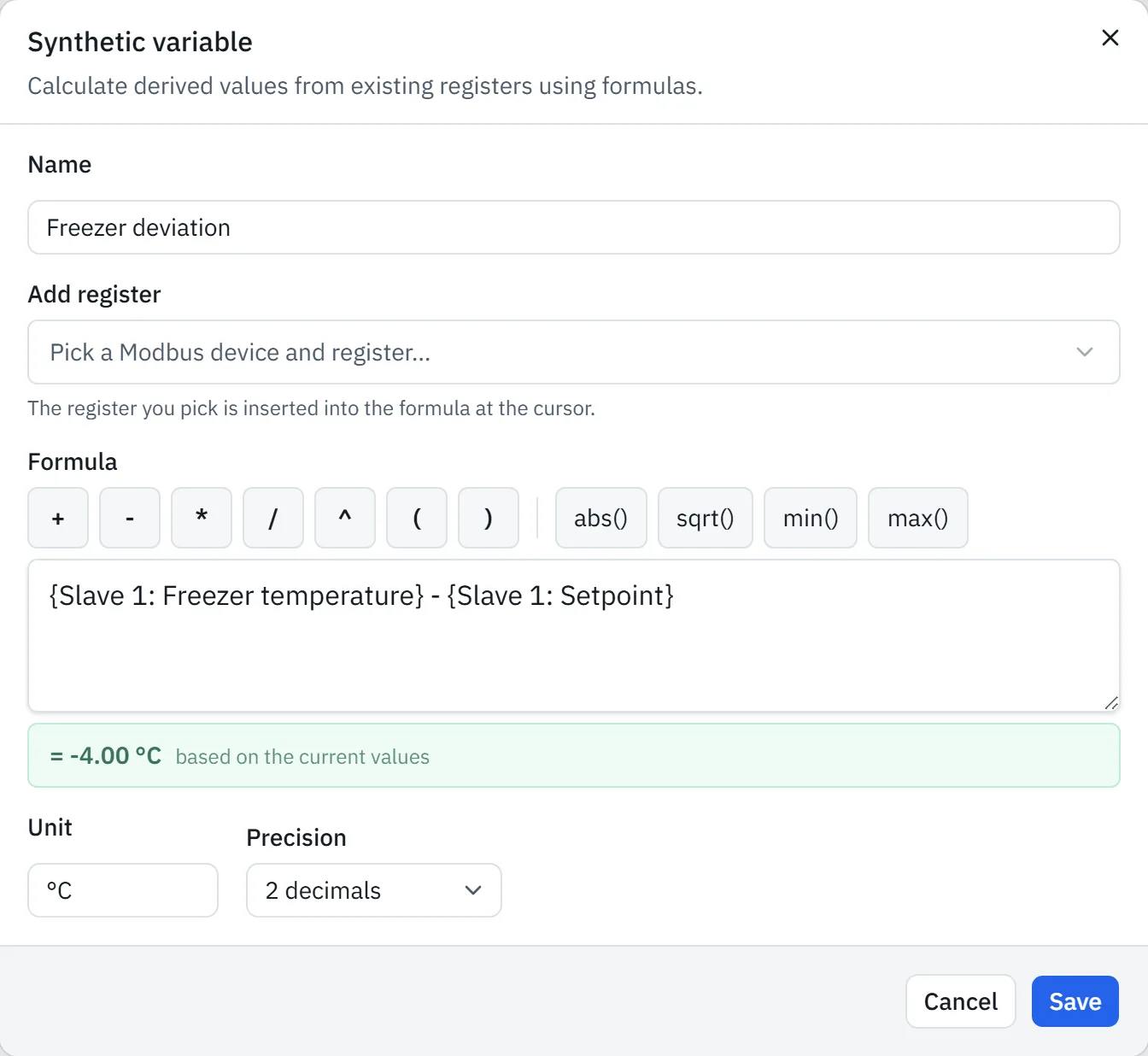
Click Add to the right of the heading Synthetic variables. The Synthetic variable window opens.
Enter the name
In Name, enter a name, such as COP heat pump.
Choose the Modbus device
Under Add register, choose the Modbus device.
Choose the register
Choose the register. The register now appears between curly brackets in Formula, at the position of the cursor.
Complete the formula
In Formula, complete the calculation as described in Build a formula. The result with the current values appears directly below the field.
Enter the unit
In Unit, enter the unit of the result, such as
kW. For a number without a unit, such as a COP, leave the field empty.Choose the decimals
In Precision, choose 0 to 3 decimals. The default is 2 decimals.
Save the variable
Click Save. The window closes and the variable appears in the list.
Build a formula
A formula calculates with registers, numbers, the operators +, -, *, / and ^, brackets and the functions abs, sqrt, min and max. The portal calculates whatever is between brackets first. The buttons above the field insert an operator, bracket or function at the position of the cursor. Hold the mouse over a button for a short explanation.
A register sits between curly brackets, with the name of the Modbus device and of the register, such as {Warmtepomp: Elektrisch vermogen}. Type a decimal number with a full stop, such as 0.5. A comma only separates the values in min and max, as in max(3, 1).
A register counts with the raw value that the gateway reads, without the factor from Schaal (x) (scale). The Overview tab does show the scaled value. If the scale is 0.1 and Overview shows 231.4 V, the formula calculates with 2314.
For a scaled register, therefore, multiply by the scale yourself, such as {Energiemeter: Spanning L1} * 0.1. Where to find the scale of a register is described in Set up registers.
The table shows four example formulas for registers with scale 1.
| Result | Formula | Unit |
|---|---|---|
| Total power of three phases | {Energiemeter: Vermogen L1} + {Energiemeter: Vermogen L2} + {Energiemeter: Vermogen L3} | W |
| Power in kW instead of W | {Energiemeter: Vermogen totaal} / 1000 | kW |
| Difference between supply and return | {Warmtepomp: Aanvoertemperatuur} - {Warmtepomp: Retourtemperatuur} | °C |
| COP of a heat pump | {Warmtepomp: Thermisch vermogen} / {Warmtepomp: Elektrisch vermogen} | none |
Messages below the formula
Save only works when there is a name and the formula with at least one register gives a result. If the calculation fails, one of these messages appears below the formula.
| Message | Cause | Solution |
|---|---|---|
| Unknown register: followed by a name | The name between curly brackets does not belong to any register of this gateway | Remove the part between curly brackets and choose the register under Add register |
| No current value yet for followed by a name | The register has no reading yet | Wait for a value from the gateway. If it stays missing, see Modbus device shows no values |
| The formula isn't valid yet | A number, operator or bracket is missing, or a comma is used as the decimal separator. A division by 0 or a root of a negative number with the current values also gives this message | Complete the formula and type decimals with a full stop. With a division by 0, you can save only when the divisor is not 0 |
View the result
The Variables tab shows the name, the unit and the latest result of each variable, with the formula below. The portal recalculates a variable as soon as the gateway sends new values. How often that happens is described in Choose the polling interval. The tab fetches the results every 30 seconds.
A new variable first appears in the list without a result. The portal picks it up within a minute and calculates it at the next message from the gateway after that.
If the portal cannot calculate a variable, the latest result stays in place. This happens, for example, with a division by 0, such as a COP while the heat pump is off. The tab does not report this and does not show when the result was calculated.
Edit or delete a variable
A saved variable has no edit button. To change the name, formula, unit or precision, delete the variable and add it again. With the switch next to a variable, you turn the calculation off and on again. While the switch is off, the latest result stays in place.
Start deleting
Click the bin icon next to the variable. The portal asks Delete?
Confirm deleting
Click Confirm. The variable disappears from the list.
Updated on 7 October 2026
Still stuck?
Email or call us. Include the serial number of the gateway, so we can take a look straight away.
Go to support